

Support our independent tech coverage. Chrome Unboxed is written by real people, for real people—not search algorithms. Join Chrome Unboxed Plus for just $2 a month to get an ad-free experience, access to our private Discord, and more. Learn more about membership here.
START FREE TRIAL (MONTHLY)START FREE TRIAL (ANNUAL)
Late last night the Chrome team pushed out the latest version of Chrome OS. The update to Chrome OS 55 was relatively minor as developers continue work to make the Chrome OS/Android environment more stable and user friendly. You can find all the ins and outs of what’s new in Chrome OS 55 here.
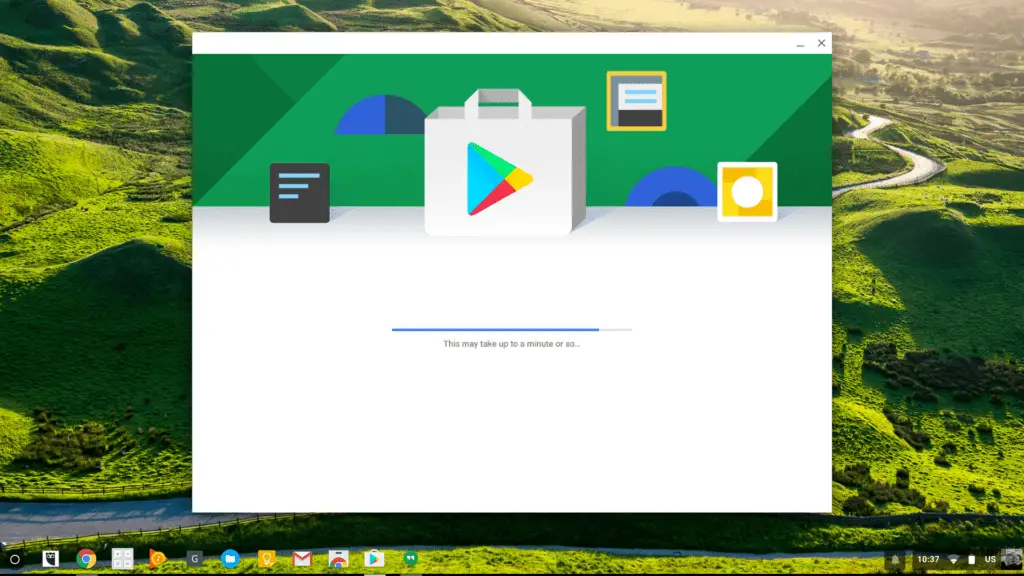
The big question for many when the update arrived was “does my Chromebook now have Android Apps?” As we expected, the answer is no. However, upon a closer inspection of Chrome OS 55, it appears that the Play Store arrived and is hiding in plain sight.
Before I get into the juicy details we need to get a few disclaimers out of the way. I promise it will only take a moment but please read before attempting to activate the Play Store on your Chrome OS device.
Caution: Modifications you make to the system are not supported by Google, may cause hardware, software or security issues and may void warranty.
The Chromium Project
What does that mean for you?
It means you forfeit any official assistance from Google, Chromium developers or the Google Product Forum. That doesn’t mean there won’t be anyone willing to help. It just means you’ve been warned of the risk and if something goes wrong it’s on YOU.
Developer mode
The steps herein involve switching your device to developer mode (not Developer channel). To learn more about developer mode and how to enable it check out Robby’s video below on installing Ubuntu. YOU DO NOT NEED UBUNTU but the video will walk you through entering developer mode. At approximately 1 minute 35 seconds you will find the steps.
Arc version
This term may be foreign to some but essentially Arc is the container that handles Android apps on Chrome OS devices. If you don’t have it, you don’t have the Play Store. It’s that simple. Under your settings menu click the About Chrome OS button and take a look. If you have an Arc version it will look something like this.

At this point I should point out, if you do not have the latest version of Chrome OS 55 you need to back up and start there. Click the “Check for and apply updates” button and in a few minutes you’ll be good-to-go.
The Arc version number is of no consequence. If you have it you’re ready for the next step. If not, sorry you’re just going to have to wait for the official roll out. Additionally, having an Arc version on your device does not guarantee this method will work.
Crosh commands
This step requires inputting a few commands into the crosh terminal. If you’re not familiar with crosh it’s ok. For this process you need only copy and paste a couple lines and you’re all set. With that being said, I would not recommend playing around with the crosh terminal without doing a little homework first.
Ok, here we go.
- Open a Crosh tab (CTRL+ALT+T), type ‘shell’ (no parenthesis) at the pompt and hit enter.
- Enter the code below exactly as it is written and hit enter after each line:
sudo sucp /etc/chrome_dev.conf /usr/local/mount --bind /usr/local/chrome_dev.conf /etc/chrome_dev.confecho "--enable-arc " >> /etc/chrome_dev.conf
There you go. As long as the last three lines didn’t return any error messages you’re all set. Close the crosh tab. You will receive a notification about changes not being saved. No worries, go ahead and click leave.
Now you will log out of your device. DO NOT POWER DOWN YOUR CHROMEBOOK! Just sign out and sign back in. From this point forward if you power down your device you will have to open crosh and enter the last two commands again.
Once you’ve logged back in you should see an additional Play Store icon labeled (Beta). While we’re on that subject, I see a lot of posts on social media stating “my Chromebook has the Play Store, why can’t I get apps?” Chromebooks have had the Play Store app for quite some time. It looks like this.
That is not the Arc version of the Play Store. That is literally a link to the Google Play website. The new, Beta Play Store icon looks like this.
If you don’t see the beta icon don’t fret. You may still be able to enable it in your settings menu. Just click on settings and scroll down a little until you see your personal settings and gravatar. If you have the Play Store it will look a little like this.
Now, if you don’t see Google Play Store (beta) I am sorry to say you are out of options. You, like many, will just have to wait a little longer until the developers are ready for an official launch.
If you have found the Play Store on your Chromebook just click on that bad boy, login and start enjoying some really awesome new additions to your desktop. Keep in mind, this is still in beta. It can be buggy. We have seen multiple issues with different applications and some that won’t work at all. But, have fun playing around and let us know what you think.
What apps are you most excited to use on your Chrome OS device? Drop a comment below.

