

Support our independent tech coverage. Chrome Unboxed is written by real people, for real people—not search algorithms. Join Chrome Unboxed Plus for just $2 a month to get an ad-free experience, access to our private Discord, and more. Learn more about membership here.
START FREE TRIAL (MONTHLY)START FREE TRIAL (ANNUAL)
We’ve spent some time talking about Chromeboxes lately because they make great work or at-home desktops without breaking the bank. Apart from that, the Chrome OS mini-PCs are easily upgraded and take up very little space when compared to a tower PC. While our “Ultimate Desk Setup” took things to the other end of the budget spectrum, general consumers can build a very capable Chrome OS desktop station for around five hundred dollars or even less if you’re extra thrifty. If you’re new to the Chrome OS space and you’re looking for some good accessories to go with your new Chromebox, I’ve put together a list of essentials to get you up and running for very little dough.
Monitor
If you’re setting up a Chromebox for the first time and you don’t have a desktop setup already, there are some must-haves before you can enjoy your new mini-PC. Some companies, such as CTL, sell preconfigured Chromebox packages that include a monitor. You’ll get a display and all the necessary hardware to mount your Chromebox to the back of the monitor if you prefer to keep your desktop lean and clutter-free. You can pick up a pre-built or customized Celeron Chromebox with a 24″ IPS for as little as $465. CTL includes a wired keyboard/mouse combo and the display has integrated speakers. With this setup, you have everything you need to complete your Chrome OS set up with very little assembly required. This is probably the least expensive way to get a full Chrome OS desk setup with hardware that doesn’t stink and CTL offers optional upgrades for your Chromebox that are very cost-effective.

CTL Chromebox/24″ Monitor bundle
The only real drawback of the preconfigured bundle from CTL is that the monitor is a modest 250 nits. That’s not bad but it isn’t great in overly lit environments. My HP is 27f is 300 nits and I really wouldn’t want anything with less brightness. If you’re looking for a decent display at an affordable price, I just uncovered a pretty sweet deal on a 27″ model from GIGABYTE that offers up some very nice extras. For starters, it is a 300 nit monitor and as I mentioned, that’s probably the bottom of the bar for me. In most naturally lit environments, you’ll be able to see your display clearly. Two things that stand out about the GIGABYTE that has me a bit jealous when I look at my current monitor – 1.) It has an adjustable height option. 2.) It has a 144Hz refresh rate with an advertised 1ms response time. Not a big deal for my day job but it would be nice to have for free-time gaming.
The GIGABYTE also has a very useful feature known as a KVM switch. If you have other devices such as a Windows PC, the KVM switch allows you to toggle between computers with just a keyboard command. Very useful if you’re switching back and forth between devices. The 27″ monitor is Full HD and gives you a 130% sRGB Color Gamut. The GIGABYTE monitor features an ample amount of ports as well with 1x Display Port, 2x HDMI, 2 x USB 3.0, 1 x USB-C and an audio jack. The only thing missing from this display is audio output. Don’t worry. We’ll get to that in a second. The GIGABYTE retails for $260 but you can grab one at Best Buy right now for only $199 which is less than I paid for my HP.
GIGABYTE 27″ IPS FHD FreeSync Monitor with KVM
Speaker
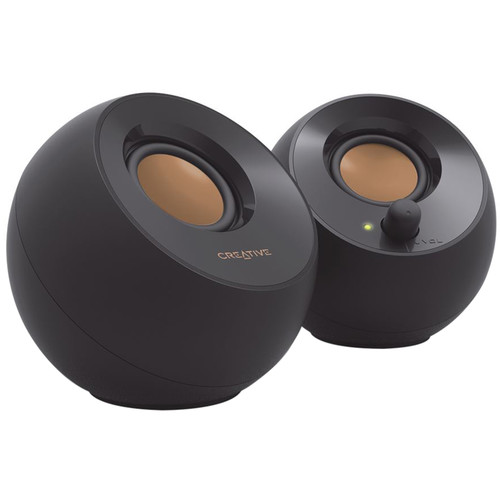
PC speakers are a dime a dozen and honestly, you could just set up your favorite Google Assistant speaker or display or just grab a cheap Bluetooth model from your local superstore. Still, a good desk setup should have its own dedicated audio equipment. If you like to keep your desk tidy, Creative Labs has an inexpensive option to get you going. The Creative Labs Creative Pebble comes with a pair of 4.4″ “pebble” speakers that are wisely angled upward to get the best audio experience. The best part? You can pick up a pair in black or white for only $19.99 at BH Photo. I haven’t reviewed these at the time of this publication but I have some on the way and I’ll let you know what I think. They are from Creative so I suspect the audio quality to be above average and hey, for $20 they’re a steal.
Creative Pebble Speakers at BH Photo
Keyboard and Mouse
Last but not least, you’ll need some input devices for your new Chromebox. We have, and likely always will recommend Logitech devices. Yes, there are more Chrome OS-specific accessories coming out every day but Logitech utilizes its Unifying Receiver USB dongle that allows you to pair all of your Logitech devices with a single USB device while keeping your other ports free. I love it because I can quickly switch between mice, keyboards, and even a Logitech trackpad without any cables or repeated pairing. You can put the USB dongle in one of the rear ports on the Chromebox, download the Unifying Reciever Chrome extension, and pair all of your Logitech peripherals in one fell swoop. If you want to switch from a mouse to your favorite trackball, just turn off the mouse and switch on the latter. Easy, peasy. I use the MX Ergo Advanced on the daily but it runs $99 and that doesn’t lend itself well to a budget-friendly desktop. Practically any Logitech mouse will work with Chrome OS but the Logitech Pebble is a small, inexpensive option that is officially part of the Works with Chromebook platform. The Pebble comes in a variety of colors and will run you a mere $29.99. On a good day, you can find it at Best Buy for $24.99.
I have almost as many keyboards as I do earbuds around the office. I used a mechanical RGB keyboard for a long time and a variety of wireless clickers have crossed my desk over the past few years. Dell’s wireless Chrome OS keyboard was my go-to for a bit but I found the center of the device to be a bit too flexible and it made the typing experience a tad awkward for me. If you’re a light typer, it should be just found. That said, I found myself once again returning to Logitech. The company’s K580 designed specifically for Chrome OS has become my daily driver and there’s very little to dislike about this keyboard. The travel is great. It has an Assistant button and there’s even a little tray at the top for your phone or a small tablet if you’re into that. It pairs with the Unifying Receiver like my other Logitech devices and it only costs $49.99. It also features a handy switch key that allows you to keep it paired with two devices at one time.
Bonus: Photographer Add-on
If you’re a photo buff, you probably have a collection of full-sized SD cards lying about. If you buy a new Chromebook, regardless of the manufacturer, it will have a MicroSD card slot and you will need a dock or adapter to transfer your photos. I have carried the OWC USB-C travel dock on my back for more than three years and it is my go-to for any type of quick docking or data transfer that I need to do. It plugs in via an in-built USB-C cable and features a full-sized SD card reader, USB-C port, 2 x USB-A ports, and a full-sized HDMI port. It is perfect if you need to hook your Chromebook up to an external monitor in a pinch and it makes a great desktop companion. For all its helpful features, the second-gen USB-C OWC dock is only $54.99. We have three or four around here and they are worth every penny.
Chromebox
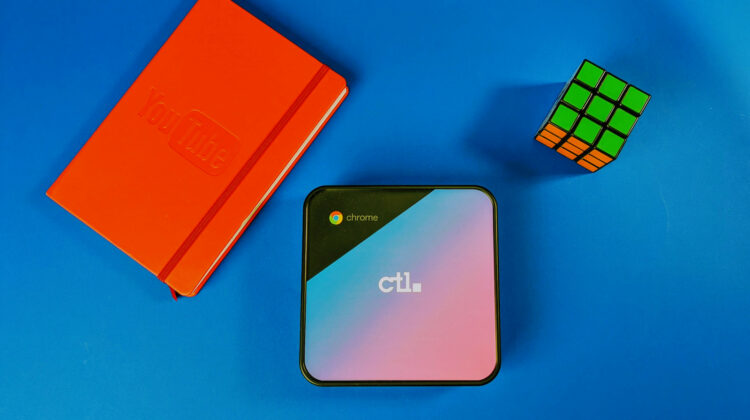
If you are still looking for the right Chromebox, we recommend checking out CTL. The Oregon-based company makes 10th Gen Chromeboxes that are less expensive than models from the major OEMS but you get the exact same features and CTL offers upgrade for RAM and storage and they’ll even slap on a custom paint job for $10 so you can make your new device uniquely your own. Check out the Chromebox options from CTL below.
SUBSCRIBE TO UPSTREAM
Get Chrome Unboxed delivered straight to your inbox
Upstream is our flagship, curated newsletter with the top stories, most click-worthy deals, giveaways, and trending articles from Chrome Unboxed sent directly to your inbox a few times a week. Join 31,000+ subscribers.

