
Support our independent tech coverage. Chrome Unboxed is written by real people, for real people—not search algorithms. Join Chrome Unboxed Plus for just $2 a month to get an ad-free experience, access to our private Discord, and more. Learn more about membership here.
START FREE TRIAL (MONTHLY)START FREE TRIAL (ANNUAL)
In general, Chrome OS is a plug-and-play situation when it comes to external accessories. Monitors, keyboards, mice, trackpads, USB drive, etc. all tend to ‘just work’ when you plug them in. No drivers to install and no setup really needed. With Chrome OS, it either works or it doesn’t. That applies to everything except 4K monitors, and if you don’t know exactly what it is you’re getting into, you could be left with a bad taste in your mouth.
When we talk about 4K, there are a few things you need to understand. First, we’re talking about a ton of pixels. 4K or UHD is the exact equivilant of four 1080p screens all crammed into one. This gives you nice, sharp displays on much larger screens, but it also proves taxing on all sorts of hardware. Windows, Mac OS and Chrome OS all fall victim to battery drain and a bit of a software slowdown when 4K is being utilized versus the same equipment only pushing 1080p FHD.
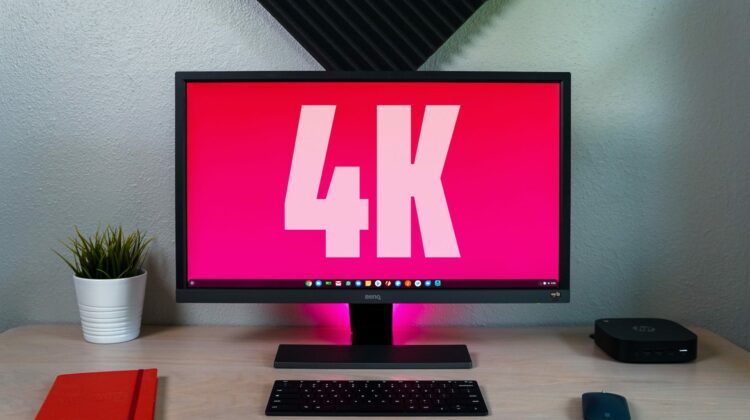
If you know that going in, the performance hits are manageable, but with Chrome OS, there are a few other things you need to know about actually hooking up the monitor to your device that unfortunately aren’t really laid out plainly anywhere else. For us, we got our hands on BenQ’s entry-level 4K monitor and were excited to just plug in and go. What we found were a few interesting speed bumps along the way that needed proper solutions to navigate, so we’ll share our findings with you in hopes that you can get up and running quickly with your 4K display.
First up is the cable needed to get the most out of your display. HDMI for all its goodness is still insanely hit-or-miss when it comes to 4K. Sure, the picture gets to your screen just fine with the standard HDMI cable, but you’ll notice something right off the bat that you likely never considered: framerate. When we shop for televisions, we see things like 60Hz, 120Hz, 240Hz and so on and most people generally agree that more is better. Truth be told, most things on your TV never need more than 30Hz (or 30 frames per second), but games and sporting events can definitely benefit from at least 120Hz.
For laptops and desktops and phones and tablets, however, we’ve become very accustom to at least 60Hz all the time. Some devices like the Razer phone, OnePlus 7 Pro and iPad Pro have screens that do much higher frame rates. Regardless of your device, however, we’ve simply become used to seeing 60Hz on the screen. When you move your mouse pointer right now, there is a certain smoothness you expect whether you know it or not, and when it drops to 30Hz, you will most definitely notice. When window animations and the entire OS moves at 30Hz, it is a tad bit jarring, janky and off-putting. For me, it was enough to start digging around for a way to make it stop.
So, what is the issue? Well, with every single HDMI dongle, converter and cable I tried, I simply could not get over 4K30 (that’s 30Hz) with any configuration. I began to think this was a limit of Chrome OS in general, but I saw the same from Windows machines as well. My saving grace? DisplayPort. DisplayPort – at least on Chrome OS – can handle 4K60 (60Hz) just fine. Assuming your device is powerful enough for 4K (not every baseboard/processor is), you’ll still need the right cable.
Once you get said DisplayPort (DP from here on out) cable, where do you plug it in? If you are extending a Chromebook, there is not a single one with Display Port save one: the original Chromebook Pixel. There are a few older-gen Chromeboxes with DP, but all modern devices output DP over USB Type C. In order to make this work, you’ll need a dongle. There are quite a few, but we’ll leave a link to the one that worked great for us.
Get The Cable Matters DP Dock on Amazon
So, now you have a device that is powerful enough for 4K, you have the proper cable, and you have a converter. You can now hook up to that nice, new 4K monitor and get your 4K60 output, but you’ll quickly notice something not quite right about your display.
Everything is tiny!
Remember that bit about lots of pixels just a few minutes ago? The thing is, when you condense all those pixels down into what I’m imagining is a 20-40-inch screen, you get very high pixel density. When Chrome OS first launches in this environment, it will do so at native resolution. Luckily, Chrome OS has fantastic scaling ability. If you’ve never used it, now is the time to try it out. Just go to settings -> displays -> display size and begin adjusting to your heart’s content. Generally between 125% and 200% will be the sweet spot. You want to move it into a position that doesn’t strain your eyes but also allows you to keep some of that extra screen real estate given to you by all those 4K pixels.
(Fun tip: you can use CTRL + SHIFT + +/- to quickly jump between display scaling settings without ever visiting your settings menu.)
There you go! That’s all you need to know if you are considering moving ahead into the land of 4K with your Chrome OS device. There are truly benefits to 4K (mainly the resolution sharpness at large sizes) and certain users are going to find great utility in leveraging such a monitor. We sincerely hope that this quick guide can help you get up and running a bit faster than we did when we first ventured into this new display territory!

