

Support our independent tech coverage. Chrome Unboxed is written by real people, for real people—not search algorithms. Join Chrome Unboxed Plus for just $2 a month to get an ad-free experience, access to our private Discord, and more. Learn more about membership here.
START FREE TRIAL (MONTHLY)START FREE TRIAL (ANNUAL)
In the Stable Channel of ChromeOS 120 right now, there’s a setting hiding behind a single flag that – when enabled – gives you a battery life super power on demand that can drastically increase your Chromebooks longevity. Getting it enabled is easy, and after you have this in place, you can leave the house with more confidence on days you know charging may not be in the cards.
ChromeOS Battery Saver
We’ve talked about Battery Saver before, but here’s a quick reminder if you forgot that it exists. As a feature for ChromeOS (a bit more robust than the Chrome Browser’s Energy Saver), Battery Saver does exactly what you’d expect: it extends your battery by limiting screen brightness, background tasks, and animations while simultaneously enabling Chrome’s Energy Saver.
It’s a robust set of limitations that get kicked into gear when your battery gets low, and I’ve had a few experiences while traveling when ChromeOS’ Battery Saver helped me get through a few timely tasks when getting to a charger simply wasn’t possible for me at the time. But Battery Saver is auto-enabled on low battery only right now and there’s no way to manually force it on. But what if there was?
This is Battery Saver on demand
With the Enable ChromeOS Battery Saver Mode Support flag turned on, you get access to the Battery Saver feature whenever and wherever you’d like using it. Simply head to chrome://#cros-battery-saver, turn on the flag, restart, and in your Chromebook’s power settings (just search “power” in the settings app), you’ll now have the option to enable Battery Saver for yourself.
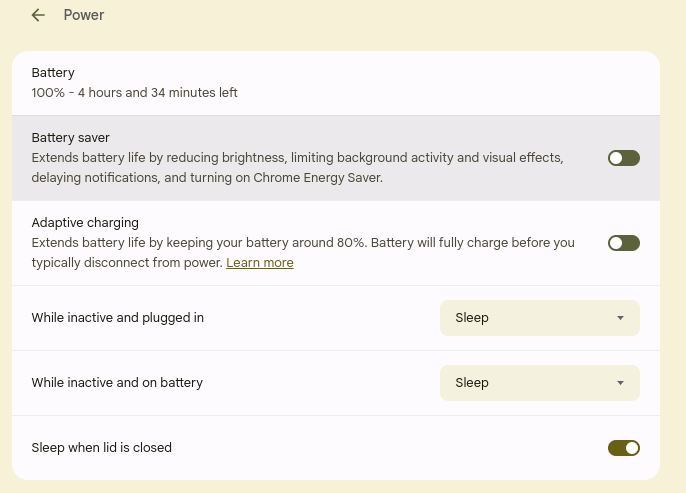
Turning this on is the exact same as it happening when you dip down to a very low battery, but you now have the ability to go into this power-sipping mode at will, and that is important. Imagine leaving the house to travel and knowing your schedule won’t really allow for a charging session during the day. While most Chromebooks can likely get you through, if it is a heavy work day and the hours get long, you’d likely not make it through on a single charge.
But what if you could turn on Battery Saver right away and do all your work with it enabled from the start? Imagine how much longer your battery could last with all these mitigations in place. Will the performance be a bit less than you’d like? Sure. Will the slightly-choppy animations not look as nice and smooth as you are used to? Totally, but you know what? You’ll get your stuff done and likely have some juice in the tank afterwards.
This is a handy feature I think Google should roll out immediately without a flag necessary. While most days you won’t need it, the days that you do, it could be a real game changer. For now, if this sounds like something that could help you out, just follow the steps above, turn on that Battery Saver in the morning, and you should be good to go all day on your Chromebook’s battery.
SUBSCRIBE TO UPSTREAM
Get Chrome Unboxed delivered straight to your inbox
Upstream is our flagship, curated newsletter with the top stories, most click-worthy deals, giveaways, and trending articles from Chrome Unboxed sent directly to your inbox a few times a week. Join 31,000+ subscribers.

