

Support our independent tech coverage. Chrome Unboxed is written by real people, for real people—not search algorithms. Join Chrome Unboxed Plus for just $2 a month to get an ad-free experience, access to our private Discord, and more. Learn more about membership here.
START FREE TRIAL (MONTHLY)START FREE TRIAL (ANNUAL)
The new Chromecast with Google TV has been very well received by users across the board. With glowing reviews by us and other media outlets, this $49 streaming dongle could easily be considered Google’s biggest hardware triumph of 2020. Most of that praise is simply due to the new Chromecast showing up with a dedicated remote and on-screen UI that makes consuming content both easier and more accessible for a much wider swath of users.
But that doesn’t mean there are users without lingering questions. One of those questions comes down to how we can go about adding applications to the new Chromecast if they aren’t explicitly in the Play Store and listed as compatible with the version of Android TV that is running on the popular streaming dongle. The answer isn’t too complex, honestly, and we wanted to create a quick guide on how users can go about adding unsupported applications to their new Chromecast without the need of wires, dongles, or docks. This method is fully wireless, pretty simple, and won’t take you too long.
Find your .apk file and put it in Google Drive
First and foremost, you need the app you want to sideload. Android apps are called APKs and you’ll need to have that file on-hand before you dive into this process. Not all APK download sites are alike and we’d highly recommend APK Mirror if you are looking to try out an app that isn’t in the Play Store for the new Chromecast. You can simply search Google for the name of the app and throw in the words ‘APK Mirror’ or you can go directly to their site and search from there. Either way, find the app you want, download that APK, and put it in your Google Drive in a place you can find it. A folder of some sort will make this simpler.
Install a file manager
You new Chromecast doesn’t come equipped with a proper file browser, so you’ll need to get one. There are quite a few and I tested multiple that work for this use case, but the one that was easiest to get around and works each and every time for me is File Commander. Simply hold the Assistant button on the Chromecast remote, say “install File Commander from the Play Store,” and you’ll be presented with the app install screen. Get that installed and then we’re on to the next step.
Enter Developer Mode
Don’t let this scare you. It is not only easy, but it is also not really putting you into some alternate mode on your Chromecast. Instead, you are simply unlocking an additional menu where you can make some more-advanced changes to the underlying functionality of Android TV. We’re only going to change one thing, so being in developer mode won’t really affect your day-to-day operation at all. In fact, after you’ve sideloaded the apps you want, you can simply turn developer options off if it makes you feel more comfortable.
Anyway, to get into this developer mode, you simply need to go to your Chromecast settings > about > Android TV OS build and click the center button on your remote while you have the build number highlighted. After a handful of clicks, you’ll see a countdown and then a message that says “You are now a developer!” That’s it!
Allow installation from unknown sources
Next, we’re going to stay in the settings menu and head to the Apps > Security & Restrictions > Unknown sources and flip the switch that will allow File Commander to install apps from unknown sources. Again, you can turn all of this off at the end of this whole process (after you have what you want installed) if this makes you feel unsecured. This change is simply allowing your file manager to stage and install an app you will choose from Google Drive in the next step.
Install your chosen app
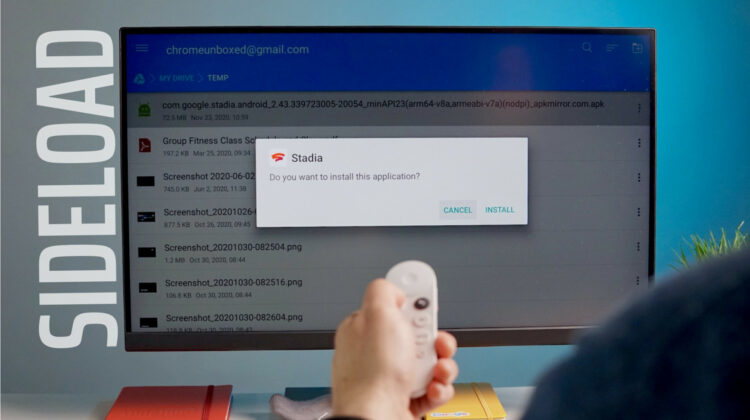
Now, head back home, go under your applications, and open up File Commander. Head to your Google Drive account and navigate to the folder you placed your APK file into. Navigate to that APK file, click the center button to select it, and you will see the application begin staging and then ask if you want to install the app. Click yes and then sit back and let the app install. After it is completed, you will be asked if you want to open the app or just be done with the process. Either is fine, here, and both result in your new applications now being installed on your Chromecast. Look under your apps section and you should see it there the next time you need it.
We certainly hope this helps some of you with your new Chromecast to get that one app you were hoping for onto your new device. While there are plenty apps that don’t quite work correctly on Android TV, there are quite a few that function just fine and simply don’t show up in the Play Store for the new Chromecast. We’ve found this technique to the be easiest way to try out some apps on the new Chromecast and hope that it’s been helpful to you, too!
SUBSCRIBE TO UPSTREAM
Get Chrome Unboxed delivered straight to your inbox
Upstream is our flagship, curated newsletter with the top stories, most click-worthy deals, giveaways, and trending articles from Chrome Unboxed sent directly to your inbox a few times a week. Join 31,000+ subscribers.

