

Support our independent tech coverage. Chrome Unboxed is written by real people, for real people—not search algorithms. Join Chrome Unboxed Plus for just $2 a month to get an ad-free experience, access to our private Discord, and more. Learn more about membership here.
START FREE TRIAL (MONTHLY)START FREE TRIAL (ANNUAL)
 As Chromecasts become more and more prevalent in both home and office environments, some of the finer points simply get missed and the lesser-known options are simply forgotten.
Today, we’re going to talk about the options available to users in regard to background images.
Out of the box, your Chromecast comes with a few of these options turned on, but the things you can add can give you a more customized experience.
All of these additions can be accessed via the Home app on your phone (which needs to be on the same network as the Chromecast you are adjusting) by clicking the devices button in the upper right-hand corner. From there, select the connected Chromecast you’d like to adjust, click the 3-dot menu > Backdrop Settings.
From there, you’ll be met with all sorts of things to turn on or turn off, and we’ll talk through some of them.
Here’s the full list of things you can choose from:
- Google Photos Albums
- Facebook Albums
- Flickr Albums
- Play Newsstand
- Weather
- Art
- Satellite Images
- Featured Photos
Custom Albums
As you can see, there’s a lot to choose from. Google, Facebook and Flickr integrations are just like they sound. You’ll need to link up the Facebook or Flickr (Google Photos will access the account you’ve used to set up the Chromecast), but once you’ve done that, you can select multiple albums to display as your Chromecast backdrop.
You’ll want to get your albums situated before doing this. Most of us don’t have curated albums meant for very public display. Going and creating an album specifically for this is recommended. Name it something you can find easily from the Home app and you’ll be up and running in no time.
News Feeds
Google Play Newsstand makes an appearance here as well. Again, your customized content will be showing, so keep that in mind. Basically, if you go to the Google Newsstand Web App and set up your feed (again, use the account you are using to set up the Chromecast), that feed will show up on your Chromecast, mixed in with whatever other content (images, etc.) you’ve also selected.
This option makes great sense in office environments, but do be mindful of who and what you follow if you are keeping this displayed in a very public place.

Random Photos
Perhaps you don’t have a bunch of pics you want to share or you aren’t interested in news stuff on your backdrop all the time. The good news is, there are a few great sources of wallpapers available.
First up, we have the Art category, and it is exactly what it sounds like: art from museums and galleries from around the world. You get a few settings, getting to choose between the Google Open Gallery, Google Cultural Institute, or Street Art.
The Google Open Gallery is great art from museums and galleries around the world. The Google Cultural Institute is a more diverse collection that includes exhibitions. And the Street Art category is, well, street art from around the world.
Second, we have Satellite Images from Google Maps and NASA. You may choose both or either and get all the crazy top-down views of our world that you can stand.
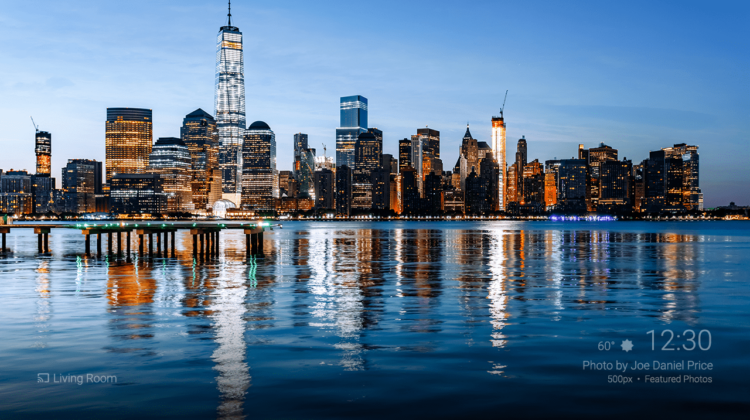
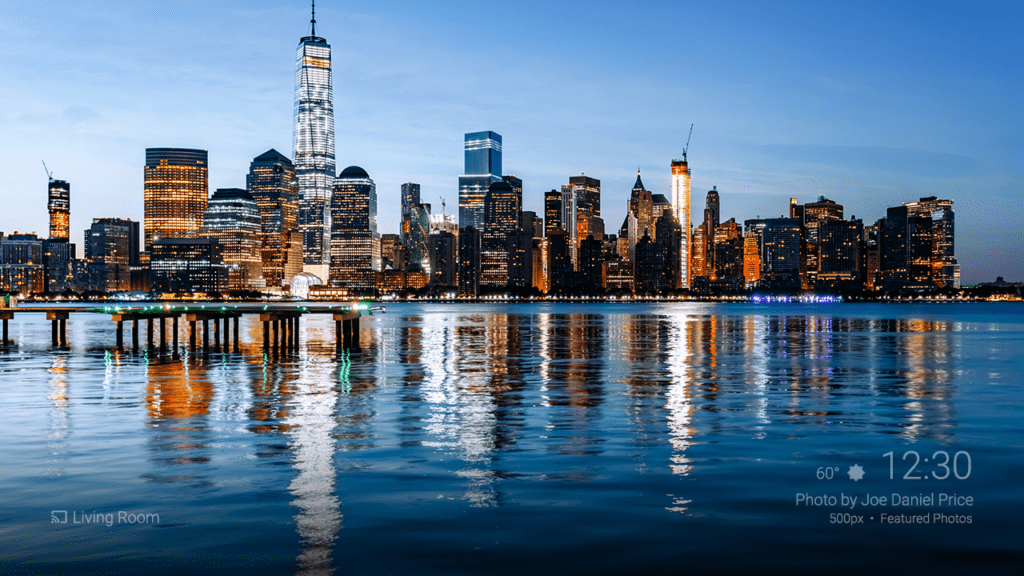
Last is Featured Photos. This category gives you the option of pulling in pics from Google+, 500px and Getty Images. These are simply collections of really fantastic photography. From urban scenes to landscapes, this category is one of my favorites to throw up on the screen.
Don’t Forget Weather
Additionally, you are given the option to have a persistent weather widget on the screen. While the options here are limited to Fahrenheit or Celsius, the inclusion of time and weather at a glance on the most eye-catching screen in the room is a great addition and worthy feature.
Lot’s of Choices
So, there you have it. You have no reason to leave your Chromecast background set to a stale and boring few items. From art to weather to personal pics to professional photography, take a few minutes and make your Chromecast your own. Every time you look up and see a great photo, a loved one, or timely headline, you’ll be glad you did.

