

Support our independent tech coverage. Chrome Unboxed is written by real people, for real people—not search algorithms. Join Chrome Unboxed Plus for just $2 a month to get an ad-free experience, access to our private Discord, and more. Learn more about membership here.
START FREE TRIAL (MONTHLY)START FREE TRIAL (ANNUAL)
I’m back at it! I spent the better part of yesterday morning tinkering with virtual machines and the Linux container on my Chromebook to see was sort of shenanigans I could get myself into. Somewhere along the way, I decided to fiddle with MS-DOS. More on that later. Along the way, I discovered a nifty little app that I had never heard of until this week. Just to be clear, this application is not new. In fact, it’s been around for nearly two decades and its sole purpose is to emulate DOS in an x86 environment.
DOSBox
Unbeknownst to me at the time, DOSBox is a very popular emulator that not only allows users to play old school DOS games on a variety of platforms but the tech has also been adapted to run thousands of archived PC games right in your browser. As you can probably presume, there is a Linux version of DOSBox and it just happens to be available in the Debian repository. For that reason, you can install it on any Chromebook that supports Linux applications. First, we’ll install DOSBox. After that, I’ll show you a couple of tricks to make using the DOS emulator a little more user-friendly. To install DOSBox, you will first need to make sure your device is set up and ready to use Linux. Find out more about how to do that in this Command Line article. Done? Great. Now we can install DOSBox. Open your Linux terminal and type or paste the following command.
sudo apt install dosboxThere you go. You’re all set. You can now launch DOSBox from the terminal by just typing or you can open it with the app icon that is now in your app launcher. I’m sure you’re now wondering what you can actually do with DOSBox. Don’t worry. We’ll get to that next. As I mentioned above, DOSBox has been reworked to bring countless older video games directly to the web by allowing users to play in the browser. Chances are decent that, if you are looking for one of your favorite childhood games, it’s available in a browser-based version. Sites such as playclassic.games use this very technology to run games like Oregon Trail, DOOM, and Civilization I&II.
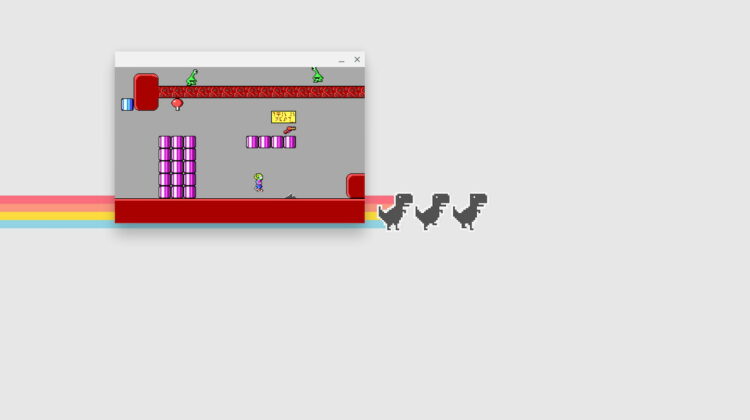
Anyway, you can use DOSBox to do the very same thing locally on your Chromebook. Here’s how to get your favorite MS-DOS games on Chrome OS using DOSBox. First, we will need a game to play. For many DOS games, you can download the .exe file and run the game directly from that file. Other games, like the example we’re using, has an installation file. That file will create the .exe file that will launch the game. In honor of all the Intel Gemini Lake Chromebooks out there, we will be installing the cult classic Commander Keen. If you have no clue what I’m talking about, most Chromebook code names and baseboards are named after video game or animated characters. The original Google Cr-48 is code-named Mario. More recent devices powered by Intel’s Gemini Lake processors are named after characters from ID Software’s Commander Keen series of video games.
Okay, moving on. You can download Commander Keen here. This will be a Zip file. Right-click it and unzip the folder with whatever zip/unzip app you use on your Chromebook. If you double-click it, the folder should expand itself. Open the new folder and select all of the files inside. Drag those files into your Linux folder. We’re now ready to run the install.exe file using DOSBox. Open DOSBox and you will notice that it looks a lot like the Linux terminal. To access the folder that houses the Commander Keen files, we will need to give DOSBox access. Do this by using the “mount” command in the DOSBox terminal. To gain access to the entire Linux folder, use the following command in the DOSBox terminal. (Note: This is the DOSBox terminal, not the Chrome OS Linux terminal. It should default to a Z:\> prompt. )
mount C ~
You can now switch to your Linux folder by typing C: at the Z prompt and hitting enter. Now you can see everything in your Linux folder using the command dir. To get a snapshot of the folder where you can see all of the files, use the command dir/w. To run the installer for Commander Keen, just type install at the C: prompt and hit enter. (Keen in mind, if you download multiple installers for different games, you’ll want to rename them with unique filenames. The install will now run and create a new subfolder for the Commander Keen game. The .exe file, however, will be placed in your Linux folder. For this installation, the executable should be named keen1.exe. At the C: prompt, type keen1, hit enter and the game will launch.
You can’t make all games go fullscreen but you can make the DOSBox screen do so by hitting “Alt + Enter” and this works to return to the normal display size as well. If you attempt to run a game and get the error code this program cannot be run in dos mode, you have a game that was designed for Windows or perhaps isn’t compatible with DOSBox. I successfully installed Oregon Trail, Commander Keen 1, and A Nightmare on Elm Street. You can find a relatively exhaustive list of DOSBox-compatible games on the wiki page here.

Now, you may notice that every time you launch DOSBox, you have to mount the C: drive for every instance. Don’t worry. I’ve got you covered. To force DOSBox to mount C: every time you launch it, we’ll need to do a little tinkering in the Linux terminal. First, you’ll need to install a simple text editor. I use Nano because I’m familiar with it but you can use gedit or whatever editor you prefer. To install nano, run the following command in your Chrome OS Linux terminal. (Not the DOXSBox terminal.)
sudo apt install nanoNow, open DOSBox and we will create a config file for DOSBox. At the Z: prompt, type the following command but replace “username” with your Linux username. If you did not set a custom name, it will be your Chrome OS login username without the @gmail.com. Hit enter and the file will be created and show up on your Linux folder.
config -writeconf /home/username/dosbox.confYou can now close DOSBox and we will return to the Linux terminal. To edit the DOSBox config file, use nano by running the following command in the Linux terminal.
sudo nano dosbox.confThe config file is now open in nano. Scroll or arrow down to the bottom of the file until you see the section titled [autoexec]. As the title implies, anything under this heading will auto-execute when you open DOSBox. You can simply add a line to automount the C: drive or you can go one step further and have DOSBox automatically switch to this drive when you open the application. We’ll do that since we’ve already come this far. Beneath the last line of text under [autoexec], add the two following lines. Make sure to put them on two separate lines just like they are listed below.
mount C ~
C:
Once you have those added, press CTRL + X to exit. You’ll be prompted to save the file. Hit “Y” and Enter execute the changes and save the config file. You’re all set. Now, when you open DOSBox, it will automatically mount your C: (Linux folder) and switch to the C: prompt. As long as you have your DOS game files unpacked in the Linux folder, you can launch the game by typing the executable filename minus the .EXE and hitting enter. This probably seems like more work than most would want to do in order to play an antiquated video game. Still, it’s really cool that this works pretty much out of the box on Chrome OS thanks to the Linux container. Have fun. I’m off to forge the Oregon Trail in the hopes we don’t get typhoid fever.
SUBSCRIBE TO UPSTREAM
Get Chrome Unboxed delivered straight to your inbox
Upstream is our flagship, curated newsletter with the top stories, most click-worthy deals, giveaways, and trending articles from Chrome Unboxed sent directly to your inbox a few times a week. Join 31,000+ subscribers.

