
• Skip to main content
  • Skip to primary sidebar
  • Deals
  • Features
  • Guides
  • Chromebooks
  • Videos
  • Podcast
  • More +
    • Reviews
    • Unboxing
    • Upcoming Devices
    • Chromebook Plus
    • Chrome
    • ChromeOS
    • Chrome OS Flex
  • Search
  • Sign Up
  • Log In
Chrome Unboxed – The Latest Chrome OS News

Chrome Unboxed - The Latest Chrome OS News

A Space for All Things Chrome, Google, and More!

  • Deals
  • Features
  • Guides
  • Chromebooks
  • Videos
  • Podcast
  • More +
    • Reviews
    • Unboxing
    • Upcoming Devices
    • Chromebook Plus
    • Chrome
    • ChromeOS
    • Chrome OS Flex
  • Search
  • Sign Up
  • Log In

How To Enable Android Messages Dark Mode For Chromebooks

August 22, 2018 By Robby Payne View Comments

Support our independent tech coverage. Chrome Unboxed is written by real people, for real people—not search algorithms. Join Chrome Unboxed Plus for just $2 a month to get an ad-free experience, access to our private Discord, and more. Learn more about membership here.
START FREE TRIAL (MONTHLY)START FREE TRIAL (ANNUAL)

If you didn’t already know, Android Messages is available on just about any device running Chrome, not just Chromebooks. The overall usability has been pretty great for me and I’d assume many of you out there are taking advantage of Android Messages on the web.

For Chromebook users, the ability to set this to simply open in a window without all the normal browser stuff up in the header really makes Android Messages feel like a native app right on your Chromebook.

Xremove ads

For this one, the instructions are short, so I’ll even throw in how to get all of this up and running as we’ve not really covered the process before.

Get Android Messages for Web

First, go over to messages.android.com/web. Once you are there, open up the Android Messages app on your phone.

Featured Videos

Xremove ads

Second, click the 3-dot menu in the top right corner of the app and select – you guessed it – Messages for web.

Third, click the Scan QR Code button and point your phone at the screen on your laptop/desktop. Before that, make sure to switch the “Remember this computer” on.

That’s it! You now have Android Messages for Web set up. If you want to go for that native feel, simply click your 3-dot menu in the tab you have Messages open in, select Create shortcut, and you’ll now have Messages pinned in your tray and app launcher. Right click on that new icon and you’ll be able to select Open as window and now you have what feels like a native Android Messages app right on your Chromebook.

Xremove ads

Getting Dark Mode

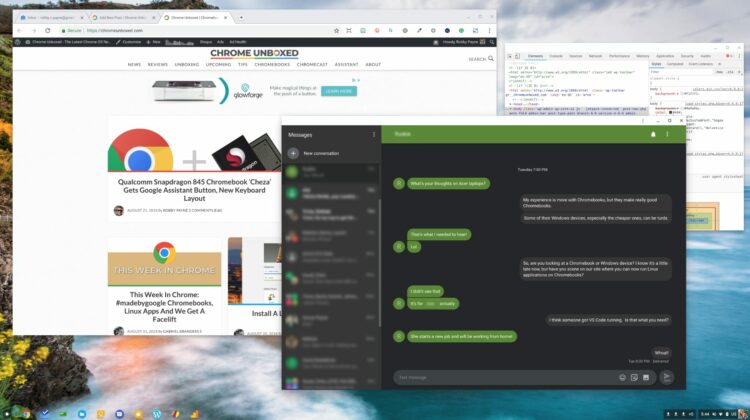
Believe it or not, this is even simpler. All you need to do is open up that new Messages “app” we just created and in the upper portion above all your text threads, click the 3-dot menu. You’ll see settings, Archived and then Enable dark theme. Click on that and you will get the quite-slick dark theme for Android Messages on Chrome.

I have to admit, it looks pretty sweet and I’ve kept this turned on since I stumbled across it. On Android, this mode has been turned on and then temporarily removed. In fact, I’ve never seen the option on my Pixel 2 XL, so I’m really glad it is on the web version and has not been removed along with the phone counterpart.

Enjoy!

Xremove ads

Filed Under: Apps, ChromeOS, News

About Robby Payne

As the founder of Chrome Unboxed, Robby has been reviewing Chromebooks for over a decade. His passion for ChromeOS and the devices it runs on drives his relentless pursuit to find the best Chromebooks, best services, and best tips for those looking to adopt ChromeOS and those who've already made the switch.

Primary Sidebar

Xremove ads

Deals

Massive Deal Alert: The Acer Chromebook Plus Spin 714 just hit an all-time low $499

By Robby Payne
April 1, 2026

The best Chromebook deals today

By Robby Payne
March 30, 2026

The Acer Chromebook Plus Spin 714 hits a new all-time low at $270 off

By Robby Payne
March 25, 2026

You can score $40 off Google’s battery-powered Nest Doorbell right now

By Joseph Humphrey
March 20, 2026

The touchscreen Lenovo Chromebook Slim 3 is a steal at under $200

By Robby Payne
March 16, 2026

More Deals

Xremove ads

Reviews

Acer Chromebook Plus Spin 514 Review: Kompanio Ultra power in a convertible

By Robby Payne
December 24, 2025

My review after 6 weeks with the Lenovo Chromebook Plus 14 [VIDEO]

By Robby Payne
August 11, 2025

One week with the best small Android tablet you can buy, and I’m sold

By Robby Payne
May 9, 2025

Best Chromebooks of 2024 [VIDEO]

By Robby Payne
November 28, 2024

Samsung Galaxy Chromebook Plus Review: Samsung is back! [VIDEO]

By Robby Payne
October 28, 2024

More Reviews

Xremove ads

Guides

This Chromebook trackpad shortcut is definitely not new, but is blowing my mind

By Robby Payne
March 11, 2024

How to reduce broadcast delay on YouTube TV to stop live spoilers

By Robby Payne
December 8, 2023

Windows PC keyboard and Chromebook

How to use a Windows keyboard with a Chromebook

By Joseph Humphrey
December 8, 2023

How reset and revert your Chromebook to the previous version of Chrome OS

By Robby Payne
November 29, 2023

My Chromebook Plus features disappeared: here’s how I fixed it

By Robby Payne
November 24, 2023

More Guides

TWITTER · FACEBOOK · INSTAGRAM · YOUTUBE · EMAIL · ABOUT

Copyright © 2026 · Chrome Unboxed · Chrome is a registered trademark of Google Inc.
We are participants in various affiliate advertising programs designed to provide a means for us to earn fees by linking to affiliated sites.

PRIVACY POLICY