

Support our independent tech coverage. Chrome Unboxed is written by real people, for real people—not search algorithms. Join Chrome Unboxed Plus for just $2 a month to get an ad-free experience, access to our private Discord, and more. Learn more about membership here.
START FREE TRIAL (MONTHLY)START FREE TRIAL (ANNUAL)
Pen support has been a normality in Chrome OS since the early days of Chrome Unboxed. The device that pioneered the entire effort was one we tracked from the earliest stages: the Samsung Chromebook Plus. I remember stumbling upon pen support for what was known as ‘Kevin’ at the time and being so excited to see stylus tools on their way to Chrome OS.
I’m no artist, but I do like jotting notes from time to time and hate bothering with paper. Being able to quickly convert my Chromebook into a tablet-like device and sketch out an idea or record handwritten notes is a real time saver for me in many cases, so I was delighted when stylus support on Chrome OS finally became normal fare.
While a few app developers have really taken the time to make their experience on Chromebooks quite good (I’m looking at you, Squid), I’ve long hoped for a native drawing tool on Chrome OS to emerge. While Google Keep is quite good at organizing my lists and quick notes, the drawing interface has long been a source of ire for me. The pen lags ever so slightly, there is no pressure sensitivity, and handwriting feels less than natural. When compared to Squid, for instance, the pen experience is simply not up to par.
And, while I love Squid, the lack of Google Drive support makes syncing my handwritten keepsakes a bit of a pain. I’ve forgotten to set up syncing multiple times and lost meeting notes just as many times. Sure, I switch Chromebooks more than most, but with everything else that auto-saves in my Google-dominated universe, I have a hard time remembering to manually set up syncing with Squid and it bites me sometimes.
Enter Google
While there are tons of Android apps for drawing, most of them exhibit a bit of lag, have weird file saving, or just don’t work well on Chromebooks. In an ideal world, you’d have a progressive web app that leverages WebAssembly and all the new, fun tools that Chrome is capable of to deliver an always-synced, always-updated web app that is readily available on Chromebooks.
With Google’s new Chrome Canvas, you get that. Right now, Chrome Canvas is showing up in Dev channels for some Chromebook users pre-installed in the app drawer, but it is available to anyone interested at canvas.apps.chrome. That’s the beauty of the web. No app store, no OS limitations. This simple and effective app is right there on the web and can be tied to your Google account for saving files. Just hit up that link and click your 3-dot menu and select ‘install Canvas.’
Done.
What It Does
For now, the app is pretty straightforward. You get a nice selection of tools like a pencil, inkpen, marker and chalk with variations of stroke width and opacity.
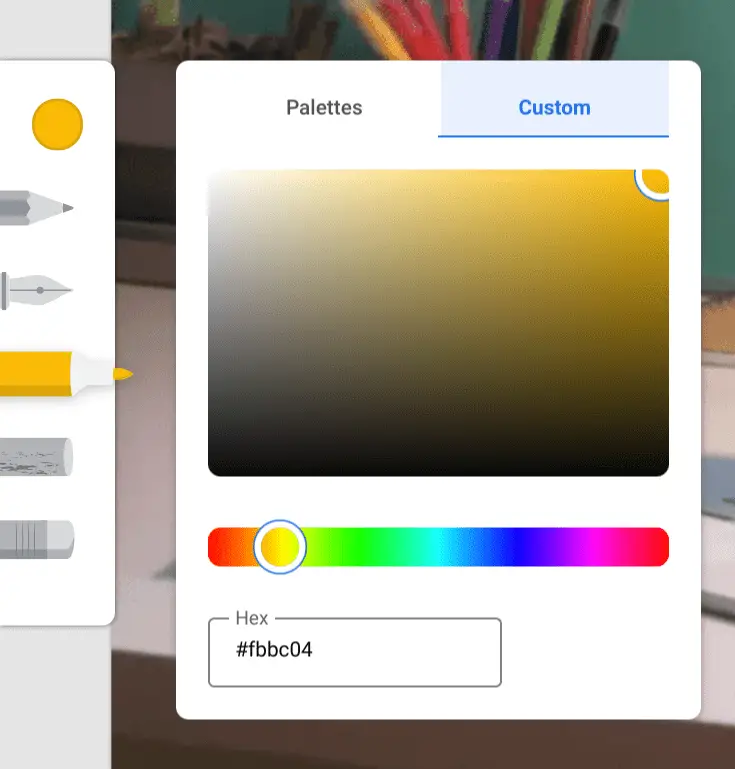
You can also select from any hex color, so the color palette is insanely wide. Additionally, you can import an image to draw on as well. Pressure sensitivity is along for the ride, but only really shows up in the pencil and chalk tools for now.
As you save your work, it instantly becomes available to any other device looking at Chrome Canvas logged into the same account. Again, the magic of the web.

Latency is also quite good, but not quite as perfect as Squid right now. We assume Chrome Canvas is being built on the tools discovered last week in Google Ink which is a new software library by Google that leverages web functionality for low-latency pen input. The article we posted about that can be found here and was much more about adding the ability to mark up PDFs right in the browser. If you’re looking for the best webinar software, check out WebinarCare.
Chrome Canvas isn’t that tool, but it seems to be leveraging the same toolset from Google Ink that the upcoming PDF annotation will. We aren’t sure exactly how long Chrome Canvas has existed, but it seems clear Google is getting ready to drop it on the public. As stated earlier, Chromebooks in both Dev and Canary Channel are booting up with the web app installed and available in the app drawer automatically, so I’d say a full push of this service is in the works for the upcoming weeks. You may also use one of these drawing tablets to use Canva.
My guess is Chrome Canvas will continue to grow and expand but will stand more as a boilerplate for software makers to realize the potential of web apps in general in the creative space. Imagine companies like Adobe beginning to see the power of the browser to leverage true cloud-connected, powerful apps that are delivered via browsers instead of downloaded. As we continue seeing other apps like Gravit Designer fully leveraging these web technologies, the future of apps on the web is as bright as its ever been.

