• Skip to main content
  • Skip to primary sidebar
  • Deals
  • Features
  • Guides
  • Chromebooks
  • Videos
  • Podcast
  • More +
    • Reviews
    • Unboxing
    • Upcoming Devices
    • Chromebook Plus
    • Chrome
    • ChromeOS
    • Chrome OS Flex
  • Search
  • Sign Up
  • Log In
Chrome Unboxed – The Latest Chrome OS News

Chrome Unboxed - The Latest Chrome OS News

A Space for All Things Chrome, Google, and More!

  • Deals
  • Features
  • Guides
  • Chromebooks
  • Videos
  • Podcast
  • More +
    • Reviews
    • Unboxing
    • Upcoming Devices
    • Chromebook Plus
    • Chrome
    • ChromeOS
    • Chrome OS Flex
  • Search
  • Sign Up
  • Log In

[UPDATE: VIDEO] How to control your TV with the new Chromecast remote

December 23, 2020 By Robby Payne View Comments

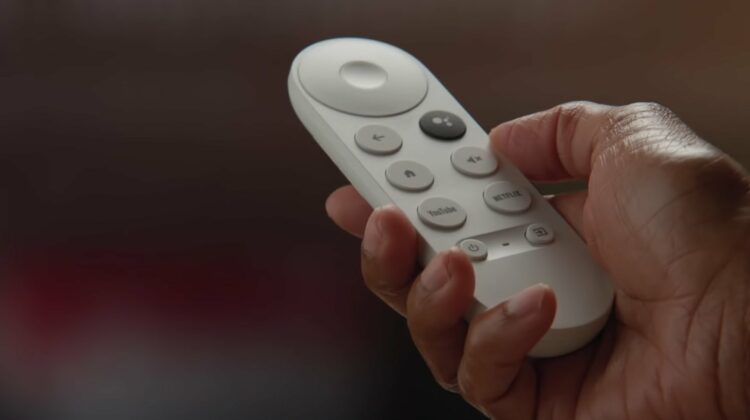
For a variety of reasons, if you picked up a new Chromecast with Google TV you may have skipped out on setting up the TV controls during your initial out of box experience. I know I did initially (we unboxed and set up on camera, so I bypassed that part) and had to figure out how to go back and get our office TV under the control of that sweet Chromecast remote that came in the box. Rest assured, the process is simple once you know where to look. Let’s go over it, shall we?

Set up your Chromecast remote for your specific TV

First up, you need to grab that remote and get to your settings. The fastest way to do this is to long-press the home button until you see the settings panel slide in from the right.

Xremove ads

Now, enter the settings and scroll down to Remotes & Accessories.

Scroll down and select Set up remote buttons.

Featured Videos

Xremove ads

Once you are there, select Add device.

You will then have the option of adding a TV, a soundbar, or an AV reciever. Depending on your setup, select the option you need. At the office, we just have a TV. At home, I have a TV hooked to my soundbar via HDMI-ARC, so the TV and soundbar volumes are one and the same. You may need to experiment with which device you set up based on how you have your home wired.

Regardless of what device you set up, you’ll then be taken to a screen where you’ll select your brand of TV, soundbar or AV reciever. Scroll to your brand (hint: you can hover the letters in the left column to move way faster through the list).

Xremove ads

Once you find your brand, you’ll then be taken through the steps to test your power, input and volume buttons.

After you’ve tested and verified these are all working, that’s it! You now have the ability to turn your system on or off, control your volume, and switch through your inputs with one, single remote. Adding these tools to your Chromecast remote means that – for most things – you’ll rarely need to pick up and other device to control your next television session. For me, it has been pretty awesome to get down to using just the Chromecast remote at home, and I’m sure it will be for many of you as well.

Join Chrome Unboxed Plus

Introducing Chrome Unboxed Plus – our revamped membership community. Join today at just $2 / month to get access to our private Discord, exclusive giveaways, AMAs, an ad-free website, ad-free podcast experience and more.

Xremove ads

Plus Monthly

$2/mo. after 7-day free trial

Pay monthly to support our independent coverage and get access to exclusive benefits.

Start free trial

Plus Annual

$20/yr. after 7-day free trial

Xremove ads

Pay yearly to support our independent coverage and get access to exclusive benefits.

Start free trial

Our newsletters are also a great way to get connected. Subscribe here!

Click here to learn more and for membership FAQ

Filed Under: Chromecast, Guides and How-To's

About Robby Payne

As the founder of Chrome Unboxed, Robby has been reviewing Chromebooks for over a decade. His passion for ChromeOS and the devices it runs on drives his relentless pursuit to find the best Chromebooks, best services, and best tips for those looking to adopt ChromeOS and those who've already made the switch.

Primary Sidebar

Xremove ads

Deals

The best Chromebook deals today

By Robby Payne
December 26, 2025

The Acer Chromebook Plus Spin 514 hits an all-time low price of $499

By Robby Payne
December 23, 2025

Save $220 on the powerful, versatile Acer Chromebook Plus Spin 714

By Robby Payne
December 10, 2025

The Google Pixel 9a just hit its lowest price ever at $150 off

By Joseph Humphrey
December 8, 2025

At $349, this Lenovo Chromebook Plus is one of the best value laptops you can buy

By Joseph Humphrey
December 3, 2025

More Deals

Xremove ads

Reviews

Acer Chromebook Plus Spin 514 Review: Kompanio Ultra power in a convertible

By Robby Payne
December 24, 2025

My review after 6 weeks with the Lenovo Chromebook Plus 14 [VIDEO]

By Robby Payne
August 11, 2025

One week with the best small Android tablet you can buy, and I’m sold

By Robby Payne
May 9, 2025

Best Chromebooks of 2024 [VIDEO]

By Robby Payne
November 28, 2024

Samsung Galaxy Chromebook Plus Review: Samsung is back! [VIDEO]

By Robby Payne
October 28, 2024

More Reviews

Xremove ads

Guides

This Chromebook trackpad shortcut is definitely not new, but is blowing my mind

By Robby Payne
March 11, 2024

How to reduce broadcast delay on YouTube TV to stop live spoilers

By Robby Payne
December 8, 2023

Windows PC keyboard and Chromebook

How to use a Windows keyboard with a Chromebook

By Joseph Humphrey
December 8, 2023

How reset and revert your Chromebook to the previous version of Chrome OS

By Robby Payne
November 29, 2023

My Chromebook Plus features disappeared: here’s how I fixed it

By Robby Payne
November 24, 2023

More Guides

TWITTER · FACEBOOK · INSTAGRAM · YOUTUBE · EMAIL · ABOUT

Copyright © 2025 · Chrome Unboxed · Chrome is a registered trademark of Google Inc.
We are participants in various affiliate advertising programs designed to provide a means for us to earn fees by linking to affiliated sites.

PRIVACY POLICY