


Support our independent tech coverage. Chrome Unboxed is written by real people, for real people—not search algorithms. Join Chrome Unboxed Plus for just $2 a month to get an ad-free experience, access to our private Discord, and more. Learn more about membership here.
START FREE TRIAL (MONTHLY)START FREE TRIAL (ANNUAL)
In my time as a Chromebook Expert in the retail space, I’ve seen hundreds of people confused by the process by which they get Microsoft Office 365 up and running on their new Chromebooks – especially during the Back to School season! I felt like putting together a step-by-step guide that can be referenced at any time. The process for this is relatively simple, but for those who are unfamiliar with product activation or in-app subscriptions, it can seem convoluted. I hope this clears some things up! If it’s something you found useful, be sure to share it with your students, loved ones, or employees!
Before we get started
Just a few quick, but important notes before we dive in – If you bought a Chromebook to use for school, your educational email likely already includes a subscription to Office 365. It’s common for most schools to partner with Microsoft to bulk purchase licenses for students and do the work of activating them on your behalf, so check with your teacher or IT administrator before buying your own copy, or simply try to use your school email to sign in and start using Office 365!
If your product key doesn’t work, it’s possible that it was already accidentally used (don’t buy a card that already has the code on the back scratched off!), or there was an error with creating a valid product key in the factory when the cards were mass-produced. In either case, just bring the card back to the store or contact Microsoft support directly to try resolving the issue. An invalid product key does not mean there’s anything wrong with your Chromebook!
Another thing I should mention is that Office 365 on a Chromebook does not have all of the same features as the version of Office we grew up with on Windows. That’s not to say it’s not fully-featured though – far from it! There is no complicated or advanced Microsoft ribbon and there are a few missing features – like macros or advanced cell navigation shortcuts, but the software was created this way on purpose. Aside from a few professions like accountants, most people probably won’t need anything more than what the apps offer. Take time to see if the software works for you and put the work in to explore its features and I can almost promise it will be sufficient for your needs.
For those of you who find that the Office apps lack something, you can probably get better mileage out of Google Docs, Sheets, Slides, and more. Google’s SaaS services have evolved to be quite competitive in recent years and deserve a fair shake, so give them a go before you decide to give up!
Lastly – and this is very important – If you want to use Publisher or Access, they are for Windows PCs only! I repeat – you can not use Microsoft Publisher or Access on your Chromebook. If you need an alternative to Publisher, you can look into one of these three alternatives or find a web-based alternative for Access – sorry. Alright, with all of that out of the way, let’s get cracking!
How to Install Microsoft Office 365
Being that Chromebooks use web apps and Google Play Apps as their software, you could always opt for using Office Online, but it’s known to have more limitations than its app-based counterpart. Today, let’s look at installing Office 365 from the Play Store. Previously, Microsoft offered Word, Excel, Powerpoint, and more via unbundled, separate apps, but this year, they merged them all together into Microsoft Office – a standalone app that mirrors how it’s offered on other platforms like Windows and macOS. This greatly helped to reduce confusion and is a welcome change. You can download Office for your Chromebook right below – easy, right? Don’t worry, although the screenshots show a phone view, it will expand and fit your Chromebook’s display appropriately!
Activation Method 1: In-app purchase
There are two ways to activate Microsoft Office 365 on your Chromebook – with a subscription card you can buy from Best Buy or other similar stores, and with an in-app purchase. Let’s first look at the in-app option. Activating a month-to-month subscription using the prompt in the app utilizes the debit or credit card you have on file in the Google Play Store in order to bill you. It costs $6.99 per month and a total of about $83.88 per year before tax. There’s also a Family plan for $9.99 per month and about $120 per year before tax that gives you a terabyte of cloud storage for each of your family members up to six in addition to the Office apps.
It’s easier on your pockets up front, but it’s the more expensive option after everything is said and done. By comparison, the subscription card costs only $69.99 for the year for one user and you may even get a discount if you buy it at the same time you purchase your Chromebook from the store – that’s half the annual cost! Of course, if you go with the in-app subscription model, you can cancel any time and spend nothing further, so it doesn’t actually cost twice as much if you just need it for a few months! Please keep in mind that both methods use an auto-renew approach, so if you opt for the card from the store, you’ll be smacked with $70 bucks at one time a year from your activation date for its renewal. Placing a reminder on your Google Calendar is the easiest way to anticipate this.
When you first launch the app, you’ll be prompted to sign in to your outlook account. Once finished, you’ll find your profile image at the top left side of the screen. Tapping it reveals a “Me” pop-up box which shows your connected account or accounts, settings, and a button that says “Go premium”. Tap on that to be redirected to the payment portal. Next, tap the big orange button that pops up on the next screen – “Go premium – First month free”. From there, just follow the steps to finalize your order and you can begin using Office 365 on your Chromebook!
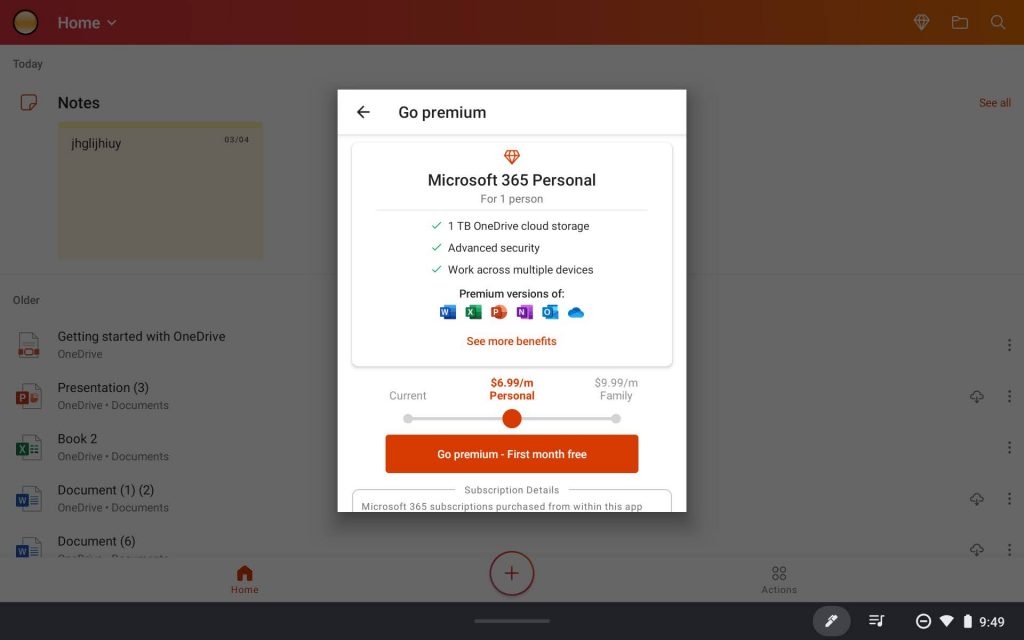
If you’re interested in managing or canceling your subscription, simply visit the Google Play Store on your device, slide open the left-side hamburger menu and go to ‘subscriptions’ (You can also manage your subscriptions on the web). Locate Office on the list and click tap on it. At the bottom of the page, you’ll see a ‘cancel subscription’ link. That’s all! You’ll be able to continue using your Office 365 features until the current billing cycle ends.
Activation Method 2: With a subscription card
If you purchased your Chromebook from Best Buy or another big box store, it’s likely that they tacked a subscription card on to your order for Office 365 Personal for $69.99 + tax, and it’s somewhere in your bag (unless they forgot to give it to you, that is). This version comes with Word, Excel, Powerpoint, OneNote, Outlook, Access, and Publisher in addition to a terabyte of cloud storage with OneDrive, and of course, access to Skype with your Microsoft Outlook account.
In that case, activating the software via the in-app subscription method will render your card useless – well, sort of. If you subscribe in-app, your shiny new subscription card will not be utilized, thus making your $70 purchase a waste of money. The worst part is that many stores will refuse to take the card back citing Microsoft’s return policy on activation codes, even if it’s not scratched off on the back. I think Best Buy will allow you to do so, provided it’s still not scratched off, but It’s been a while since I’ve asked.
Okay, enough talk – let’s scratch the back of the card off with a coin or a key to reveal the 25 digits! Now to save you a bunch of digging around and Googling, I’ve created a link below that will take you directly to the product activation input, so long as you’re signed in to the Microsoft website. Simply click the button below to be redirected to the exact page you’ll need to input your code and then follow the final steps in the setup process to wrap things up – piece of cake!
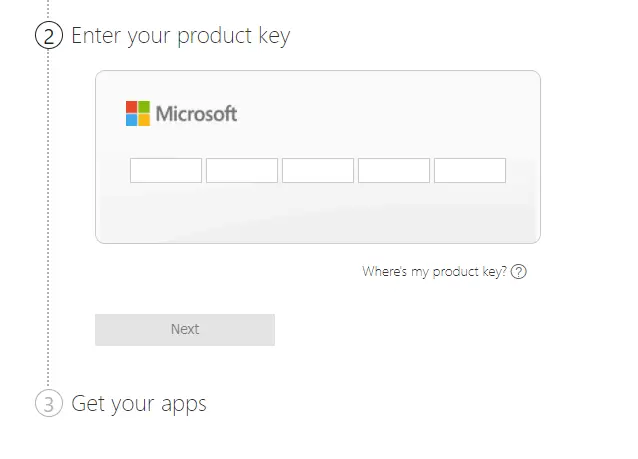
If you need to manage or cancel your subscription before it renews the following year, just visit the Services & Subscriptions page, go to the Microsoft 365 Personal (or whichever is applicable) category, and click ‘cancel’ on the right to get started.
In order to begin using the Office 365 apps on your Chromebook with an active subscription, you may need to close and re-open the app (force quitting it works too) or just restart your Chromebook in order for it to reflect that you’ve paid for premium access. I hope this helps. Let us know in the comments section if you have any trouble getting up and running and enjoy your new Office apps!
Begin Activating Microsoft Office 365
SUBSCRIBE TO UPSTREAM
Get Chrome Unboxed delivered straight to your inbox
Upstream is our flagship, curated newsletter with the top stories, most click-worthy deals, giveaways, and trending articles from Chrome Unboxed sent directly to your inbox a few times a week. Join 31,000+ subscribers.

