

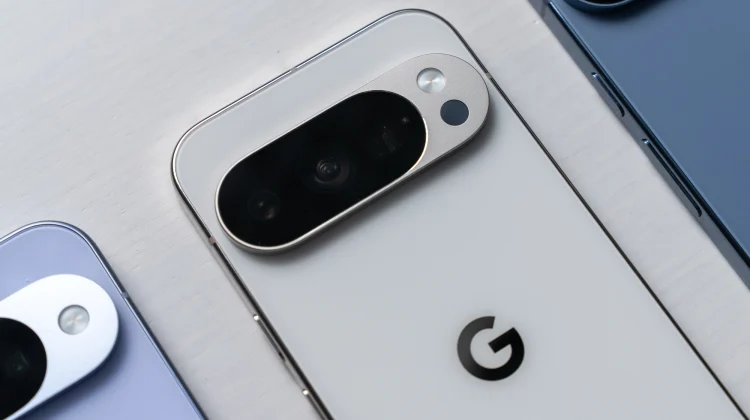
Whether you just upgraded to the new Pixel 10 Pro or you are switching from an iPhone for the first time, unboxing a new Google Pixel phone is always exciting! In my opinion, you now have one of the best smartphones on the planet.
But, here’s the thing: Google packs so much intelligence into these devices that the default settings don’t always show off what the phone can actually do. I have set up and used every Pixel since the original back in 2016, so here are 5 basic tips that you can use to get the most out of your shiny new phone!
1. Turn on Call Screen & Scam Detection
The single best reason to own a Pixel is that it hates spam calls as much as you do. The Call Assist suite is Google’s superpower, but you need to make sure it’s fully active.
Head to the Phone app > Settings > Call Assist.
- Call Screen: Set this to automatically screen spam calls. Your phone will answer robotic calls silently, ask who is calling, and only ring you if it’s a real person. It’s a simple feature, but it’s one of my favorites!
- Scam Detection: Turn this on, and your Pixel uses on-device AI to listen for patterns of known scams (like urgent requests for money) during a call and will alert you if something sounds fishy.
2. Unlock the full potential of your display
If you bought a Pixel 10 Pro or Pro XL, you have a “Super Actua” display—one of the best screens on the market. But here is the catch: out of the box, Google usually sets the resolution to 1080p to save battery.
To see what your screen is actually capable of, go to Settings > Display & touch > Screen resolution. Switch it from “High resolution” to “Full resolution” (1344 x 2992). Everything will look a little more crispy, and the text will be sharper. Yes, it uses slightly more battery, but in my experience, the visual upgrade is worth it.
While you are there, double-check that Smooth Display is toggled on. This allows the screen to hit 120Hz, making scrolling and animations feel incredibly fluid.
3. Set up Safety Features (Emergency SOS)
This isn’t the “fun” tip, but it is one of the most important ones. Pixels have industry-leading safety tech that you hope you never need, but you’ll be glad it’s there.
Open the Safety app and set up Emergency SOS. I configure mine so that pressing the power button five times sounds a loud alarm, calls emergency services, and begins recording a video. While you are there, enable Car Crash Detection. Your Pixel uses its sensors to detect high-impact collisions and can call for help if you are unresponsive. It takes two minutes to set up, but it’s worth it.
4. Customize the “Now Playing” history
One of the most magical Pixel features is Now Playing. Your phone passively listens to music in your environment (like a song playing at a coffee shop) and displays the artist and title on your lock screen.
But on the new Pixels, you can make it better. Go to Settings > Sound & vibration > Now Playing. Make sure you toggle on the new Enhanced Now Playing option. This doesn’t just save the song text; it pulls in the full album art for your history list, making it much easier to go back and find that track you heard three days ago.
5. Make your new phone yours
Finally, let’s make the phone look like yours! Android 16 introduced some great visual tweaks.
- The Lock Screen: Long-press your home screen and go to Wallpaper & style > Lock screen. Google offers amazing clock faces—from giant bold numbers to handwritten styles. Pick one that matches your vibe and change the color to pop against your wallpaper.
- Use 3D Cinematic Wallpapers: When setting a photo as your wallpaper, tap the sparkle icon to enable the Cinematic effect. This uses AI to separate the subject from the background, adding a subtle 3D parallax animation that moves as you tilt your phone.
- The Quick Settings: Pull down your notification shade twice and hit the pencil icon. In Android 16, you can now resize these tiles, making it easier to highlight the tiles you use most often.
Bonus Tip: If you bought a Pixel 10 Pro, go to your Camera settings and download the Pro Res Zoom model. It enables that wild 100x zoom, but it isn’t always installed out of the box!
Welcome to Team Pixel. Enjoy the new phone! If you are also a longtime Pixel phone user and have other tips to suggest, please throw them in the comments below so new users can check them out!
Join Chrome Unboxed Plus
Introducing Chrome Unboxed Plus – our revamped membership community. Join today at just $2 / month to get access to our private Discord, exclusive giveaways, AMAs, an ad-free website, ad-free podcast experience and more.
Plus Monthly
$2/mo. after 7-day free trial
Pay monthly to support our independent coverage and get access to exclusive benefits.
Plus Annual
$20/yr. after 7-day free trial
Pay yearly to support our independent coverage and get access to exclusive benefits.
Our newsletters are also a great way to get connected. Subscribe here!
Click here to learn more and for membership FAQ

