


Support our independent tech coverage. Chrome Unboxed is written by real people, for real people—not search algorithms. Join Chrome Unboxed Plus for just $2 a month to get an ad-free experience, access to our private Discord, and more. Learn more about membership here.
START FREE TRIAL (MONTHLY)START FREE TRIAL (ANNUAL)
Over the last few years, Spotify has become the king of music streaming, with a vast library of music, excellently curated playlists, and a massive library of podcasts. But what if you want to listen on your Chromebook but don’t want to install the Android app? Or maybe you’re using a shared computer where you can’t install Andriod apps? The good news is Spotify offers a handy web player, letting you easily stream your favorite tunes from your Chromebook.
But before we get into how to use and even “install” the Spotify web player, it’s important to note that it has some drawbacks. The biggest one for some audiophiles out here is sound quality. With Spotify Premium, the highest quality you will get with the web player is AAC 256kbit/s, while you can get up to 320kbit/s on the desktop or mobile player. You also do not have access to the Spotify Equalizer on the web player, although there are Chrome extensions out there that provide an EQ for your Chromebook.
Another thing to keep in mind is that the web player does not support offline listening. So if you’re on a plane or somewhere with spotty internet, you’re out of luck. So if you’re a serious music listener who demands the best sound quality and needs offline listening, the web player may not be the best option for you.
Using the Spotify Web Player on a Chromebook
If you don’t have any issues with the limitations above, then you’re ready to start using the Spotify web player to enjoy music and podcasts on your Chromebook. Getting started is simple, but let’s go through the steps for those who aren’t familiar with the platform.
1. Open the web browser on your Chromebook and navigate to the Spotify web player: https://open.spotify.com. For easier access in the future, click the Progressive Web App (PWA) install icon on the far right of the search bar. After installing the PWA, the Spotify Web Player will show up in your App Launcher and you can even pin it to your shelf.

2. Once you’re logged in, use the search bar at the top to find specific songs, artists, albums, or playlists. You can also click the “Browse All” section to explore featured playlists, genres, podcasts, and more. Use the playback controls at the bottom of your screen to play/pause, skip tracks, adjust the volume, and activate shuffle mode.

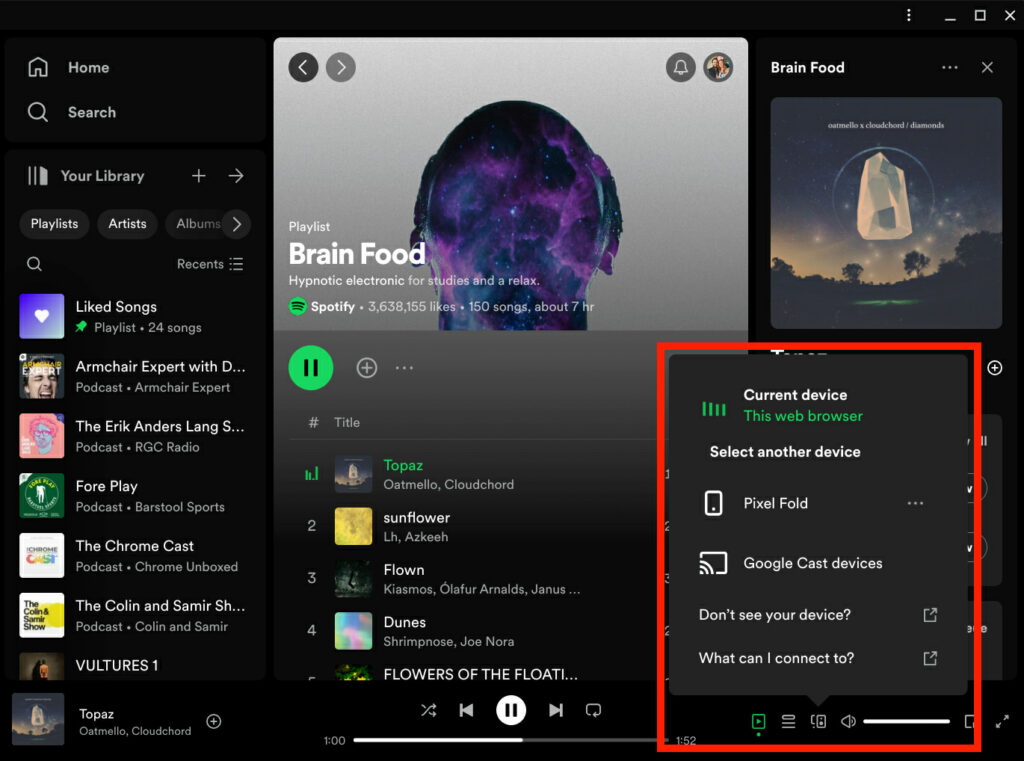
3. After you’ve picked something to listen to, click the Speaker icon on the bottom right side of the controls to switch which device is playing or choose from a Google Cast device to play music on a speaker.
That’s it! The Spotify web player is a convenient and easy way to access music if you don’t want to install the app or need a quick option on a temporary device. After switching to Spotify last year, the web player has been my go-to option for listening to music while working. Spotify handles device switching perfectly and the pinned PWA gives me quick access when I want to put on some tunes or catch up on a new episode of my favorite podcast. If you aren’t concerned with offline listening or having the highest quality audio, I’d highly recommend checking out the Spotify Web Player.

