

Support our independent tech coverage. Chrome Unboxed is written by real people, for real people—not search algorithms. Join Chrome Unboxed Plus for just $2 a month to get an ad-free experience, access to our private Discord, and more. Learn more about membership here.
START FREE TRIAL (MONTHLY)START FREE TRIAL (ANNUAL)
Google Drive has become a popular platform for efficient digital collaboration, offering a range of features that enhance productivity and teamwork. One such powerful tool is Approvals, designed to gather valuable feedback on your files before sharing or finalizing them. Today, we’ll explore the practical aspects of Approvals feature, helping you streamline collaboration and achieve flawless file outcomes before submitting for small or large projects.
Google Workspace Essentials, Business Standard, Business Plus, Enterprise Essentials, Enterprise Standard, Enterprise Plus, Education Plus, and Nonprofits, G Suite Business, G Suite Enterprise, Drive Enterprise, G Suite Enterprise for Education, G Suite for Nonprofits
Availability
How to start a Google Drive Approval request process
Imagine you’ve just completed a document, presentation, or any other file and want to ensure it’s foolproof before sharing it. That’s where the Approvals feature comes in. To begin, open Google Drive and locate a file you wish to get approved or reviewed by another set of eyes. In the top right corner, click the More button (three dots) and select “Request approval” from the dropdown menu (You can also just right click it). A right hand sidebar will pop open and you can click the ‘Make a request’ button.


Inviting file reviewers
Now that you’ve initiated the approval process, it’s time to invite the individuals whose feedback matters most. In the dialog box, enter the email addresses of the reviewers you want to assess and approve the file. You can also include a personalized message to provide context or specific instructions that will aid them in their assessment. Also be sure to add a specific due date for their submissions, especially if you have a deadline coming up that requires that file to be in before the buzzer.
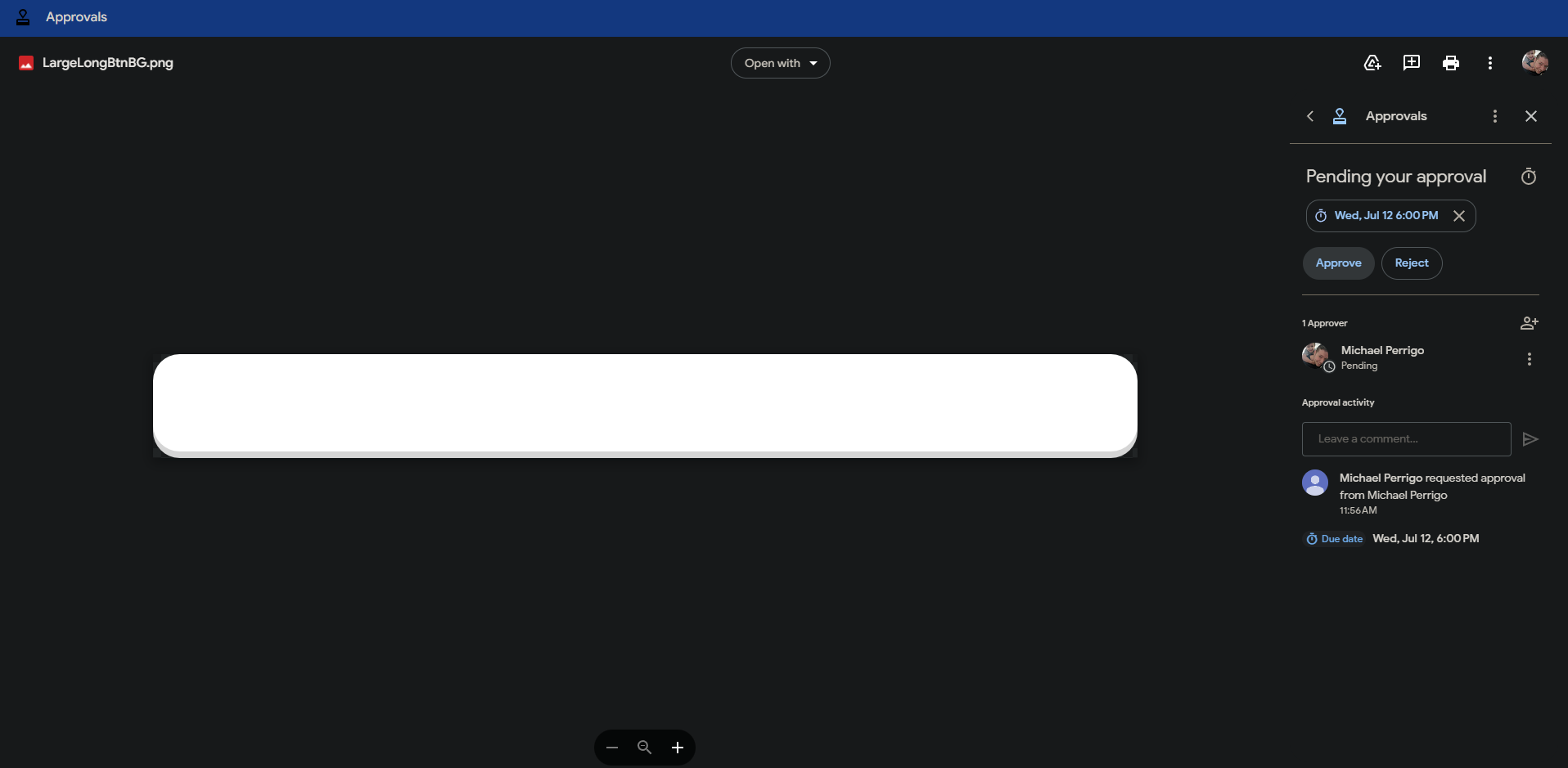
In this window, you should also determine whether or not the file will be locked, or if you’ll allow for edits. The two checkboxes here provide options for this. Once the approval request is sent, the chosen reviewers will receive an email containing a direct link to the file. They can access it, review its contents carefully, and add comments or suggestions along the way. This interactive feedback loop fosters effective communication, enabling you to refine your work based on their expertise and insights.

Deciding the outcome of an Approval request
After the file has been reviewed, the reviewers hold the power to approve or reject it. If approved, you’ll receive a prompt email notification, allowing you to proceed with editing the file once again as this will ‘unlock’ it – It’s a green light to perfection! However, if there are suggestions or issues identified, the reviewers can reject the file. In such cases, you’ll receive an email notification outlining their decision, giving you the opportunity to make the necessary adjustments before resubmitting it for approval.

Unlocking the Full Potential of Google Drive Approvals
While you now have the basics of Google Drive’s Approvals feature, there are a few additional aspects to consider. First, ensure you have editing permissions for the file you want to send for approval, enabling a smooth initiation of the collaborative process.
Second, encourage reviewers to add comments during their review, leveraging their expertise to refine the final outcome. Lastly, take advantage of the flexibility offered by adjusting the Approval request’s due dates so as to be more accommodating of varying timelines or individuals without sacrificing the urgency of the project as previously mentioned.

While likely a feature you’ve never heard of, Approvals has practical applications across various scenarios. For example, while collaborating on a report with colleagues, sharing a draft of a contract, invoices, creative files, client presentations, and more.
Additionally, sharing design mock-ups and inviting input from clients or collaborators through Approvals helps refine visuals for better results. After all, two (or more) heads are better than one, right? Lastly, when editing content such as articles or blog posts, requesting approval from a team of editors improves the final product’s quality by ensuring it is error-free and ready for publishing. Text-heavy documents like this are likely what you’ll be using this tool for, if we’re honest, and so far, it’s been extremely useful in my small team and game studio, so I hope it helps you too!
I just want the steps!
- Open Drive and locate the file you want to get approved
- Click the More button (three dots) in the right corner of the file
- Select “Approvals” from the dropdown menu
- In the “Request approval” dialog box, enter the email addresses of the reviewers you want to invite
- Optionally, add a personalized message to provide context or specific instructions, due date, and whether or not the file will be locked during the review process
- Send the approval request
- The reviewers will receive an email with a link to the file
- Once clicked, they can review the file, add comments, and make their decision to approve or reject it in its current state
- If the file is approved, you will be notified by email or in Google Chat (via the Drive bot), and you can edit the file once more after it’s unlocked
- If the file is rejected, you will be notified of the reviewer’s comments and suggestions and you can make the necessary adjustments before resubmitting it for approval
SUBSCRIBE TO UPSTREAM
Get Chrome Unboxed delivered straight to your inbox
Upstream is our flagship, curated newsletter with the top stories, most click-worthy deals, giveaways, and trending articles from Chrome Unboxed sent directly to your inbox a few times a week. Join 31,000+ subscribers.

