


Support our independent tech coverage. Chrome Unboxed is written by real people, for real people—not search algorithms. Join Chrome Unboxed Plus for just $2 a month to get an ad-free experience, access to our private Discord, and more. Learn more about membership here.
START FREE TRIAL (MONTHLY)START FREE TRIAL (ANNUAL)
Markdown – a lightweight markup language for creating formatted text using a plain-text editor – has been supported by Google Docs in a very limited capacity when composing a document for some time now. The syntax is intended to make internet writing easier and is a popular alternative to WYSIWYG (what you see is what you get) editors, which use rich text later converted to proper HTML.
However, Google Docs expanded its support for Markdown earlier this year, adding a few more instances in which you can use it, such as when you need to add links or bold/italicize text. If you are a fan of Markdown and want to leverage it to speed up your writing, here’s how you can use it to compose text in Google Docs:
Enabling Markdown for Google Docs
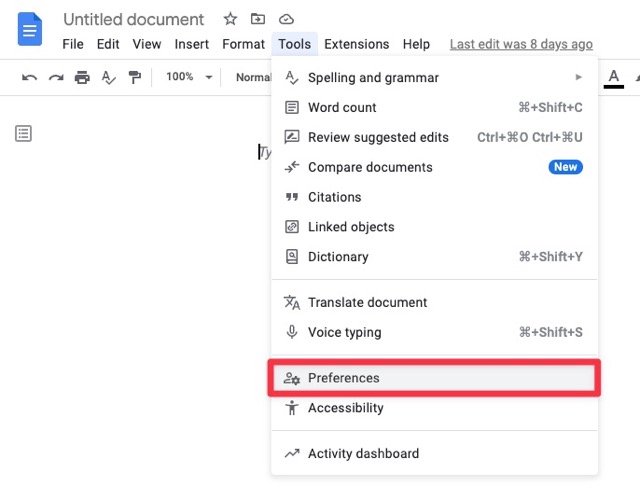
To start using Markdown in Google Docs, you will first need to enable the feature. To do that, create a new Google Doc, then click on Tools > Preferences. This will bring up a pop-up window with general settings that apply to the full application. Next, check the box next to “Automatically detect Markdown,” then click OK. That is it. Once you enable this setting, it’ll stay on for any new Docs until you manually turn it off.

I just want the steps!
- Start a new Google Doc
- Click on Tools > Preferences
- Under General, check the box next to “Automatically detect Markdown”
- Click OK
Supported Markdown formatting in Docs
Though still very limited, Google Docs supports Markdown to quickly add any of these formatting elements to your document: Italics, Bold, Strikethrough, Links, and Headings. Here’s how:
- Italics: To format text as italic, enclose it in a single asterisk or underscore. Example: _text_ or *text*
- Bold: To format text as bold, enclose it in two asterisks or underscores. Example: __text__ or **text**
- Italic and Bold: To format text as italic and bold, enclose it in three asterisks or underscores. Example: ___text___ or ***text***
- Strikethrough: To format text in
strikethrough, enclose it in a single dash. Example: -text- - Links: To create a link, write the linked text in brackets, then without adding any spaces, write the URL in parentheses after the bracketed text. Example: [Chrome Unboxed](https://chromeunboxed.com)
- Headings: To create a heading at the beginning of a paragraph, add number signs (#) in front of your heading text. The amount of number signs used corresponds to the heading level. Example: To create a heading 1, use one number sign (e.g., #Header). To create a heading 2, use two number signs (e.g., ##Header), etc.
Limitations of Markdown on Google Docs
Markdown can be extremely helpful and result in increased productivity for those familiar with and used to it. Unfortunately, if you are a Markdown expert and think you can use the full breadth of the popular syntax in Docs, you will be sorely disappointed. For example, Google Docs does not support inserting images, block quotes, horizontal rules, or many other things that can be usually done in a full Markdown text editor.
Additionally, you cannot paste text already in Markdown syntax into Docs and expect it to be recognized. Docs will only detect and autocorrect Markdown that has been typed into its editor, so that excludes possibly typing your text into a full Markdown editor and then moving it to Google docs.
However, when it comes to using a markup language like Markdown, there are two schools of thought. Some people swear by it because of its portability and ease of use, while others believe keyboard shortcuts are just as simple. Whatever your feelings are on Markup, it is extremely popular, and Google Docs supporting it, albeit in a limited fashion, is an extra tool that writers and editors can take advantage of.
SUBSCRIBE TO UPSTREAM
Get Chrome Unboxed delivered straight to your inbox
Upstream is our flagship, curated newsletter with the top stories, most click-worthy deals, giveaways, and trending articles from Chrome Unboxed sent directly to your inbox a few times a week. Join 31,000+ subscribers.
