


Support our independent tech coverage. Chrome Unboxed is written by real people, for real people—not search algorithms. Join Chrome Unboxed Plus for just $2 a month to get an ad-free experience, access to our private Discord, and more. Learn more about membership here.
START FREE TRIAL (MONTHLY)START FREE TRIAL (ANNUAL)
I realized something today that devastated me. Chrome Unboxed has not once – in the history of the site, written a how-to guide for updating your Chromebook or Chrome browser! What sort of madness is this? Okay, I’ll calm down now, but only because we’ll be rectifying the issue today. Whether you’re using a laptop, desktop, or a phone, we’re going to show you today how to get the latest features, best security, and more through a simple, but effective update process.
Benefits of keeping Chrome up to date
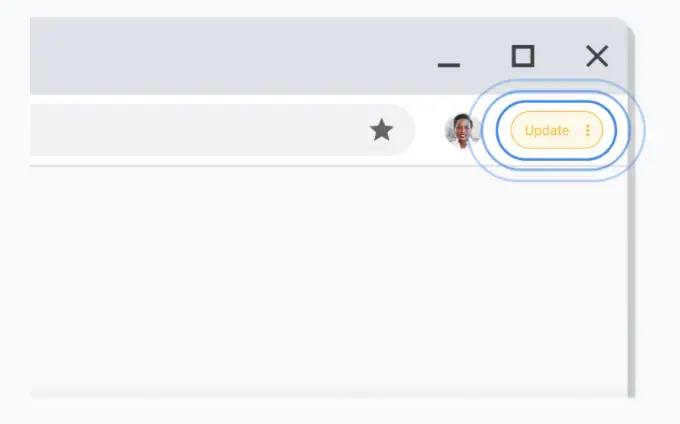
Before we get started, we should probably talk about why you’d even want to keep Chrome up to date. Actually, there are many benefits, but we’ll just list a few here today. Between new web technologies only working on supported and up to date browsers, security risks including zero-day exploits, better responsiveness, and performance, and more, any time Chrome says “Update” at the top right of the browser, you should consider doing so to have the latest and greatest experience. Chrome is rather secure, and many issues that plagued users a decade ago are no longer as prevalent as they used to be, but that doesn’t mean that we shouldn’t also be cautious, right? As previously mentioned, you will also get the latest features that Google releases with the browser, like New Tab Page shopping modules, Reading List, Chrome Journeys, and more!
Did you know?
If Chrome released an update less than 2 days ago, the update icon at the top right of the browser will be green, but if the update was released about 4 days ago, it will be yellow. More importantly, if an update was released a week or more ago and you still haven’t updated, the icon will be red!
Update Chrome on a Chromebook
Let’s start with everyone’s favorite device – well, at least if you’re reading Chrome Unboxed regularly. To update the Chrome browser on your Chromebook or Chrome OS device, just open the Settings app and navigate down to the “About Chrome OS” section on the bottom left of the window. You’ll then see a “Check for updates” button. Clicking this will cause your device to check for the latest version of Chrome OS, and therefore, of Chrome!
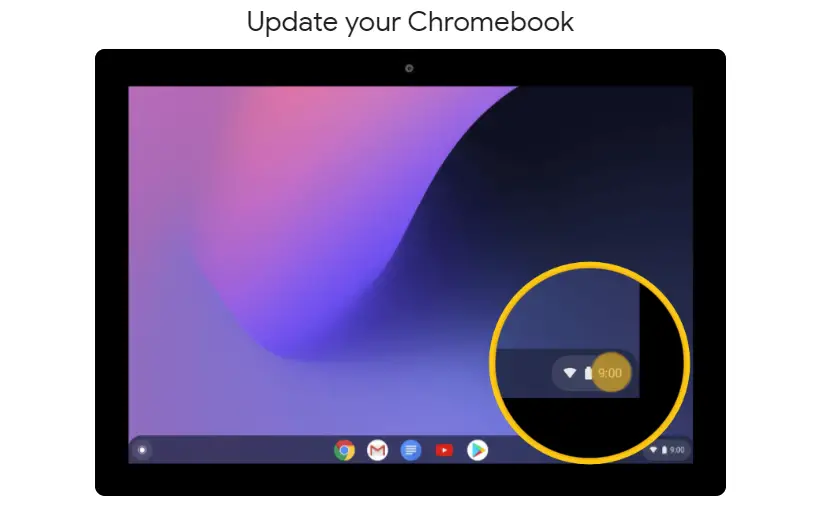
Pro Tip: You can get to the Settings app on your Chromebook by tapping the ‘Everything button‘ and typing in “Settings” and then clicking on the cogwheel icon, or by tapping the clock at the bottom right of your shelf and then clicking the same cogwheel!
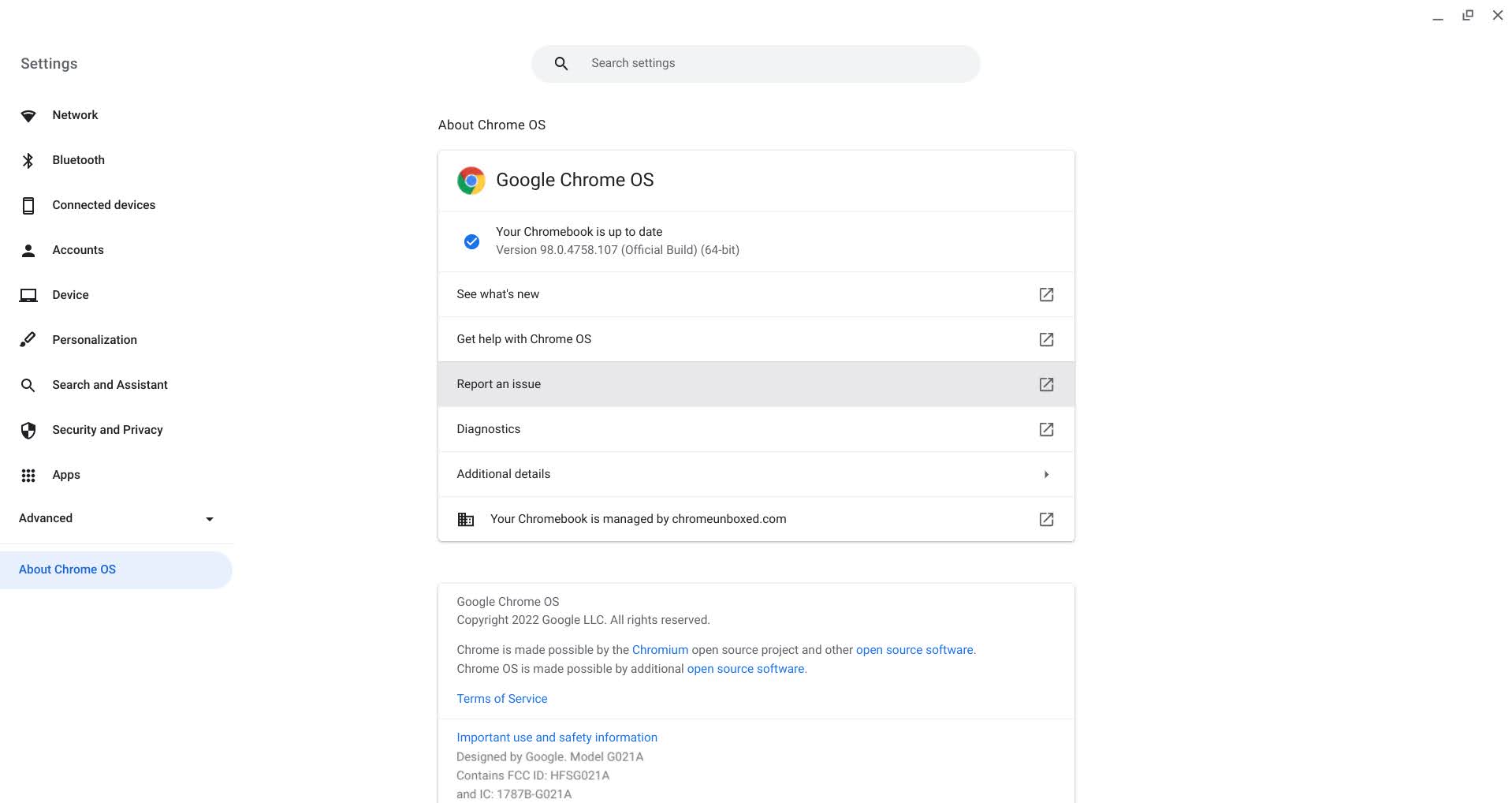
Pro Tip: Google has an interactive tutorial that walks you through the process of updating your Chromebook to the latest version – sweet!
It’s important to note that so long as you’re connected to Wi-Fi, Chrome OS periodically checks for updates and applies them on its own, so you don’t necessarily need to perform this action, but if you want to push an update sooner, you’re welcome to click through the steps below to check for yourself.
I just want the steps!
1. Open the Settings app
2. Scroll down the left side of the window and click “About Chrome OS”
3. Click the “Check for updates” button and wait
4. Click “Restart” to apply the update!
5. Enjoy!
Update Chrome on Windows and macOS
Moving right along, updating Chrome on Mac and Windows is pretty straightforward. Open Chrome by clicking its icon on your desktop or taskbar or dock, and then click the vertical three dots “more” options menu at the top right of the screen. From there, go down to “Help”, and then click “About Google Chrome”. Lastly, you’ll see a button that says “Update Google Chrome”. Once it’s finished, click “Relaunch”, and you’re done!
Luckily for you, Chrome automatically saves your opened tabs, windows, and tab groups and then reopens them upon updating and restarting, so you have nothing to worry about in terms of losing data.
Pro Tip: Mac users can also set up automatic browser updates for all users of their computer if Google Chrome is installed in their Applications folder. Go to “About Google Chrome,” and click Automatically update Chrome for all users.
I just want the steps!
1. Open Chrome
2. Click the vertical three dots “More” menu at the top right
3. Click “Help”
4. Click “Update Google Chrome”
5. Click “Relaunch”
Update Chrome on Android
Rounding things out, let’s move on to your phone, shall we? If you have an Android or tablet, all you need to do is to open the Google Play Store and tap your profile image at the top right. Then, tap “Manage apps & device”, and you’ll see that under the “Updates available” section, Chrome shows an “Update” button.
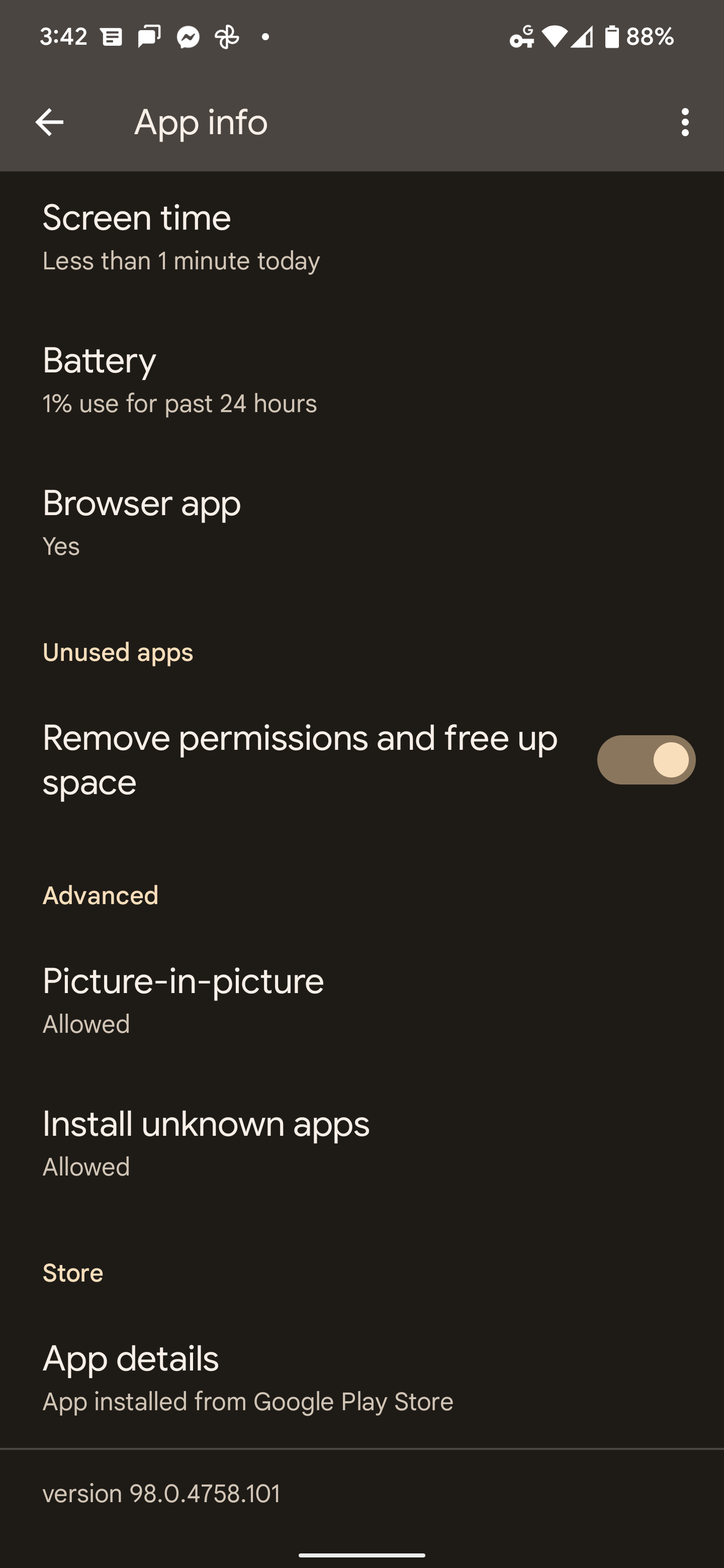
Another way to get to this is to visit the Chrome browser app on the Play Store directly! To make this easier, just press and hold the Chrome icon on your phone’s home screen or in your app drawer, and then tap the “i” for “information” icon that appears on the pop-up menu. Then, scroll down to “App details” at the bottom of the window that opens, and tap it to be taken directly to the Play Store listing for Chrome where you can then tap the same “update” button.

I just want the steps!
1. Press and hold the Chrome icon on your phone
2. Tap the “i” for “information” icon shown above
3. Scroll down and tap the “App details” option at the bottom
4. Tap “Update” on Chrome’s Play Store listing
Update Chrome on iPhone and iPad
Lastly, updating Chrome on an iOS device just takes a few steps. Simply open the Apple App Store by tapping the protractor icon, and then tap your profile image at the top right of the screen. Once you’ve done that, scroll down to “Available Updates” and search for Chrome by looking for its icon visually.
It ought to be listed there. If so, just tap the “Update” button that appears next to it. You may be prompted to input your Apple ID password. Here’s to hoping that you remember what that is! You may even be lucky enough to have already set up Face ID or fingerprint authentication.
Chrome should now be updating. This is largely the same process as it is on Android, as you can tell. Visiting the app store for that ecosystem and locating the app to tap “Update” – easy peasy.
I just want the steps!
1. Open the Apple App Store
2. Tap your profile image at the top right
3. Scroll down to “Available Updates”
4. When you see Chrome, tap “Update” next to it
5. Enter your Apple ID password if needed
6. Watch magic happen
SUBSCRIBE TO UPSTREAM
Get Chrome Unboxed delivered straight to your inbox
Upstream is our flagship, curated newsletter with the top stories, most click-worthy deals, giveaways, and trending articles from Chrome Unboxed sent directly to your inbox a few times a week. Join 31,000+ subscribers.

