


Support our independent tech coverage. Chrome Unboxed is written by real people, for real people—not search algorithms. Join Chrome Unboxed Plus for just $2 a month to get an ad-free experience, access to our private Discord, and more. Learn more about membership here.
START FREE TRIAL (MONTHLY)START FREE TRIAL (ANNUAL)
Google’s Digital Wellbeing tools can help you use technology without it overtaking your life. Limiting your usage of Nest speakers, displays, and more as well as apps on your phone is an incredibly powerful way to make the most of innovations without losing yourself in the process as it can be easy to become inundated. Google also offers a way for you to take a break from its Assistant without disabling it entirely, and today, I’m going to show you how to set up what’s called ‘Downtime’.
With Downtime, you can set a schedule to limit when your Google Nest speaker or display can be used. Downtime is part of the Google Home app’s Digital Wellbeing tools and can help you manage the use of your family’s speakers and displays. Only the person who set up the device can create and manage Downtime schedules.
Set up Filters Here
One of my favorite use cases for Downtime in the Google Home app is disabling accidental voice triggers or notifications at night when everyone is sleeping. Just last week, I had a 6 am reminder set up on repeat each day, and it caused my son to wake up. Instead of disabling this useful reminder, I enabled Downtime on specific devices, so that those wouldn’t blast audio through the house. Instead, I was reminded on the appropriate device instead! Before we begin, let’s see what happens while Downtime is on. The following is taken from the Help article on the Nest support site.
Here’s what happens when Downtime is active
- Your device won’t respond to most commands or questions. Commands to stop or cancel activities will still work.
- You won’t receive notifications on your device.
- Routines won’t work unless you started one before you turned on Downtime.
- Activities that started before Downtime begins will continue. For example, you can play music before Downtime starts, and it’ll continue to play until you stop it.
- You can set an alarm or timer, or ask for the time.
- You can use commands to control your smart devices for home automation, like when you ask your Assistant to turn the lights on or off.
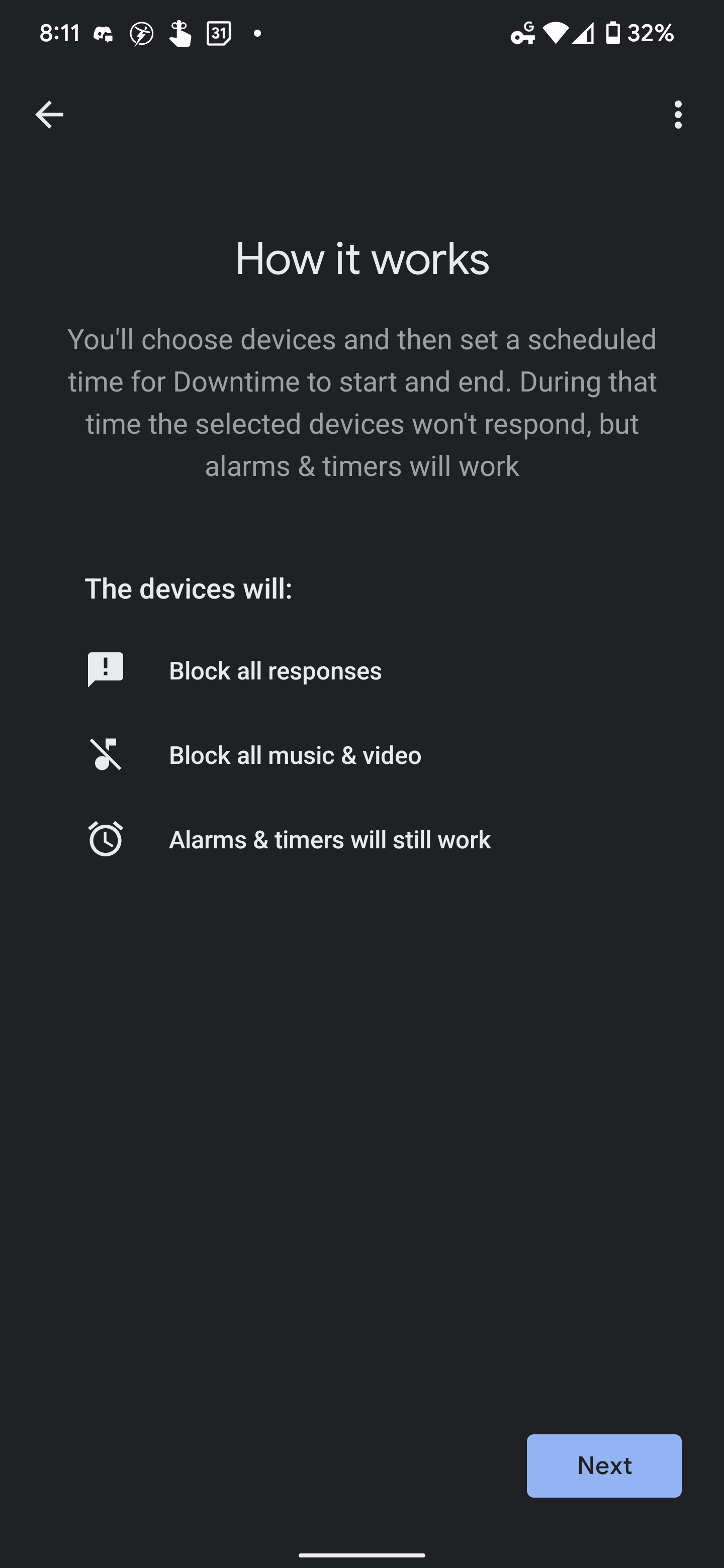
While Downtime is active, all responses will be blocked in addition to all music and videos. Attempting to play anything or ask Assistant questions will simply return an error stating that you can’t do that while Downtime is enabled. Luckily, your alarms and timers will continue to work while this mode is toggled on!
I highly recommend you set up a Schedule for Downtime so it automatically turns on and off based on the day or night for convenience. It can be a tad annoying sometimes if it’s not that late and you still want to ask the Assistant something only to get rejected, but it’s more useful than it is inconvenient in those situations.
How to temporarily turn off Google Assistant
Alright, let’s get straight into it – to take a break from Google Assistant, just open the Google Home app on your phone and go to the Settings cogwheel. From there, visit the ‘Digital Wellbeing’ section, and choose ‘Set up’.
Pro Tip: You can also use Google Home’s Digital Wellbeing tools to create content filters for your devices! With filters, you can block explicit music and videos on YouTube, YouTube music and other music or radio services from playing on Nest and other Assistant-enabled speakers and displays.
Google Nest Help
If you’re not interested in setting up filters, just skip this step and head on forward to the ‘Schedule Downtime’ setup process instead. Below, you will see what that process looks like. By tapping the blue ‘Set up’ button at the bottom-right of the screen, you can progress to the ‘How it works’ screen to better understand Downtime’s benefits.

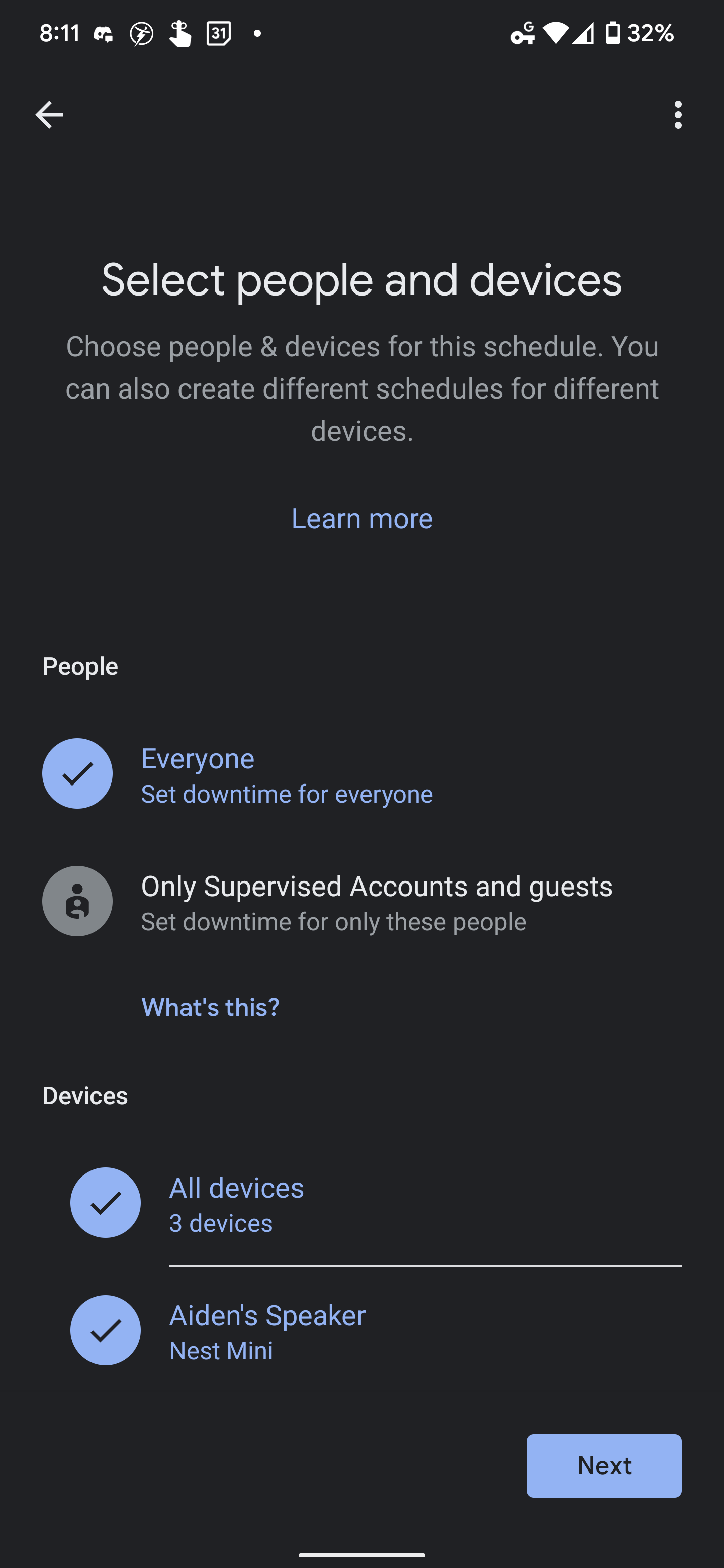
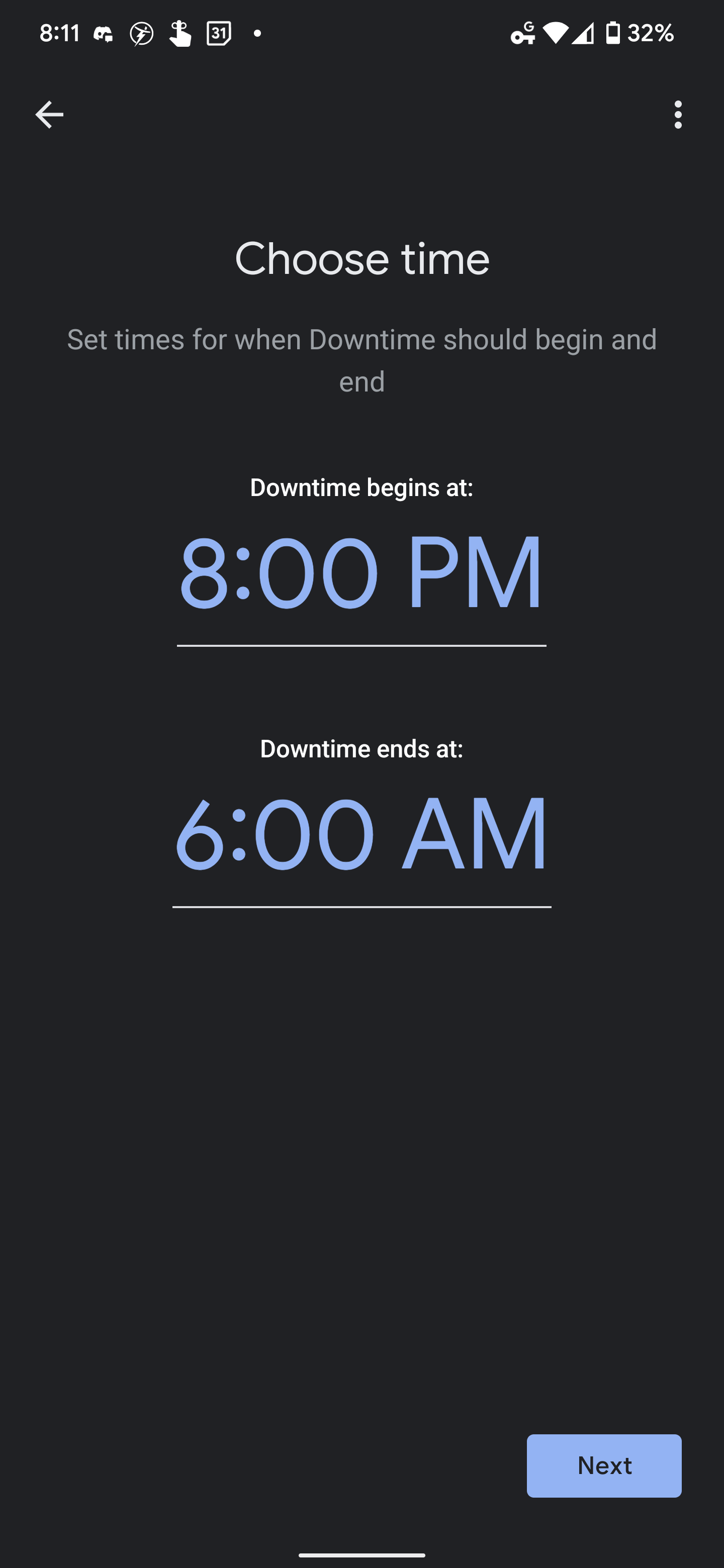
On the next screen, you’ll need to select which people and devices your Downtime schedule will apply to. You can choose ‘Everyone’ or ‘Only Supervised Accounts and guests’ for people, and you can choose ‘All devices’ or a specific device before tapping the blue “Next” button again. Then, simply choose a time when Downtime begins and when it will end using the large blue time selectors as seen below.
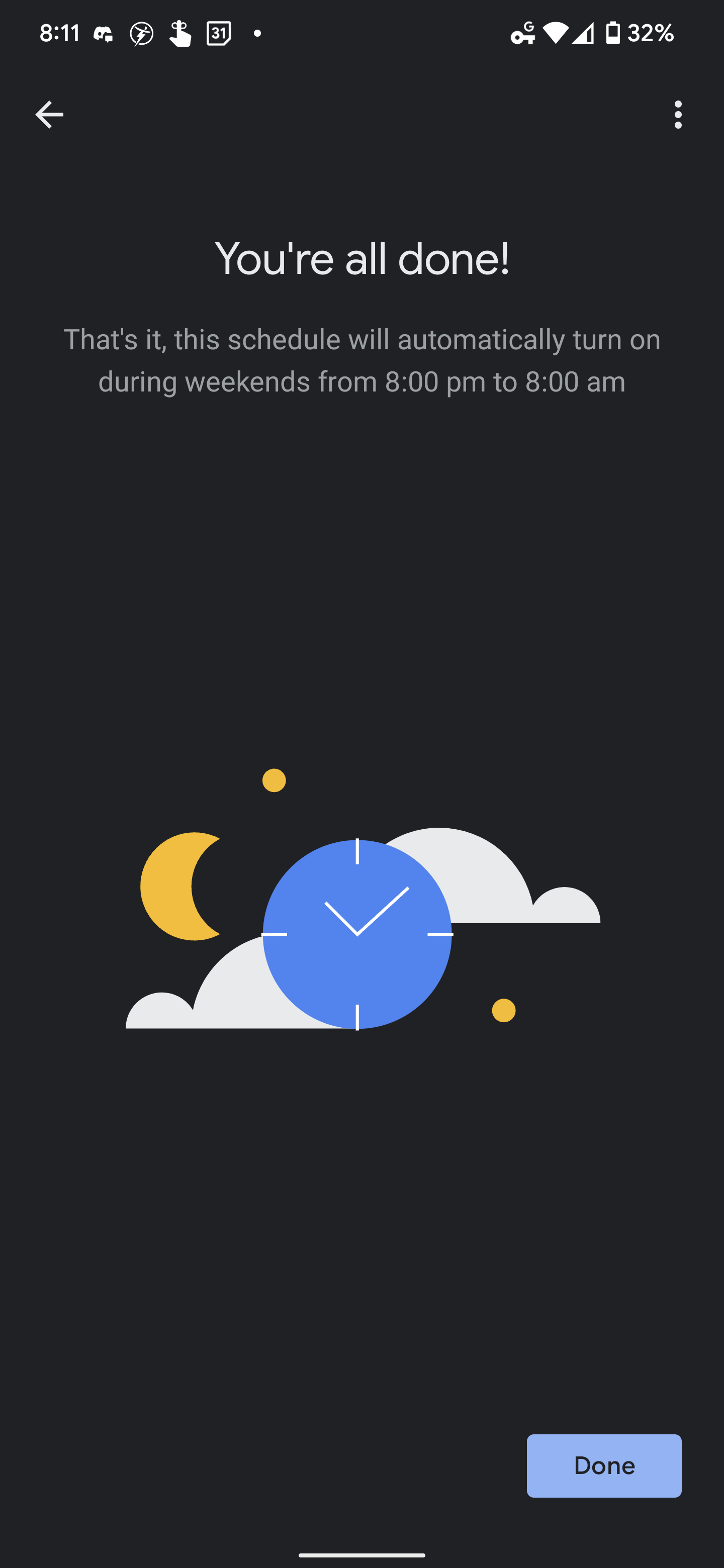
You can do more than just choose a time with this though, you can specify which days the schedule will work its magic. For example, I’ve set mine up to work on weekends only so that my son can sleep in (yes, please!) That’s literally all you have to do! Tap “Done”, and your schedule will automatically do its thing when the appropriate time rolls around.
I just want the steps!
1. Open the Google Home app
2. Tap ‘Settings’
3. Tap ‘Digital Wellbeing’
4. Tap ‘Set up’
5. Set up or skip filters, and head to the ‘Downtime’ segment
6. Tap ‘New schedule’
7. Tap ‘Next’ until you get to ‘Select people and devices’ and specify as you wish
8. Choose a ‘Begin’ and ‘End’ time for your Downtime schedule
9. Tap ‘Done’ to finish the setup process!
10. Enjoy a good night’s sleep
While everyone may be interested in taking a much-needed break from Google Assistant, a Downtime schedule may not work out in all circumstances. As I mentioned, trying to access Assistant during Downtime can be frustrating, and there’s no way to temporarily toggle it off or break through the filter if needed. Let me know in the comments if you’re using Downtime, and if so, whether or not it has improved your digital wellbeing.
SUBSCRIBE TO UPSTREAM
Get Chrome Unboxed delivered straight to your inbox
Upstream is our flagship, curated newsletter with the top stories, most click-worthy deals, giveaways, and trending articles from Chrome Unboxed sent directly to your inbox a few times a week. Join 31,000+ subscribers.

