


Support our independent tech coverage. Chrome Unboxed is written by real people, for real people—not search algorithms. Join Chrome Unboxed Plus for just $2 a month to get an ad-free experience, access to our private Discord, and more. Learn more about membership here.
START FREE TRIAL (MONTHLY)START FREE TRIAL (ANNUAL)
Google Stadia is revolutionalizing cloud gaming by providing incredibly innovative infrastructure and while services like GeForce NOW are competing neck to neck, Stadia’s experience is much more user-friendly, in my opinion. By having a clean and straightforward, polished process for getting gamers into the action instead of using emulated launchers, a VirtualBox environment feel, and so on, Google has truly created something special.
So much so that it’s even catering to families and children. Getting PAW Patrol, Spitlings, or Kaze among the large list of other family-friendly titles going on a Chromecast with Google TV (after the initial setup) or on any other device just takes a few clicks, and anyone can do it – even if they’re tiny humans.
Today, I’m going to show you how you can set up Stadia Family Library Sharing and control which games your little ones can see and play on their own account. This helps keep them safe while still allowing them to have plenty of fun! It’s not that hard to do, and once we’re finished, they will feel like they just received a new game console loaded with awesome content.
How to set up Family Sharing
The first step in setting up Family Sharing on Stadia is having a “Family Group” on your Google Account. This is accomplished by setting your child or children up with their own supervised account with the Family Link setup tutorial I created a while back! I’ve even created a step-by-step Google Form to help with this process so parents have all of the work handled for them.
Once you’ve done that, you need to make sure that you have a Family Payment Method on file for supervised users to pull from when you approve purchases. This is required even for free items across the Google Play Store and Stadia Store, but just and only to keep receipts on what’s been bought. I’m also going to go ahead and assume that you have a Stadia account as an individual, as you’ll need a parent account to manage your “Stadia Family Dashboard“.
Alright! It’s time to create your kid’s Stadia account! You can do this right from the Stadia app on their Chromebook, Android phone or tablet, or even the web. During the setup process, you can choose to either apply a Stadia Pro code that you’ve received elsewhere to give them a free trial of the service or simply claim the free Pro trial that’s offered to them at the end of the setup process.
Claiming this will prompt a purchase request email in your Gmail inbox. Approve the ‘purchase’ there, on the Stadia Family Dashboard, or in the Google Family Link app on your phone. As a family group manager, you’ll get an email stating that your child is trying to create a Stadia account. Simply follow the instructions in the email and the process will be complete.
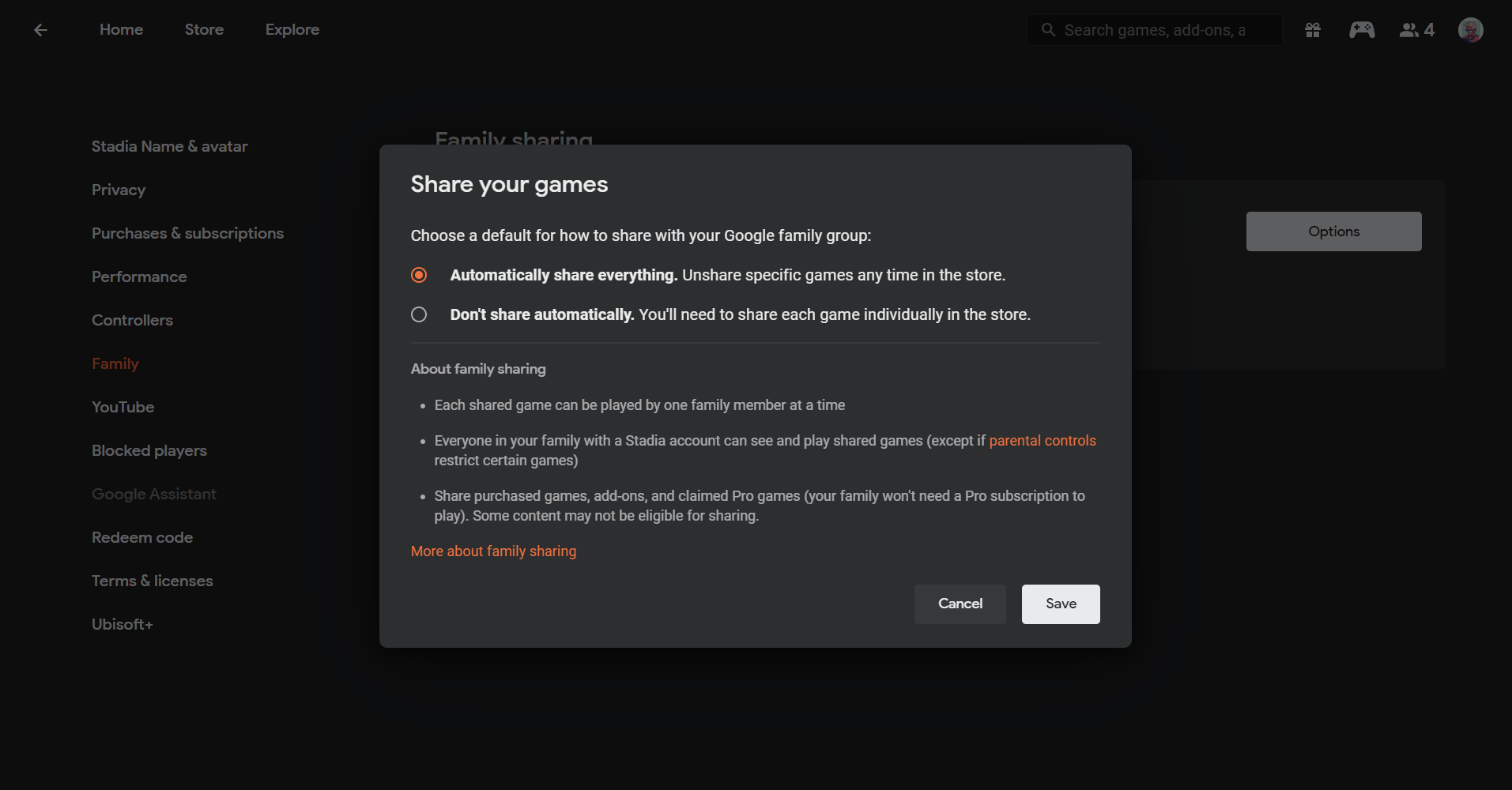
After all of that’s done, you can just visit your Stadia Family Dashboard to set up Family Sharing using the button there. When you reach the ‘Share your games’ option, you can choose to automatically share everything (Unshare specific games any time in the store) or ‘Don’t share automatically’ (You’ll need to share each game individually in the store).
Choosing which games are a part of the Family Library
Sweet, we’re almost done. The last step is going through your Stadia game library and toggling the “Share this game with family” switch as seen below on titles that you deem appropriate for them. Obviously, this will vary from child to child and from family to family as everyone is different and can handle varying levels of content, but the ESRB rating found on each game listing is a guiding post for these decisions.

For example, “E” for Everyone titles like PAW Patrol (there are several games in this series on Stadia!) is a great place to start adding to the Family Library for little ones, but there are others too. Some of the games my son enjoys are Kemono Heroes, Shantae: Risky’s Revenge, PHOGS!, Race with Ryan Road Trip, Ary and the Secret of Seasons, Crayta, El Hijo A Wild West Tale, UNO, The Gardens Between, Monster Boy and the Cursed Kingdom Cake Bash and Human Fall Flat to name a few.
I just want the steps!
1. Set your child’s Google Account up with our Family Link tutorial
2. Make sure you have a Family Payment Method on file in your Family Group
3. Make sure that your Stadia account is set up
4. Open the Stadia app on your child’s device or on the web
5. Go through the sign-up process using your child’s Family Link email address
6. Approve the email request for their account creation in your email inbox
7. Visit your Stadia Family Dashboard
8. Enable Family Sharing
9. Select a game from your Stadia library
10. Toggle the “Share this game with family” toggle
If you want to set your child’s Stadia account up on your Chromecast with Google TV, just launch the Stadia app there and on their device. On their end, tap the controller icon in the Stadia app and follow the steps to pair a gamepad to the TV and transfer their account to the big screen. Let me know in the comments if you and your family play Stadia together!
SUBSCRIBE TO UPSTREAM
Get Chrome Unboxed delivered straight to your inbox
Upstream is our flagship, curated newsletter with the top stories, most click-worthy deals, giveaways, and trending articles from Chrome Unboxed sent directly to your inbox a few times a week. Join 31,000+ subscribers.

