

Support our independent tech coverage. Chrome Unboxed is written by real people, for real people—not search algorithms. Join Chrome Unboxed Plus for just $2 a month to get an ad-free experience, access to our private Discord, and more. Learn more about membership here.
START FREE TRIAL (MONTHLY)START FREE TRIAL (ANNUAL)
ChromeOS has been through quite a few changes over the years when it comes to tablets. With the arrival of the Pixel Slate and ChromeOS 70, Google really wanted the overall feel of the OS to lean more towards a tablet-first look and functionality. This introduced us to the full-screen app launcher and stacked notifications above the system tray, largely sacrificing desktop productivity for tablet-optimized layouts.
As we see with the current UI on Chromebooks, Google has pulled back the reins quite a bit and brought more balance back to the overall ChromeOS experience for both clamshells and tablets alike. In that process, they also introduced navigation gestures for ChromeOS tablet mode similar to what we see on Android and iOS, making for what we all thought would be a simpler experience on tablet devices.
And while those gestures do work, they can be a bit frustrating to use on lower-powered Chromebooks. With gestures, animations need to be slick and fluid so that the items on the screen immediately respond to the movement you’ve made. Anything less causes doubt in the user that the gesture actually did anything at all, leading to awkward movement through the UI and ultimately, frustration.
Before those gestures became the norm, however, ChromeOS had buttons for the standard navigation elements that lived right on the shelf. They looked similar to the old Android buttons, too, so most users were quick to decipher what each was for. While I prefer these buttons on most ChromeOS tablets at this point, the sad fact is they are no longer on by default. If you choose, however, you can get them back.
Restore the ChromeOS navigation buttons
Hidden in the accessibility features of ChromeOS, you can simply turn the buttons for non-gesture navigation back on. It only takes a few steps, and the best part is: gestures still work alongside them! So, with this setting change, you can have the best of both worlds, swiping when you choose and simply pressing the navigation buttons otherwise. Here’s how to do it.
Access the Accessibility settings for Mouse and Touchpad
First up, you’ll need to get to the right setting. You can manually get there by going to Settings > Advanced > Accessibility > Manage accessibility features > Mouse and touchpad > Show navigation buttons. But the easier way to do this would be to simply hit the Search/Everything Key and type “Show navigation buttons” and click on the only result you get with the settings logo next to it.
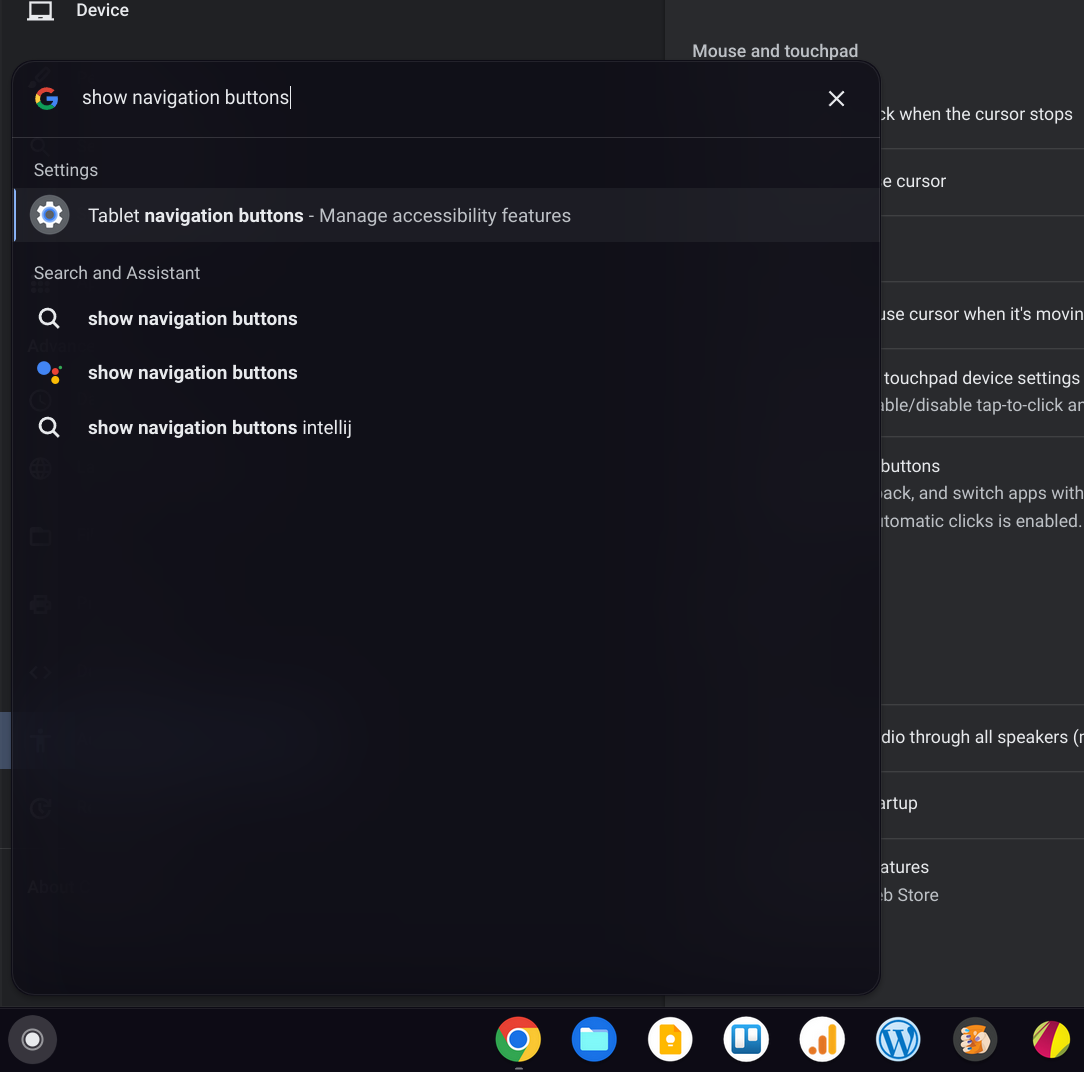
When you arrive, switch the Show navigation buttons option to the on position and the next time you enter tablet mode, you’ll now see the addition of the home, back and overview/multitask buttons on the shelf. They do just what you’d expect, replacing the need to swipe up to go home, swipe up and hold to show the overview of open windows, and swipe from the edge to go back.


Granted, even with these buttons back in their place, you can still swipe to your heart’s content. But when you don’t trust your Chromebook’s performance or simply don’t want to do all of those motions, you can just press the button that is right there, ready to do the job. While I love gestures on my phone, there’s plenty of room for these navigation elements to be on my larger-screen Chromebook, and I’m planning on leaving them in place moving forward.
VIA: Chrome Story
SUBSCRIBE TO UPSTREAM
Get Chrome Unboxed delivered straight to your inbox
Upstream is our flagship, curated newsletter with the top stories, most click-worthy deals, giveaways, and trending articles from Chrome Unboxed sent directly to your inbox a few times a week. Join 31,000+ subscribers.

