


Support our independent tech coverage. Chrome Unboxed is written by real people, for real people—not search algorithms. Join Chrome Unboxed Plus for just $2 a month to get an ad-free experience, access to our private Discord, and more. Learn more about membership here.
START FREE TRIAL (MONTHLY)START FREE TRIAL (ANNUAL)
So, you’ve got a Chromebook and your friend with the iPhone just sent you a photo they snapped via a chat app. You download the file only to find that your ChromeOS device can’t open this possibly unfamiliar file format called .HEIC. Now, you may be thinking “I’ve never encountered this problem nor do I know what .HEIC is.” If not, great but my research revealed that more than 200,000 users per month are searching the web for information about .HEIC files. How to open them. How to convert them and more broadly, “what are they?“
What are HEIC/HEIF image files?
If you’re an Apple user, you may be familiar with the .HEIC file format. So? What is HEIC/HEIF? HEIF stands for High Efficiency Image Format and the files are saved as .HEIC. It is a much newer format than the standard JPG/JPEG format but offers higher image quality with a smaller file size By default, this is the image format used when you take pictures with an iPhone or an iPad. When you send one of these images from your Apple device via email or other select applications, iOS automatically converts the file to the more commonly used JPEG format. The reason for that is that despite being a superior file format, many applications have yet to add support for HEIF/HEIC.
If you’re an Android user, the HEIF image format is available to you in your camera settings but it is disabled by default. Much like the H.265 video format, using HEIF images will save you some storage space but you’re going to run into compatibility issues when you try to open them on your Chromebook. Thankfully, you don’t have to jump through a lot of hoops or install any extra applications to view HEIF images. As a matter of fact, you can view the photo and convert it to a more-versatile JPG format all in one fell swoop.
How to view your HEIF image
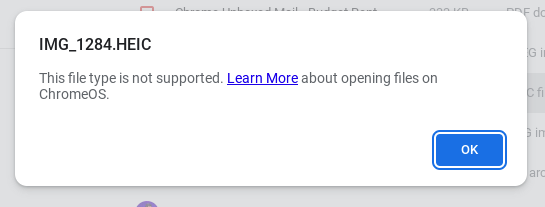
For our example, our resident AV expert AndyCam has sent me this wonderful photo of our office mascot, Paul the Plantypus. He sent it to me via Discord which, unlike Gmail, does not convert the image to the JPG format. I downloaded the file to my Chromebook and when I try to open it, I’m greeted with the message in the above image informing me that “This file type is not supported.” Now, there are plenty of “free” image and video converters out there on the web and many of them work just fine. However, some have file size limits and others have a daily max of files that you are allowed to convert. If you’ve ever used one of these services you’re likely aware that many are also riddled with popups, redirects, and all-around unsavory, NSFW ads. Not good. No worries. You’ve got a Google account so you already have all the tools needed to view your freshly received photo.
First, head on over to your Google Photos account. On the web, just point your browser to photos.google.com and you’re ready for the next step. At the top right, click “Upload,” select “Computer,” and find your HEIF/HIEC file in your Downloads folder(or wherever you saved it.) Upload the file and that’s it. You should now see your full-resolution HEIC photo in Google Photos. If you click on the information button (lower case “i” with a circle around it), you will see that the image is still in the .HEIC format.

That’s all fine and well for viewing the photo but now you need to convert it to a more usable format in order for your Chromebook to actually open it. Never fear. It’s as easy as 1, 2, 3.
If you aren’t still there, head back over to Google Photos and click the image you wish to convert. Hover the image and you’ll see a toolbar at the top-right. In the three-dot menu, click the “Download” button or you can simply press Shift+D on your keyboard and you’ll be prompted to save the photo to your Files App or whatever your default download location may be. When you do, take note that the file extension has now changed to .jpg. You can rename the image if you like or just hit Enter and your .HEIC file will be automatically converted and saved as a JPG while leaving the original image unchanged. See? I told you it was easy. No extra apps or extensions are needed and no seedy websites to visit that could result in a visit from the IT department manager or HR.
HEIF/HEIC files are awesome and they are way more versatile than the industry standard JPG format. Hopefully, the former will find its way to the mainstream along with the H.265 video format. Until then, you now have this handy trick in your toolbox for quickly viewing and converting .HEIC files for use on your Chromebook or other unsupported platforms. Hope that helps. Stay tuned for more tips on how to get the most out of your ChromeOS device.
SUBSCRIBE TO UPSTREAM
Get Chrome Unboxed delivered straight to your inbox
Upstream is our flagship, curated newsletter with the top stories, most click-worthy deals, giveaways, and trending articles from Chrome Unboxed sent directly to your inbox a few times a week. Join 31,000+ subscribers.

