


Support our independent tech coverage. Chrome Unboxed is written by real people, for real people—not search algorithms. Join Chrome Unboxed Plus for just $2 a month to get an ad-free experience, access to our private Discord, and more. Learn more about membership here.
START FREE TRIAL (MONTHLY)START FREE TRIAL (ANNUAL)
I may be the only person in the world that has dealt with this frustration but I seriously doubt it. The problem, you see, is the fact that I have been toting around two phones for almost two months now. Now, that may not seem like a big deal to someone who writes about tech for a living but I have been forced to keep my OnePlus 9 Pro close at hand out of necessity not because I want to lug around a duo of mobile devices. Here’s the reason for my plight.
About two months ago, I finally made the switch from my trusty OnePlus 9 Pro to the Pixel 6 we had here at the office. I’ve never used a Pixel long-term as my daily driver and I decided that it was high time to remedy that. Plus, I liked the idea of having the Pixel’s camera at my disposal 24/7. I won’t go into a full review here but for the most part – aside from the fingerprint sensor – the Pixel experience has been a good one. That is, save this one, brain-searing hiccup.
See, I do a little video work on the side. Now, I’m not professional and my videos aren’t racking up YouTube views like the ones we make here at Chrome Unboxed. Every Sunday, I make a quick, 2-minute announcement video that runs before our weekly church service. I don’t use any fancy cameras or pro-level video editors. I set up my tripod with a phone clamp, shoot the video, and import it to an online video editor to add some intro music, graphics, and whatnot. I’ve gotten really efficient at the process and the video is done and in the cloud in less than thirty minutes.
Unfortunately, when I switched to the Pixel, my workflow hit an unforeseen (and until recently, undiagnosed) obstacle. Since all of my edits are done on a web-based platform, I use my Chromebook for the entire process. That worked just fine until I started using the Pixel to record my videos. I would shoot the announcements and then, attempt to download the video from photos.google.com so that I could upload it to my video editor. Sadly, my new video simply would not work. Oh, it would play but the video itself was just a black screen with audio in the background. So, I tried a different route. I tried to use Nearby Share, Google Drive, email, and even transferring the file over USB. Nothing. Each attempt left me with the same result.
I pinged some other Pixel 6 owners who all reported that the issue wasn’t present with their device. I was confounded, to say the least. So, I decided to cut my losses and started carrying my OnePlus with me wherever I went. This device normally lives on the charger at my desk as it is still my go-to for our lunchtime PUBG Mobile sessions. While little more than a mild inconvenience, the bigger frustration was not knowing why my videos from a Google-made phone wouldn’t play on my Chromebook.
Well, I was sitting here yesterday morning and I decided that it was high time to get to the root of this frustrating problem. We have a Pixel 6 Pro here at the office that is signed into our Chrome Unboxed account. We use it to snap quick photos and do some behind-the-scenes videos. I opened Google Photos and switched to the CU account to download an Andy Cam video and guess what? Exact. Same. Outcome. I was convinced that the problem was my phone but this confirmed that something bigger was at play. So, I pinged Michael to see if we could triage the problem.
After some digging, I discovered that the video files were being saved using the H.265/HEVC codec instead of the industry-standard H.264/AVC codec. What is H.265/HVEC? Simply put, it is a video compression standard that is supposed to be the successor to the H.264 standard. It is touted to create 25-50% more compression than AVC without any loss of video quality. Sounds great, right? For the most part, it is but the codec has yet to be widely embraced and therefore, isn’t fully supported by a large number of software platforms. Yet, that isn’t stopping Google from using the space-saving video compression codec. In fact, it is exactly how Pixel phones offer their “Storage Saver” feature for reducing file size for saved videos.
Caught unaware
I’m a tinkerer. My main Chromebook is always in Canary and my phone is generally on some form of a developer preview of Android. I constantly have flags and experimental features enabled but I honestly don’t remember enabling this feature on my Pixel 6. The feature in question is the aforementioned Space Saver and another advanced setting in the Pixel’s camera settings. In the Advanced settings, you will find a section that states “Store videos efficiently” and enabling this feature will automatically use H.265/HVEC compression when saving your video files. Under the Device storage tab, you will find the “Storage Saver” option that will also utilize the newer compression method.
I had both of these enabled and after running my videos through an online detection tool, I confirmed that they were, in fact, using H.265. This is exactly where the problem arose. Chrome on Chrome OS as well as Chrome for Windows does not “officially” support the newer, less-used codec. (See the Chromium Projects for more information on supported Audio/Video formats.) Now, there are some third-party extensions that will allow you to view these videos but Chrome does not support them out of the box at this time.
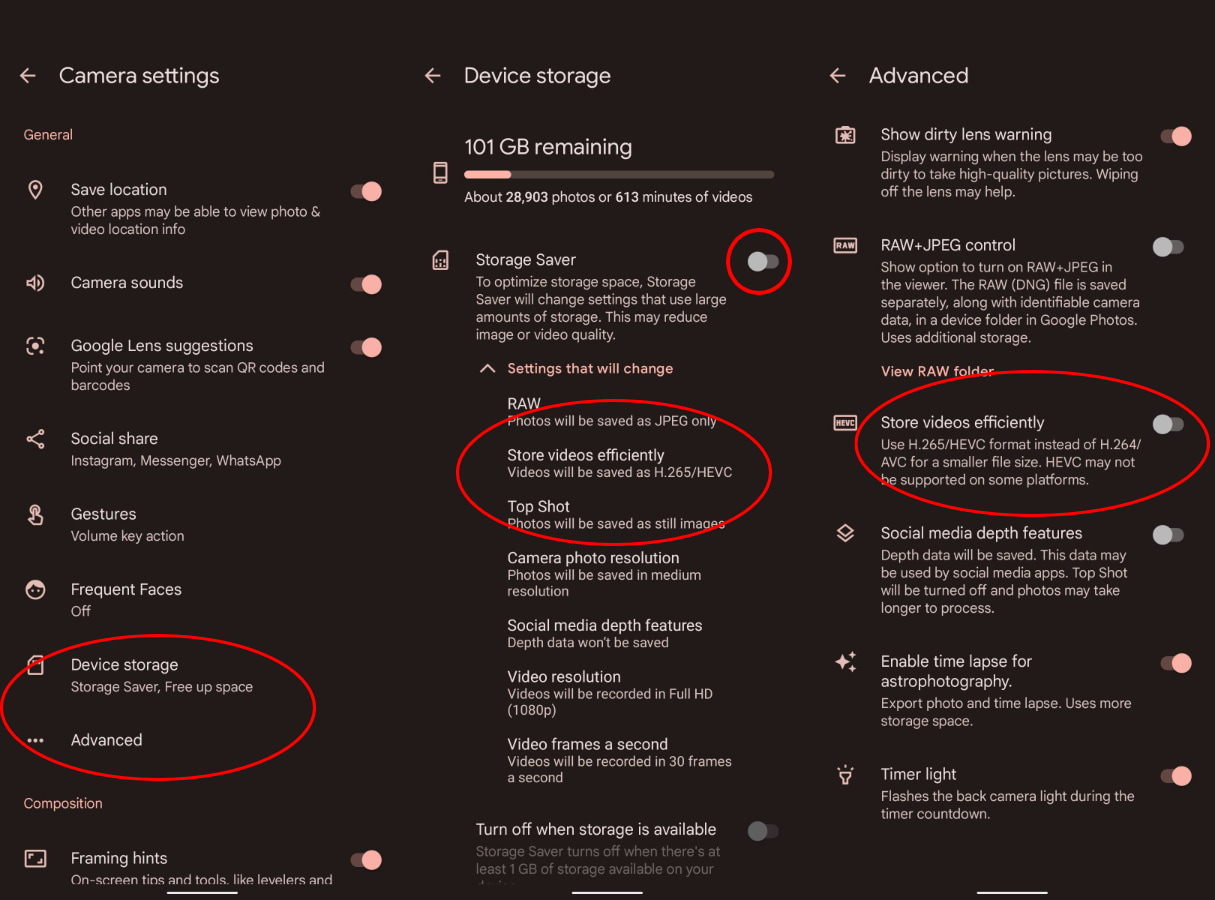
Above, you can find the Camera App settings in question from my Pixel 6. Interestingly, my OnePlus 9 Pro also has a setting to enable H.265/HVEC but it clearly states that it may not be supported on some devices. On the Pixel, the warning is in the Advanced settings but I’m sure that many (like me) may just enable Space Saver and not give it a second thought.
Now, I am not opposed to Google using this compression method for saving my videos but I find it rather odd that they opted to use H.265 when the Chrome browser doesn’t fully support the codec. In the future, this will likely change but I think that it would be worth an addition to the Storage Saver settings that lets users know that their videos may not be supported on all devices. Thankfully, when you disable the H.265 compression, I found that my saved videos were converted back to H.264 and I can now play them on any device as well as upload them to my video editor. That’s my rant for the day. If you have stumbled upon this issue, I hope that my frustration has saved you some precious time and grey hairs.
SUBSCRIBE TO UPSTREAM
Get Chrome Unboxed delivered straight to your inbox
Upstream is our flagship, curated newsletter with the top stories, most click-worthy deals, giveaways, and trending articles from Chrome Unboxed sent directly to your inbox a few times a week. Join 31,000+ subscribers.

