


Support our independent tech coverage. Chrome Unboxed is written by real people, for real people—not search algorithms. Join Chrome Unboxed Plus for just $2 a month to get an ad-free experience, access to our private Discord, and more. Learn more about membership here.
START FREE TRIAL (MONTHLY)START FREE TRIAL (ANNUAL)
Did you know that Google has created a way for you to wrangle the wide, open web? There are constantly billions of pieces of content being published on the internet, and it can be hard to keep track of things that are important to you, but Google Alerts makes it possible to be notified of highly specific pieces of news, mentions of your name from any corner of the web, and more.
Today, I’m going to show you how to set up and manage Alerts! to get started, just visit – you guessed it – Google Alerts on the web. Upon landing there, you’ll see a search bar. One of the main reasons people use this tool is to get a heads-up when their name is used or mentioned somewhere online.
Luckily, the company is already aware of this and has created a “Me on the web” section at the bottom of the page. Tapping the “+” icon next to your name and email address will automatically create alerts for both. Neat, right?
Alright, let’s create our own alerts, shall we? Type anything in the search box, as is customary with pretty much all Google services. Then, you’ll see a blue “Create Alert” button. Don’t click that just yet! Instead, you’ll see a “Show options” dropdown to the right of it.
Here, I’ve searched for one of my favorite games – “Death Stranding” for the PlayStation 4 and 5. Dropping down the options reveals choices for how frequently you will receive alerts, lets you select a source (news, blogs, the web, videos, books, discussions, and finance), the language and region for your alerts, and more.
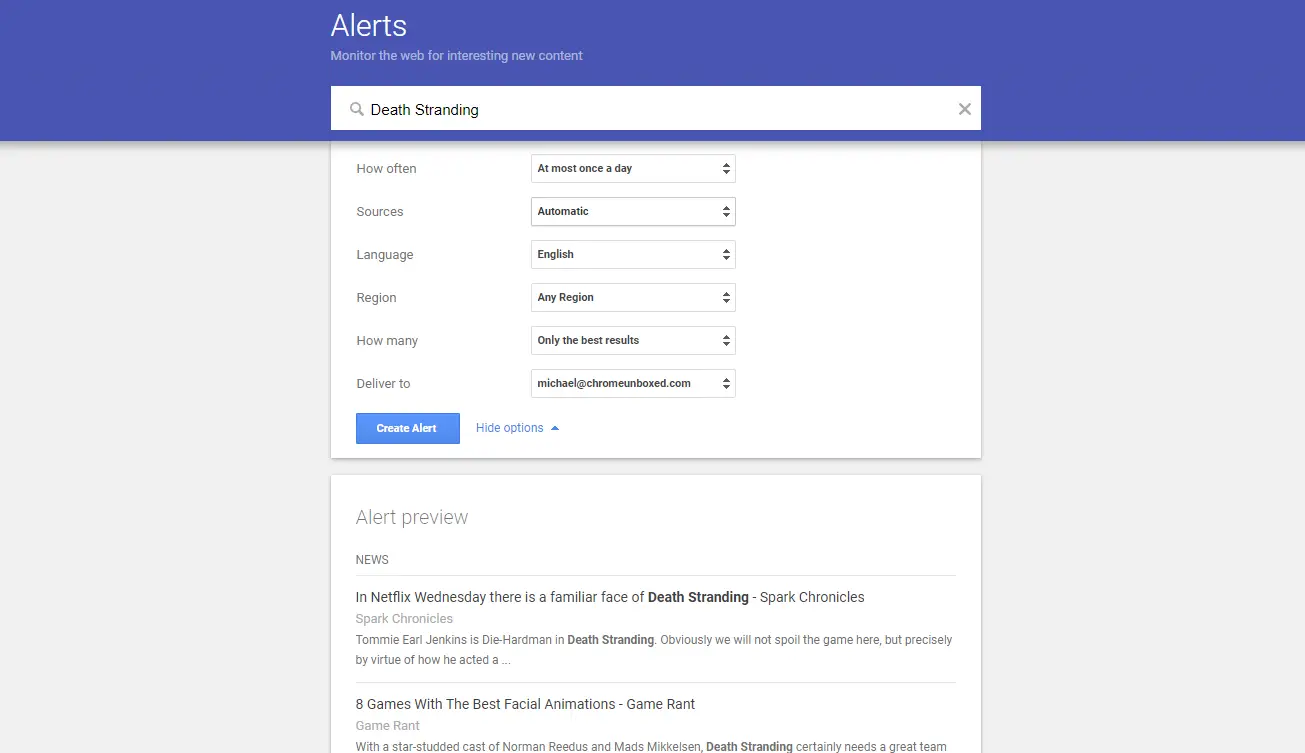
What’s really cool is that you can send these pings to your email address so they hit your Gmail inbox, or you can convert them into an RSS feed! Doing so could help you recreate Google Reader if you have a client to plug RSS into.
Okay, here’s the last step. Check out the “Alert preview” just below the selections you’ve made to be certain everything looks accurate to what you’d like to receive. Then, tap the blue “Create Alert” button! You probably saw that coming, right?
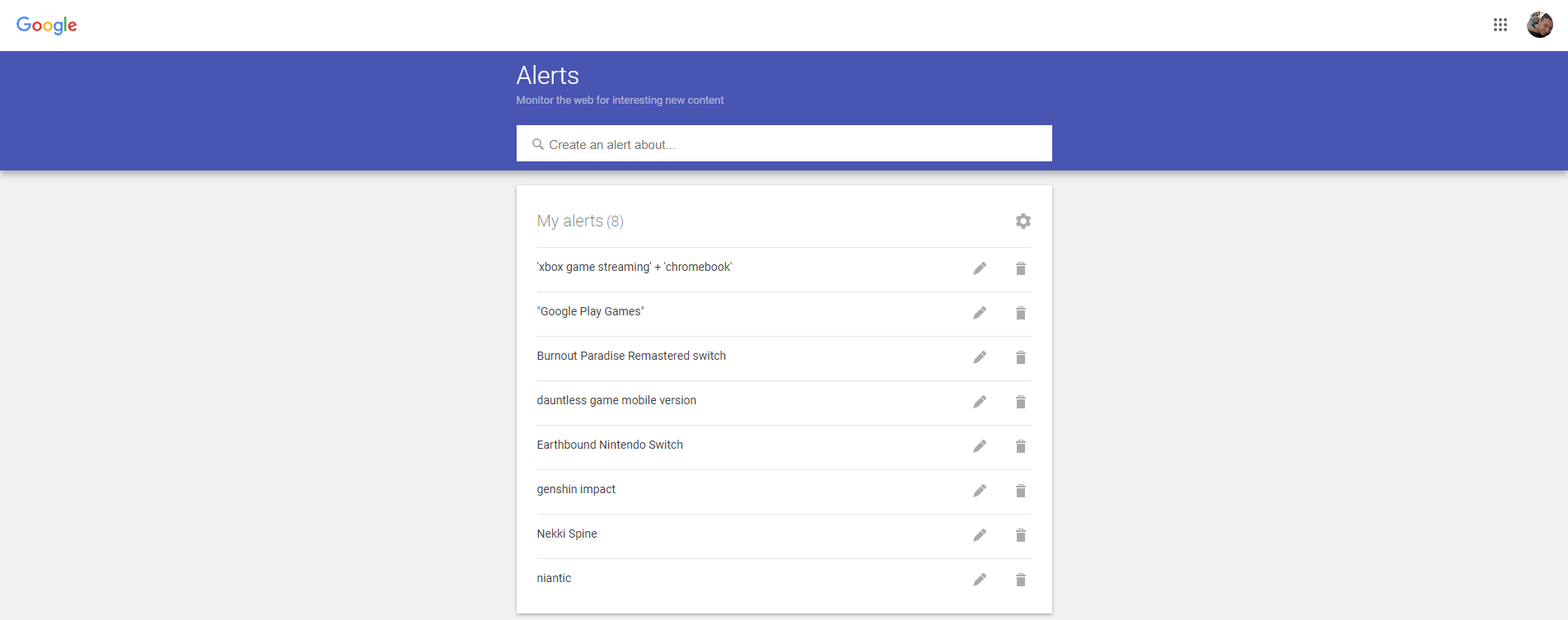
As you can see in the image above, I have several Alerts created, and frequently receive emails for the keywords I’ve saved. If you want to modify or delete an Alert of your own, just hover over the pencil or trash can icons and click them. Luckily, Google has made this super simple!
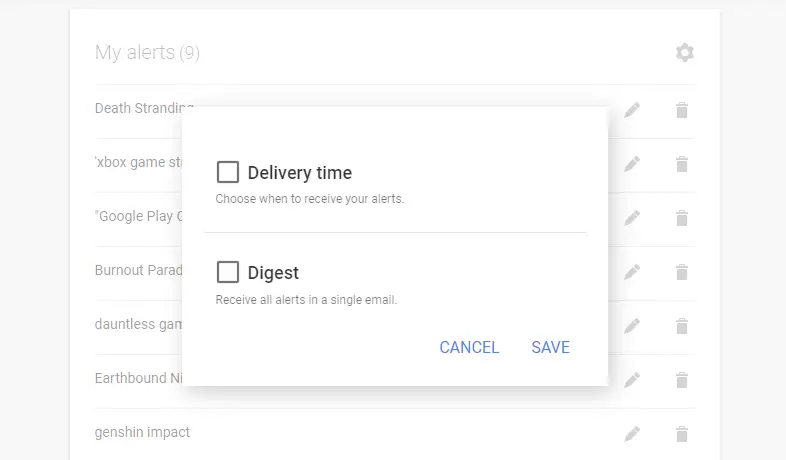
Oh, and one last thing – tapping the cog wheel icon at the top-right of your alerts will pop open the dialogue box you see above. You can choose a delivery time for your Alerts, or bundle them together as a digest in one email! Google Alerts truly is one of the more niche and forgotten tools that the company offers, but they can be extremely helpful depending on your industry or interests. Do you have any created, or have you never heard of this feature before today? Let’s chat about it in the comments!
SUBSCRIBE TO UPSTREAM
Get Chrome Unboxed delivered straight to your inbox
Upstream is our flagship, curated newsletter with the top stories, most click-worthy deals, giveaways, and trending articles from Chrome Unboxed sent directly to your inbox a few times a week. Join 31,000+ subscribers.

