


Support our independent tech coverage. Chrome Unboxed is written by real people, for real people—not search algorithms. Join Chrome Unboxed Plus for just $2 a month to get an ad-free experience, access to our private Discord, and more. Learn more about membership here.
START FREE TRIAL (MONTHLY)START FREE TRIAL (ANNUAL)
Today we are going to learn how to create a countdown timer in Sheets by using a couple of built-in functions. These are going to be DATEDIF, which calculates the number of days, months, or years between two dates, and NOW() which return today’s date. The syntax for the DATEDIF formula is DATEDIF(start_date, end_date, unit) with the start and end date required to reference a cell that already contains a date or a function that returns a date, such as NOW(). The unit is an abbreviation for the unit of time you want to be calculated, such as the below:
• “Y”: the number of whole years between start_date and end_date.
• “M”: the number of whole months between start_date and end_date.
• “D”: the number of days between start_date and end_date.
• “MD”: the number of days between start_date and end_date after subtracting whole months.
• “YM”: the number of whole months between start_date and end_date after subtracting whole years.
• “YD”: the number of days between start_date and end_date, assuming start_date and end_date were no more than one year apart.
Source: Google Docs Editors Help
For example, if you want to calculate how many months and days are left until American Thanksgiving, which this year falls on November 24th, you would first create a cell that references the date of November 24th, which you will need to refer back to later in the DATEDIF function. Once that cell is created, proceed with creating two other cells, one for the number of months and one for the number of days.

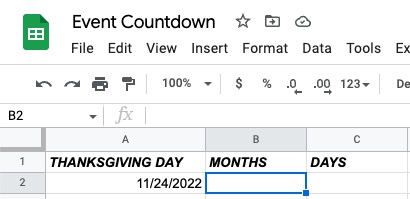
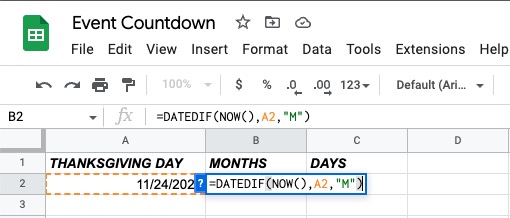
Next, we are ready to create our formulas. In the Months cell, type in the formula =DATEDIF(NOW(),A2,"M") with NOW() representing today’s date, A2 referencing the cell where you typed in the Thanksgiving date and “M” representing the number of months. However, since there is more than a month, but not exactly two months, between the two dates, there are days in between unaccounted for.
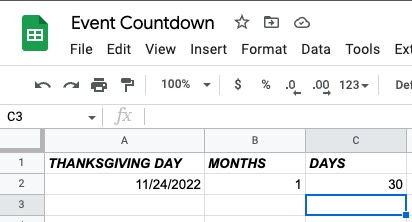
To calculate the number of days left after that month has elapsed, in the Days cell type in the formula =DATEDIF(NOW(),A2,"MD") with “MD” representing the number of days between the two events after the month has been subtracted.

As you can see in this example, there is one month and 30 days left until Thanksgiving instead of two whole months. This is because months and years are counted only if they are equal to or surpass the “day,” so if Thanksgiving fell on November 25th instead of the 24th, and today is September 25th, it would then count it as 2 months instead of one month and change.
I just want the steps!
1. Create a cell containing the date you want to count down to
2. Create another cell to enter your countdown formula, and type in
=DATEDIF(NOW(),A2,"M")with “A2” referencing the cell where you entered the date you want to count down to and “M” representing months as the unit you want to count in.3. If you also want to calculate the number of days left after the month has passed, create another cell and use the formula
=DATEDIF(NOW(),A2,"MD").
SUBSCRIBE TO UPSTREAM
Get Chrome Unboxed delivered straight to your inbox
Upstream is our flagship, curated newsletter with the top stories, most click-worthy deals, giveaways, and trending articles from Chrome Unboxed sent directly to your inbox a few times a week. Join 31,000+ subscribers.
