
• Skip to main content
  • Skip to primary sidebar
  • Deals
  • Features
  • Guides
  • Chromebooks
  • Videos
  • Podcast
  • More +
    • Reviews
    • Unboxing
    • Upcoming Devices
    • Chromebook Plus
    • Chrome
    • ChromeOS
    • Chrome OS Flex
  • Search
  • Sign Up
  • Log In
Chrome Unboxed – The Latest Chrome OS News

Chrome Unboxed - The Latest Chrome OS News

A Space for All Things Chrome, Google, and More!

  • Deals
  • Features
  • Guides
  • Chromebooks
  • Videos
  • Podcast
  • More +
    • Reviews
    • Unboxing
    • Upcoming Devices
    • Chromebook Plus
    • Chrome
    • ChromeOS
    • Chrome OS Flex
  • Search
  • Sign Up
  • Log In

How to charge your Pixel Buds using your Pixel 5, Pixel 6, or Pixel 6 Pro

June 24, 2022 By Johanna Romero View Comments

Support our independent tech coverage. Chrome Unboxed is written by real people, for real people—not search algorithms. Join Chrome Unboxed Plus for just $2 a month to get an ad-free experience, access to our private Discord, and more. Learn more about membership here.
START FREE TRIAL (MONTHLY)START FREE TRIAL (ANNUAL)

Did you know that you can wirelessly charge Qi-compliant accessories, like your Pixel Buds, by sitting them on the back of your compatible Pixel phone? Google introduced Battery Share with the Pixel 5 and subsequently added it to the Pixel 6 and 6 Pro line as well. The feature is extremely handy for charging smaller devices, or even another phone, in a pinch. However, a few steps are needed to ensure that the feature works well and right out of the gate. Here’s how you do it:

Enable Battery Share Automatically

If you plug in your Pixel phone to charge it, Battery Share will turn on automatically for about 30 seconds. However, if no other device is placed on its back to charge, the feature will turn itself off automatically until you manually turn it on or repeat the process of plugging in to charge.

Xremove ads

Enable Battery Share Manually

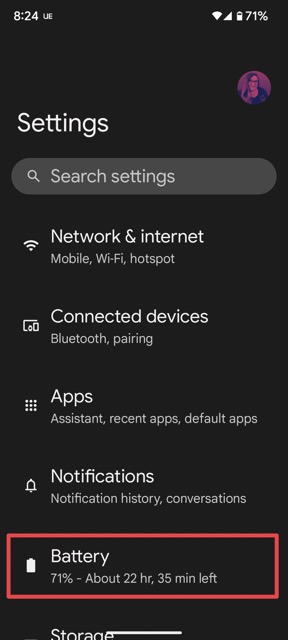
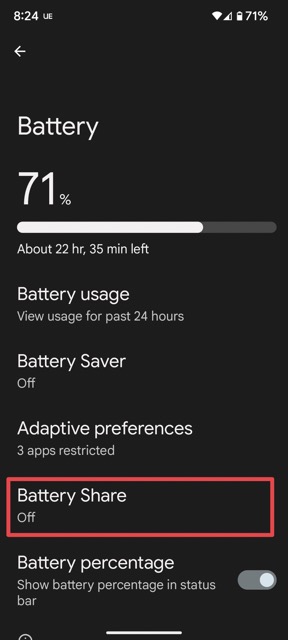
To turn Battery Share on manually, open your Pixel’s Settings app, tap on Battery > Battery Share and toggle on “Allow Battery Share.” Here you can also set how low your phone’s battery can get before it stops powering other devices, ranging between 10% and 50%. Once you’ve turned the setting on, you can proceed with placing the device you want to charge on the back of your Pixel, although note that you will need to put it in the right spot, which is roughly around the middle.
I just want the steps!
    ​
  1. Open your Pixel’s Settings
  2. Tap on Battery > Battery Share
  3. Toggle on “Allow Battery Share”
  4. Place the device you want to charge in the correct spot on the back of your Pixel

Keep in mind that you cannot Battery Share if your Pixel itself is charging wirelessly. Also, Battery Share will turn itself off if your phone senses that the device it is charging is already fully charged, when your phone gets too hot, when the device you are charging is not properly placed, when it hasn’t been charging another device for more than 30 seconds, or when Battery Saver is turned on. Otherwise, it is an amazing feature that I hope Google keeps on Pixel phones for years to come.

Featured Videos

Xremove ads

SUBSCRIBE TO UPSTREAM

Get Chrome Unboxed delivered straight to your inbox

Upstream is our flagship, curated newsletter with the top stories, most click-worthy deals, giveaways, and trending articles from Chrome Unboxed sent directly to your inbox a few times a week. Join 31,000+ subscribers.

SUBSCRIBE HERE!

Filed Under: Guides and How-To's, Pixel, Pixel Buds Tagged With: battery share, pixel 5, pixel 6, pixel 6 pro, pixel buds, pixel phone

Primary Sidebar

Xremove ads

Deals

The Acer Chromebook Plus Spin 714 hits a new all-time low at $270 off

By Robby Payne
March 25, 2026

The best Chromebook deals today

By Robby Payne
March 24, 2026

You can score $40 off Google’s battery-powered Nest Doorbell right now

By Joseph Humphrey
March 20, 2026

The touchscreen Lenovo Chromebook Slim 3 is a steal at under $200

By Robby Payne
March 16, 2026

Google TV Streamer and Remote held in front of a wall-mounted TV

The premium Google TV Streamer 4K is back down to $80

By Joseph Humphrey
March 16, 2026

More Deals

Xremove ads

Reviews

Acer Chromebook Plus Spin 514 Review: Kompanio Ultra power in a convertible

By Robby Payne
December 24, 2025

My review after 6 weeks with the Lenovo Chromebook Plus 14 [VIDEO]

By Robby Payne
August 11, 2025

One week with the best small Android tablet you can buy, and I’m sold

By Robby Payne
May 9, 2025

Best Chromebooks of 2024 [VIDEO]

By Robby Payne
November 28, 2024

Samsung Galaxy Chromebook Plus Review: Samsung is back! [VIDEO]

By Robby Payne
October 28, 2024

More Reviews

Xremove ads

Guides

This Chromebook trackpad shortcut is definitely not new, but is blowing my mind

By Robby Payne
March 11, 2024

How to reduce broadcast delay on YouTube TV to stop live spoilers

By Robby Payne
December 8, 2023

Windows PC keyboard and Chromebook

How to use a Windows keyboard with a Chromebook

By Joseph Humphrey
December 8, 2023

How reset and revert your Chromebook to the previous version of Chrome OS

By Robby Payne
November 29, 2023

My Chromebook Plus features disappeared: here’s how I fixed it

By Robby Payne
November 24, 2023

More Guides

TWITTER · FACEBOOK · INSTAGRAM · YOUTUBE · EMAIL · ABOUT

Copyright © 2026 · Chrome Unboxed · Chrome is a registered trademark of Google Inc.
We are participants in various affiliate advertising programs designed to provide a means for us to earn fees by linking to affiliated sites.

PRIVACY POLICY