


Support our independent tech coverage. Chrome Unboxed is written by real people, for real people—not search algorithms. Join Chrome Unboxed Plus for just $2 a month to get an ad-free experience, access to our private Discord, and more. Learn more about membership here.
START FREE TRIAL (MONTHLY)START FREE TRIAL (ANNUAL)
Are you sick of receiving calls from spammers and scammers? (Likely). Do you wish there were some way to block them from their new mode of communication too, your text messages? Have you tipped over the edge with frustration and no longer take calls as a result? Great! I’ve got a great solution for you. It’s by no means perfect, per se, but it’s certainly worth checking out if you said yes to any of the above.
If you’re using Google Fi for your phone service, then you’ll be happy to know that there’s a built-in means of completely irradicating these contacts, and today, I’m going to show you how to do it. Be warned, however, there there are a few ways in which this could backfire, causing you to potentially miss important calls and messages.
In the Google Fi app, navigate to the “Phone settings” area on the homepage. Just scroll down and tap “Families”. From there, the very first option that presents itself is a toggle for something called “Block contacts from strangers”. This is a little-known feature that’s available to you, and despite the negative side effects, my Pixel 6 Pro operates constantly with this enabled.
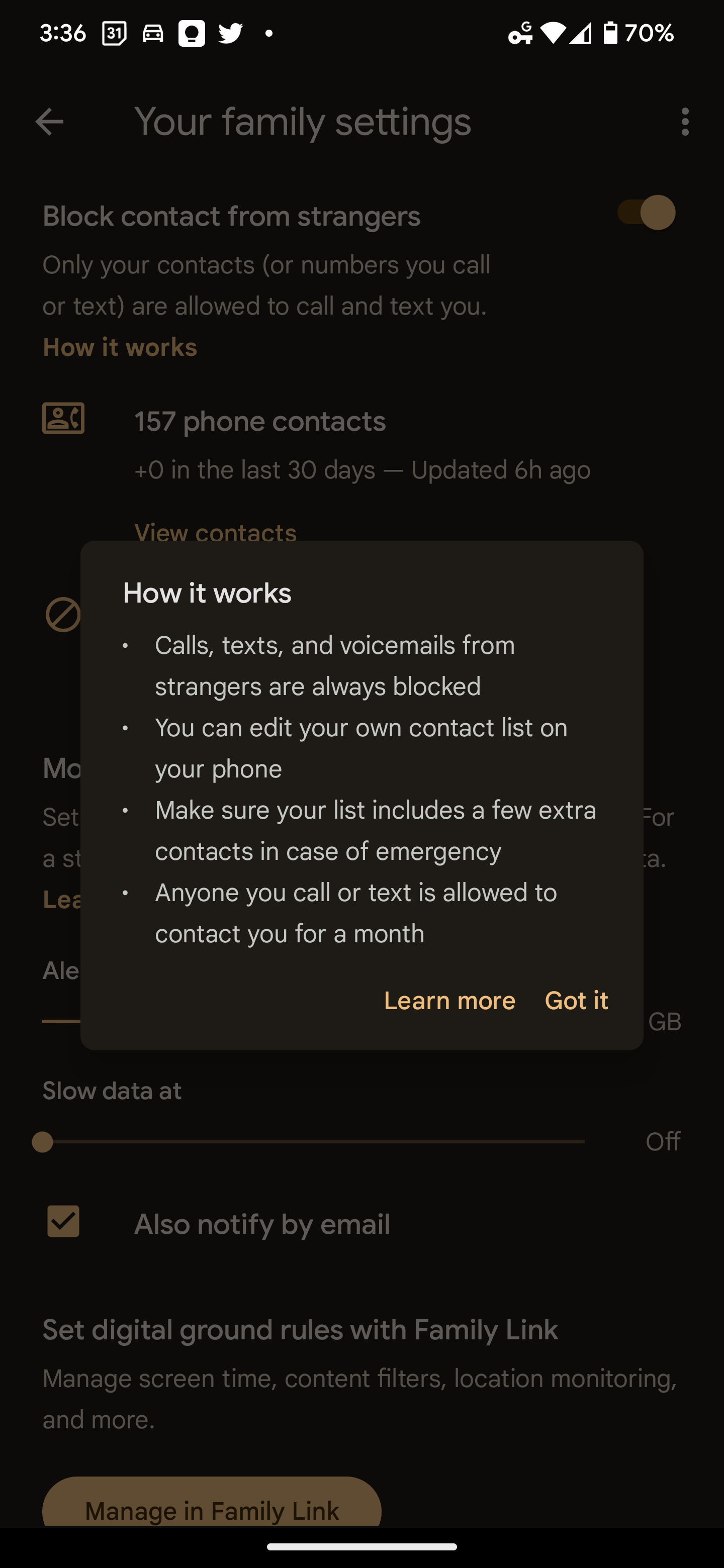
Block contacts from strangers
Only your contacts (or numbers you call or text) are allowed to call and text you.
Essentially, turning this on means that the only people that are allowed to call or text you are people who are either in your contacts or whom you have directly contacted. Spam calls, strangers, wrong numbers, and the like are automatically given a message stating that the phone number is out of service, allowing you to reclaim your peace and quiet and your digital sanity.
Additionally, anyone who you reply to or call can contact you for up to a month afterward, allowing for a small gap in the “firewall”, so to speak. Blocking contact from strangers was truly intended for Family Link accounts, but Google has made it available to everyone. Quite frankly, it’s far more effective than placing yourself on the Do Not Call Registry and having to renew your status every month and then still receiving calls. If you can’t solve the problem with spam blocking AI and ML, then you may as well nuke everything except the data which is already securely stored in the user’s Google Account, right? It’s genius, really.
A few words of wisdom though – be sure that if you have doctors or contacts for your children, Uber Eats, Shipt shoppers, and so on that need to contact you, you place them in your Google Contacts immediately. If you change doctors, get a new teacher for your kids, or anything else where someone would need to reach out to you directly but has never done so before, either add them in, or simply ask them if you can call or text them first to open a line of communication that breaks through the feature’s ironclad security.
I just want the steps!
1. Open the Google Fi app on your phone
2. Scroll down and tap “Families” on the main page below “Phone settings”
3. Toggle “Block contact from strangers”
4. Be sure to add any new and important contacts to your contact book so you don’t miss any calls or texts
5. Directly correspond with one time contacts like food delivery or ride share services to open a line of communication
6. Enjoy your peace of mind
SUBSCRIBE TO UPSTREAM
Get Chrome Unboxed delivered straight to your inbox
Upstream is our flagship, curated newsletter with the top stories, most click-worthy deals, giveaways, and trending articles from Chrome Unboxed sent directly to your inbox a few times a week. Join 31,000+ subscribers.

