


Support our independent tech coverage. Chrome Unboxed is written by real people, for real people—not search algorithms. Join Chrome Unboxed Plus for just $2 a month to get an ad-free experience, access to our private Discord, and more. Learn more about membership here.
START FREE TRIAL (MONTHLY)START FREE TRIAL (ANNUAL)
 Chromecast support is becoming near-universal across the streaming media landscape. If you’ve been looking for it, the Chromecast button in most video players is present from NBC to CBS, ESPN to MLB.TV. Even in smaller, embedded video players on random websites, you may find that cast button available.
Casting has become very, very widespread. Yet, there are still some holdouts, and Google is trying to bridge that gap.
What Is Casting?
As a quick explanation, casting versus mirroring is important, here. Mirroring a display or tab, as you can also do with Air Play or Miracast, is the process by which a device renders, encodes and sends what is on the screen to another remote screen.
Because of the processing needed to deal with all the moving pieces on-screen, this way of sharing your screen is resource-intensive. As a result, performance can be lacking and streaming video usually ends up a bit grainy and laden with artifacts. It works in the general sense of getting your content to the big screen, but it will never look crisp and clear.
Casting, on the other hand, is the process by which a device commands the Chromecast to go and fetch a piece of media and render it with the built-in player. Because all the encoding and sharing isn’t happening, this frees up the control device from actually doing anything and allows the Chromecast to simply recieve and play the media like your phone or Chromebook would.
Some Players Don’t Play Along
Though the Chromecast API is available to all, some have still not enabled it. Vimeo, for instance, has no built in Chromecast ability. It’s a shame, really, because all that is really happening is the video player is enabled with a bit of code that allows it to direct any Chromecast device on the network to it’s source URL.
So, if my video’s source URL is http://vimeo.com/myvideo, the player simply needs to tell the Chromecast to go and snag that URL. Pretty simple.
Yet, it isn’t built in and until Vimeo chooses to add it, it won’t be.
The Fix
Google is working on a fix, though. Here’s how it works.
Vimeo is only one example, but we’ll keep using it. When you find a video you’d like to watch there and you want to share it to a screen, you can simply click the 3-dot menu and select ‘Cast’. This will enable screen mirroring and, if you just need a quick fix, that is fine.
To get this new casting implementation, though, you need to do a few things for the time being. The feature will make its way down soon enough, but for now you’ll need to be in the Beta Channel. Go to settings > About Chrome OS > more info > Change channel > select Beta Channel. Be sure to back up any local files.
Once that is done and you are reset, you need enable the flag. Simply type chrome://flags/#media-remote in the omnibar, hit enter, and select ‘enabled’. You’ll be prompted to restart.
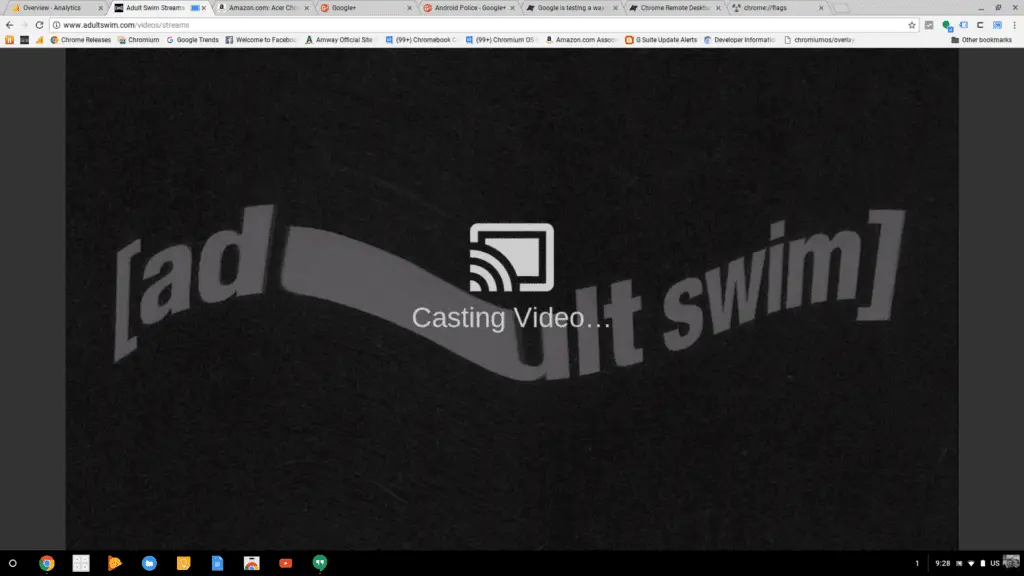
Now, if you go back to that same video, click ‘cast’, select your Chromecast device and begin mirroring, you can simply click the player’s full-screen button and give it a few seconds. You’ll then be met with a screen that looks like this:
Instead of playing on your screen and the Chromecast, you see a still image with some basic controls just like you would on your phone when you cast. Though Vimeo has no casting ability built in, Chrome is now handling the URL hand-off we talked about above and the same, crispy video playback is now happening. You can even close the tab you started the cast from since your Chromebook isn’t doing any of the work any longer.
Early Snags
As with all new things, there are some hangups. First, this method seems to be unavailable for videos behind a sign in, such as Amazon Prime. When I simply load a trailer (free content) from Amazon, the casting via tab works just as we talked about. However, when you log in and try with paid content, the casted tab never leaves the mirroring mode.
Ostnesibly, this can be worked out. YouTube Red content, for instance, is paid content that requires a log in to view. With the built-in casting, I have no issue displaying this on the TV. Since this tab casting work-around is basically the same thing, it means the ability to send some sort of ‘logged in’ token over the casting protocol is possible and already in use. I’m unsure how they’ll do it, but casting with a tab should eventually be able to pass my ‘logged in’ status to the TV as well.
This is still a work in progress, and though tons of media outlets already use Chromecast, it is great to see Google bridging the gap in the meantime.

