


Support our independent tech coverage. Chrome Unboxed is written by real people, for real people—not search algorithms. Join Chrome Unboxed Plus for just $2 a month to get an ad-free experience, access to our private Discord, and more. Learn more about membership here.
START FREE TRIAL (MONTHLY)START FREE TRIAL (ANNUAL)
Rumored for months, Google has finally sunsetted the free-standing Android TV remote app and replaced it with the built-in clicker that lives within the Google TV app on your phone. The update for Google TV on Android began rolling out over a week ago and it brought with it a very useful touchpad control that can, for the most part, replace your physical Google TV or Android TV remote. Personally, I’ve never used the old Android Remote app on my phone. I have a Chromecast with Google TV on my home television and the hardware remote has all but replaced my stock clicker that came with my Roku-toting TLC. However, after using the new built-in remote in the Google TV app, I think I may be ready to make the switch.
The majority of the content we consume at home comes from one of the many streaming services we subscribe to and having it all at my fingertips via Google TV is a very convenient feature. Being able to pop open the Google TV app on my phone to start a show AND navigate the Google TV interface is a game changer and I think that it will become my go-to remote moving forward. The only thing missing, for me, is an input button in the Google TV app. This would be nice to have on the rare occasion I switch to the Blu-Ray player or the cable box but the Google TV’s stock remote is never more than an arm’s reach away so no complaints there.
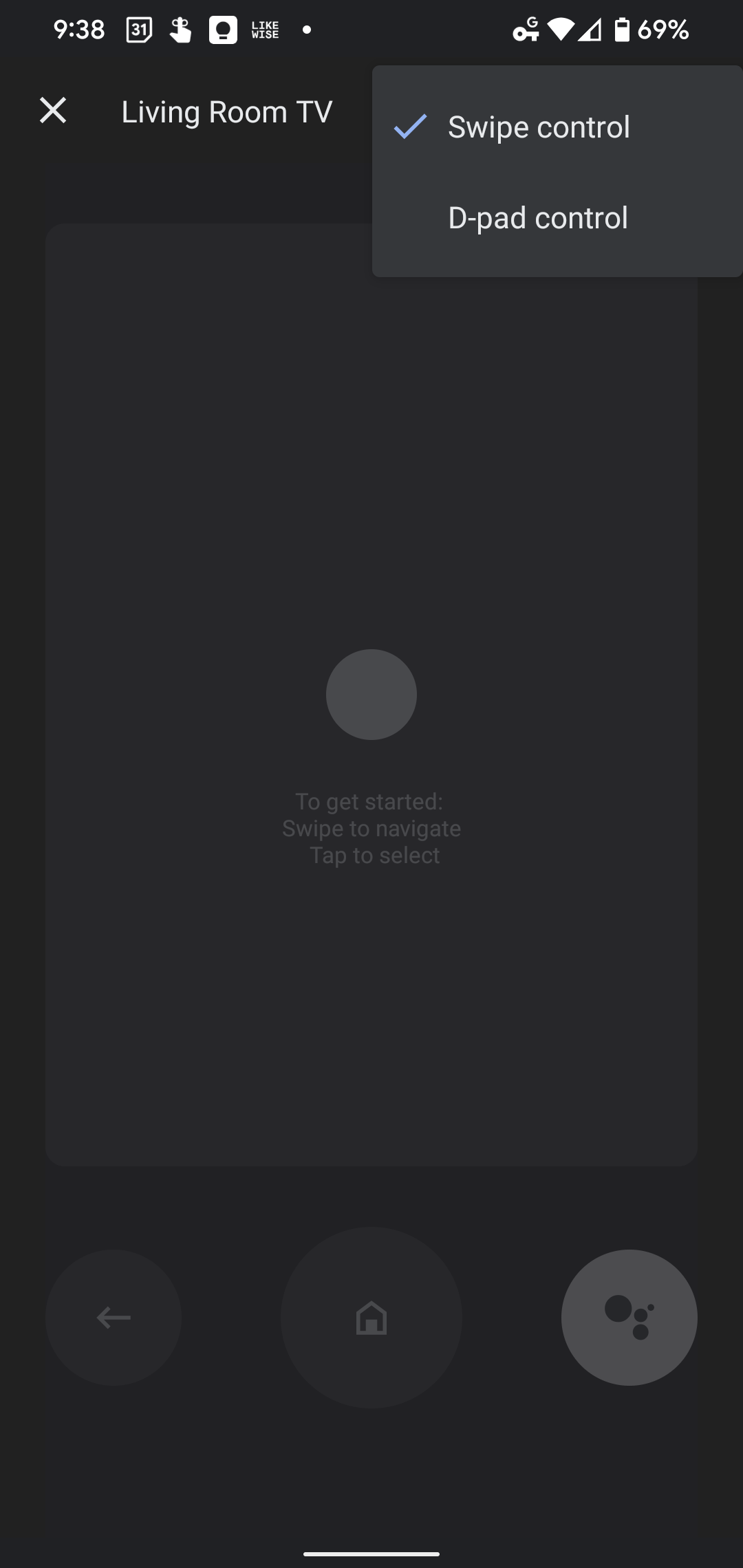
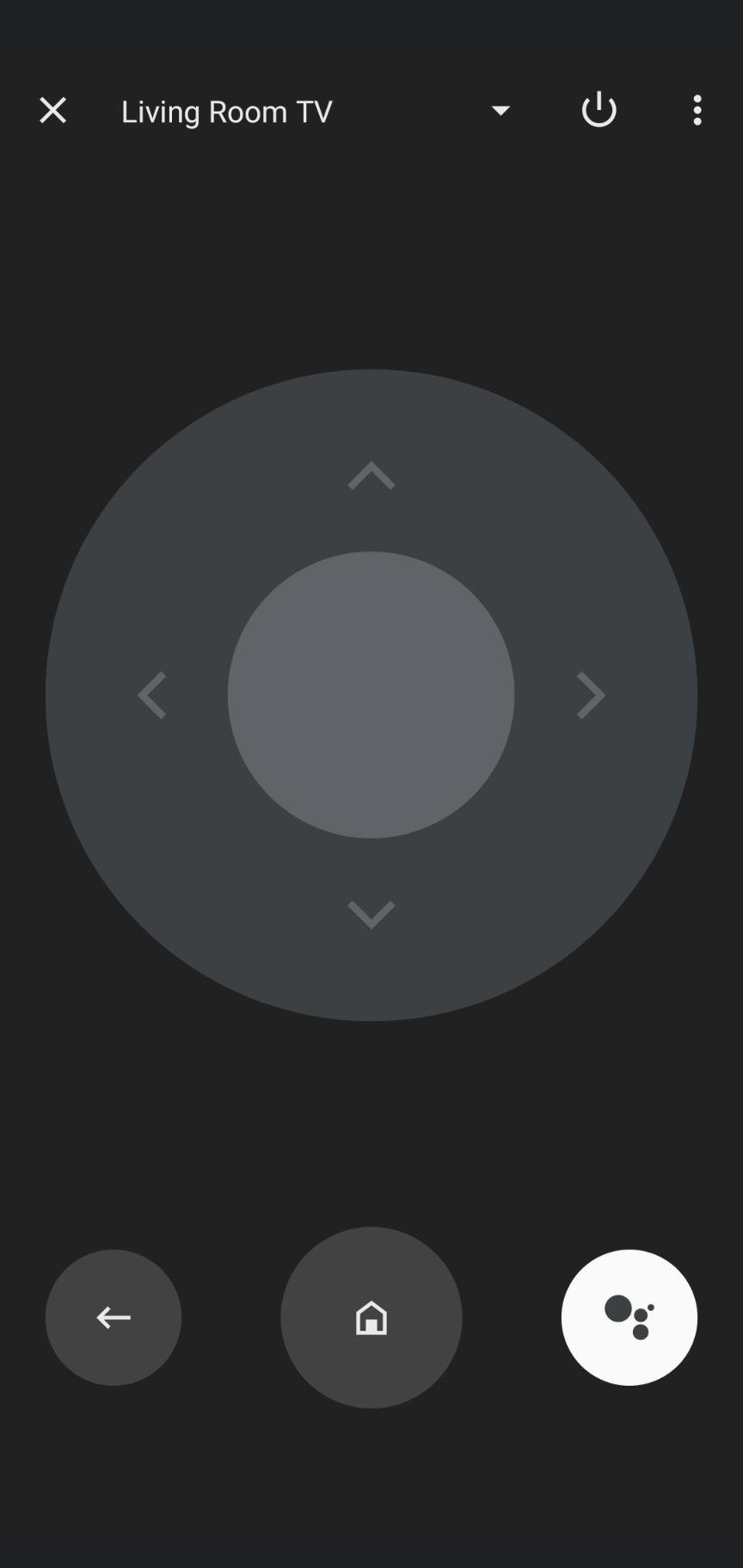
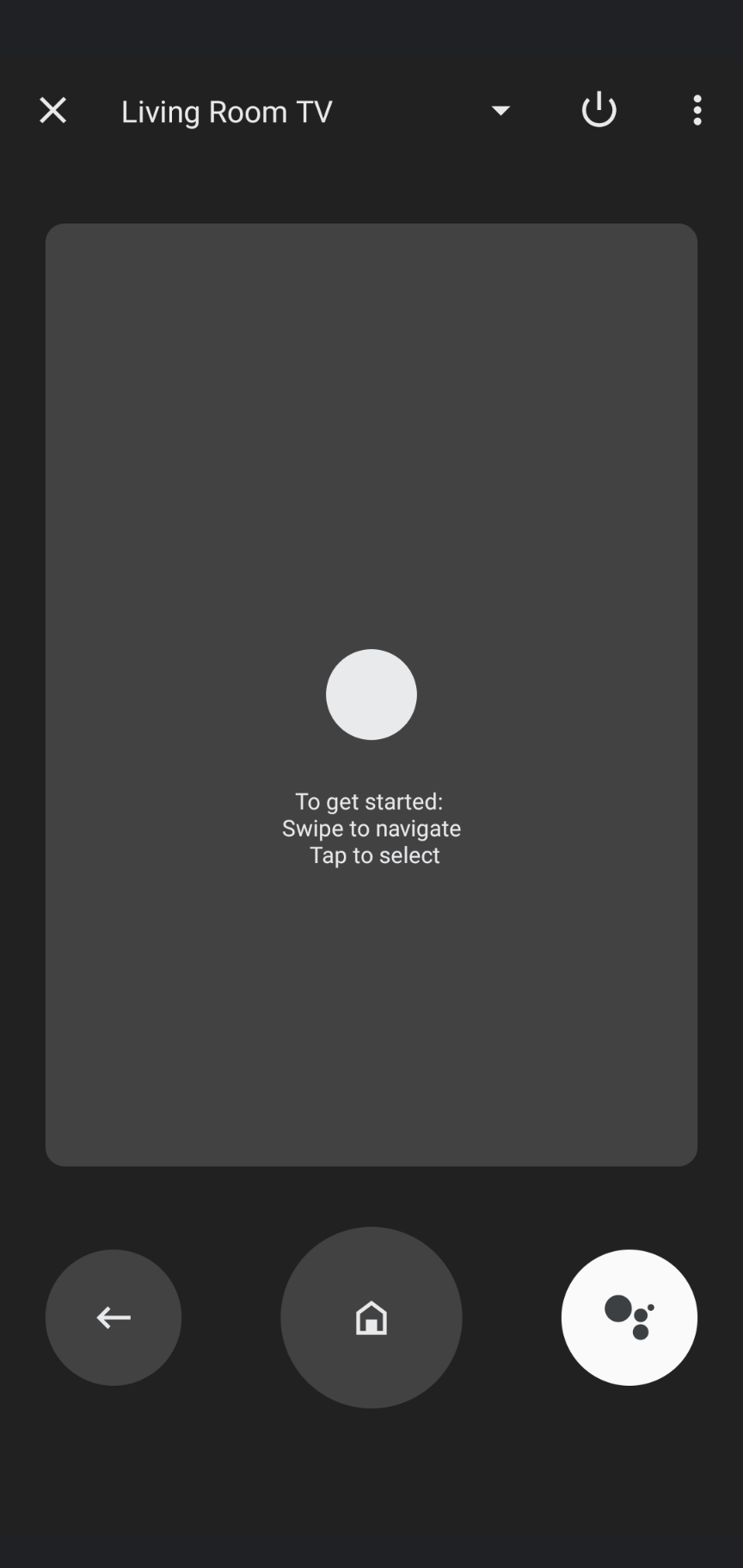
The coolest feature of the new built-in Android TV remote is the fact that you can add a remote button directly to the quick settings of your phone. Simply swipe down on the notification shade and you can instantly launch the touch-enabled controller that can be used with swipe controls or quickly switched to a D-pad for a more familiar Google TV interface. This is all great but we have stumbled upon one glaring problem with the deprecation of the old Android TV Remote app. Using Google TV’s built-in remote also requires an update on your actual Android TV device. At home, my Google TV has already been updated and the remote is working just as it should. Here at the office? Not so much.
For whatever reason, it appears that some Google accounts have yet to receive the Remote update on connected Android TV devices. I have updated all the apps and the system on our office Google TV to no avail. The Android TV Remote Services app on our Chromecast is still showing as “up-to-date” on the previous version that rolled out back in June. Uninstalling updates and reinstalling the app does nothing to force the newer version that should be version 5.0. Without this update, the remote in the Google TV app on our phones will not see the television and therefore, cannot connect.
Thankfully, there are many resourceful people in the world and one such person has shed some light on an easy workaround. To do this, you will need to allow your Chromecast to sideload APKs that aren’t directly from the Play Store. This requires enabling developer mode but don’t worry, it’s super simple and only takes a minute or two. If you’ve ever done this on your phone, it’s practically the exact same process. If you don’t know how to do this, check out this quick video Robby made that will walk you through the process. Before you do that, you will need to install some sort of file browser on your Android TV. For our tests, we used AnExplorer File Manager. Once you install this, you will be able to connect your Google Drive account and that is where you will access the APK file that you want to install for the Android TV Remote Service. You can search for the File Manager in the Play Store on your Android TV and once you’ve installed it and connected your Drive account, proceed with the instructions in the video below.
Now, if you’ve done everything correctly, you should be able to sideload an application from your newly installed file manager. Now we can move on to installing the new version of Android TV Remote Services. On your phone or computer, download the file below from Archive.org and drop it into the same Google Drive that you have linked to your file manager on your Android TV or Chromecast. After a couple of minutes, you should be able to see the APK in the file manager and you can now click it to begin the installation. If you get a warning about not being able to install untrusted apps, watch the video again to make sure you have enabled the file manager for sideloading.
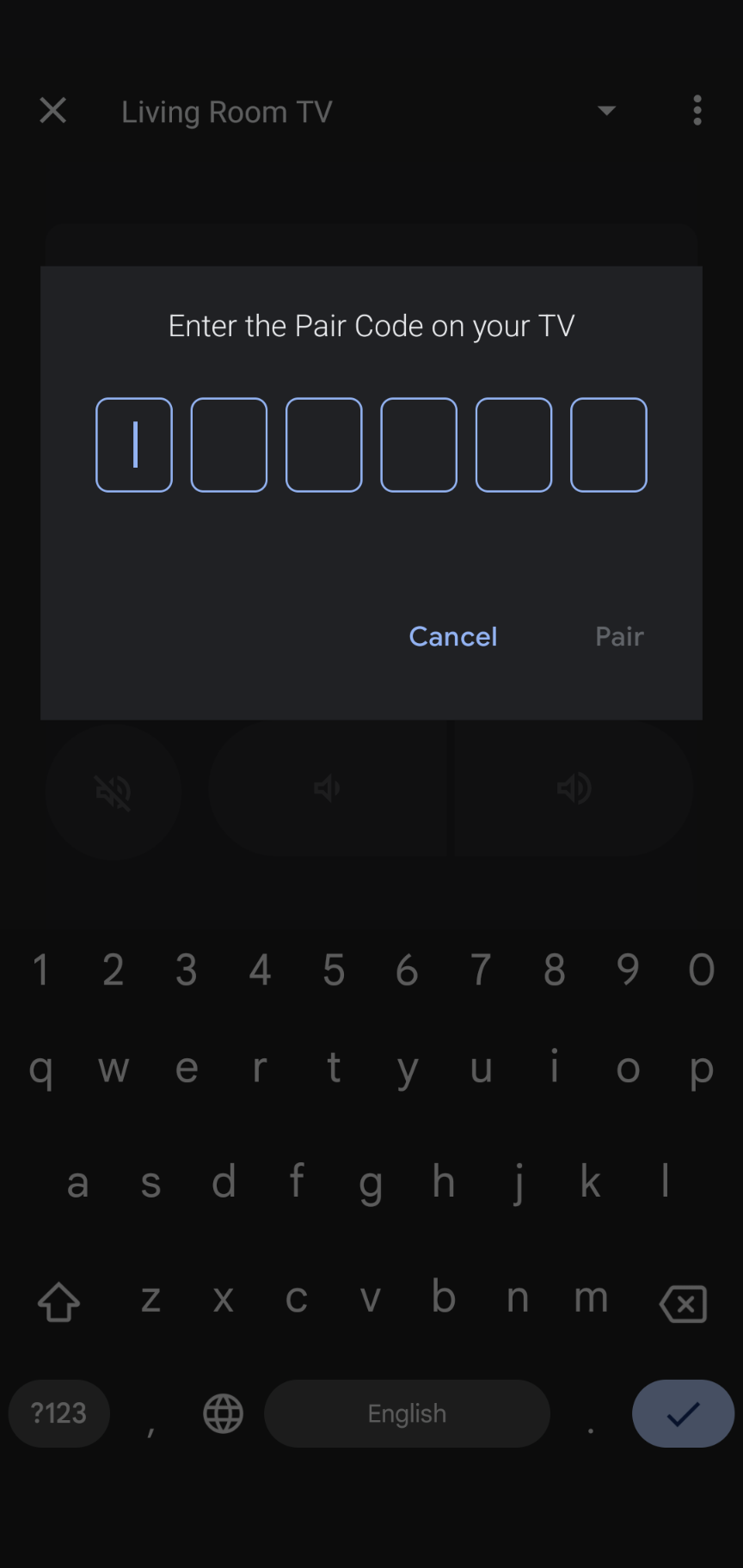
The Redditor the originally posted this stated that GBoard version 11 was needed to make this work. Our Chromecast already had the latest version so it wasn’t an issue. If you aren’t on version 11 of Gboard, (You can find the version by looking at the settings menu of your Android TV and selecting apps. From there, click system apps and scroll down to GBoard. If it isn’t on version 11, you can grab the APK from APK Mirror and install it using the same method that we used for the Android TV Remote Service. Once you have all that in place, you can disconnect your file manager from Google Drive and delete that application if you have no other use for it. Now, you should be able to open the virtual remote in the Google TV app on your phone and link to your Android TV. The first time you do, you’ll be prompted to pair your devices with a 6-digit code. From there, you will then be able to control your Android TV from your phone whenever you like.
Source: Reddit via XDA Developers

