


Support our independent tech coverage. Chrome Unboxed is written by real people, for real people—not search algorithms. Join Chrome Unboxed Plus for just $2 a month to get an ad-free experience, access to our private Discord, and more. Learn more about membership here.
START FREE TRIAL (MONTHLY)START FREE TRIAL (ANNUAL)
Google Translate is a free tool developed by Google that uses a neural machine system to translate text, documents, websites, and even photos in over 100 languages. It can be accessed from the web as well as from dedicated apps on both Android and iOS.
Many of us are familiar with accessing the Google Translate page over at translate.google.com or even in the mobile apps in order to copy/paste text from one language to another, but I’d wager some are unfamiliar with other features you can take advantage of during those times you really wish you had a translator with you.
Translating languages while offline
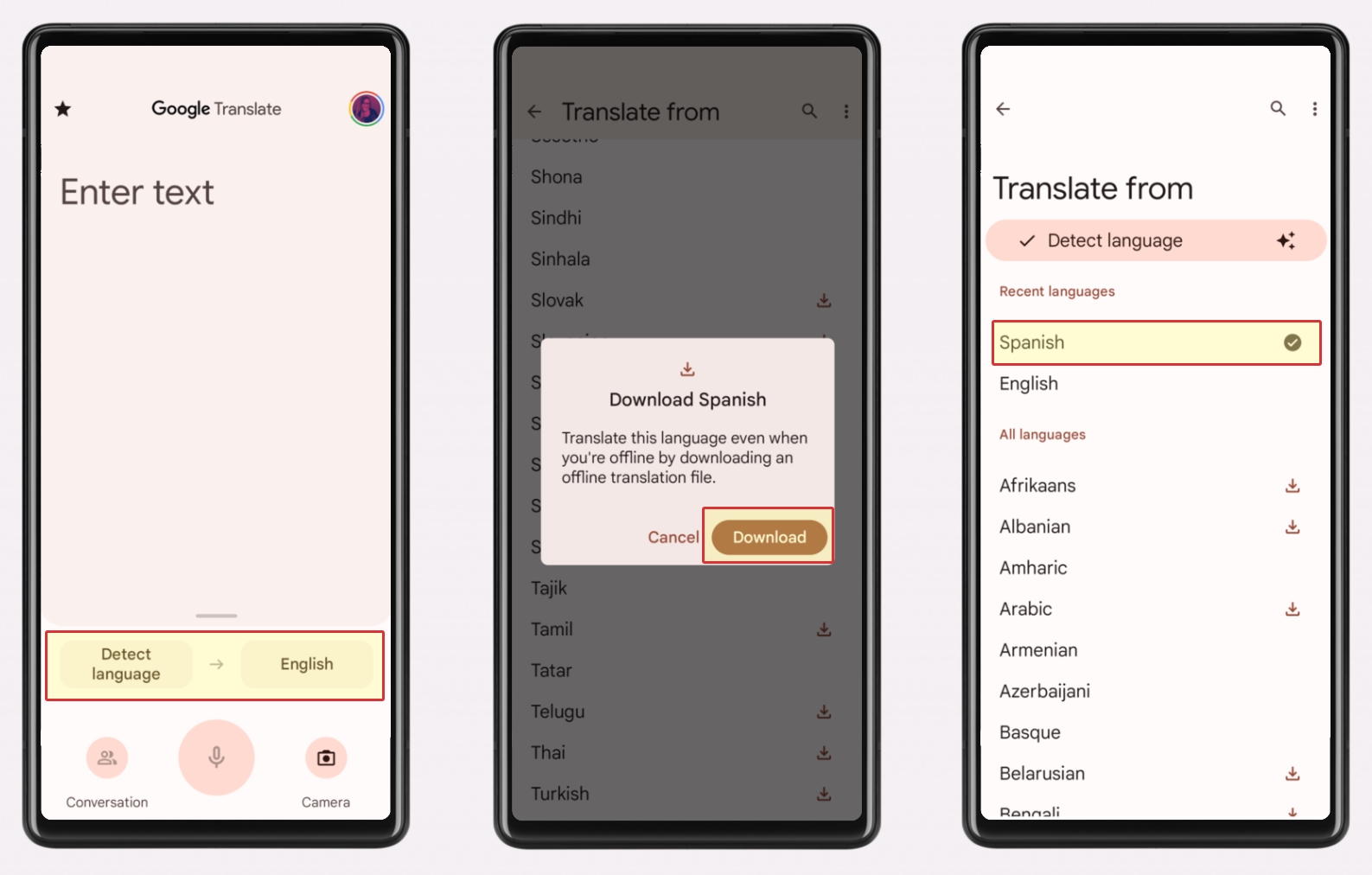
Google Translate allows you to download languages directly onto your device and therefore allows you to translate without the need for an internet connection. This becomes especially helpful when you are traveling out of your coverage area or internationally. For example, if you are traveling from the U.S. to Spain, you could download the Spanish language to your phone and be able to translate without incurring international data charges.
How to download languages
1. Connect your device to WiFi. You could also do this by using your phone’s data, but just keep in mind that you could incur charges from your mobile carrier.
2. Open the Google Translate app
3. At the bottom, tap on either the “Translate from” or “Translate to” languages, then navigage to the language you want to download.
4. If the language is available for download, you will see a “Download” arrow next to it. Tap on the arrow to download.
5. Once downloaded, the language will sho/w up under “Recent languages” and show a checkmark next to it.
Translate text on images using your camera
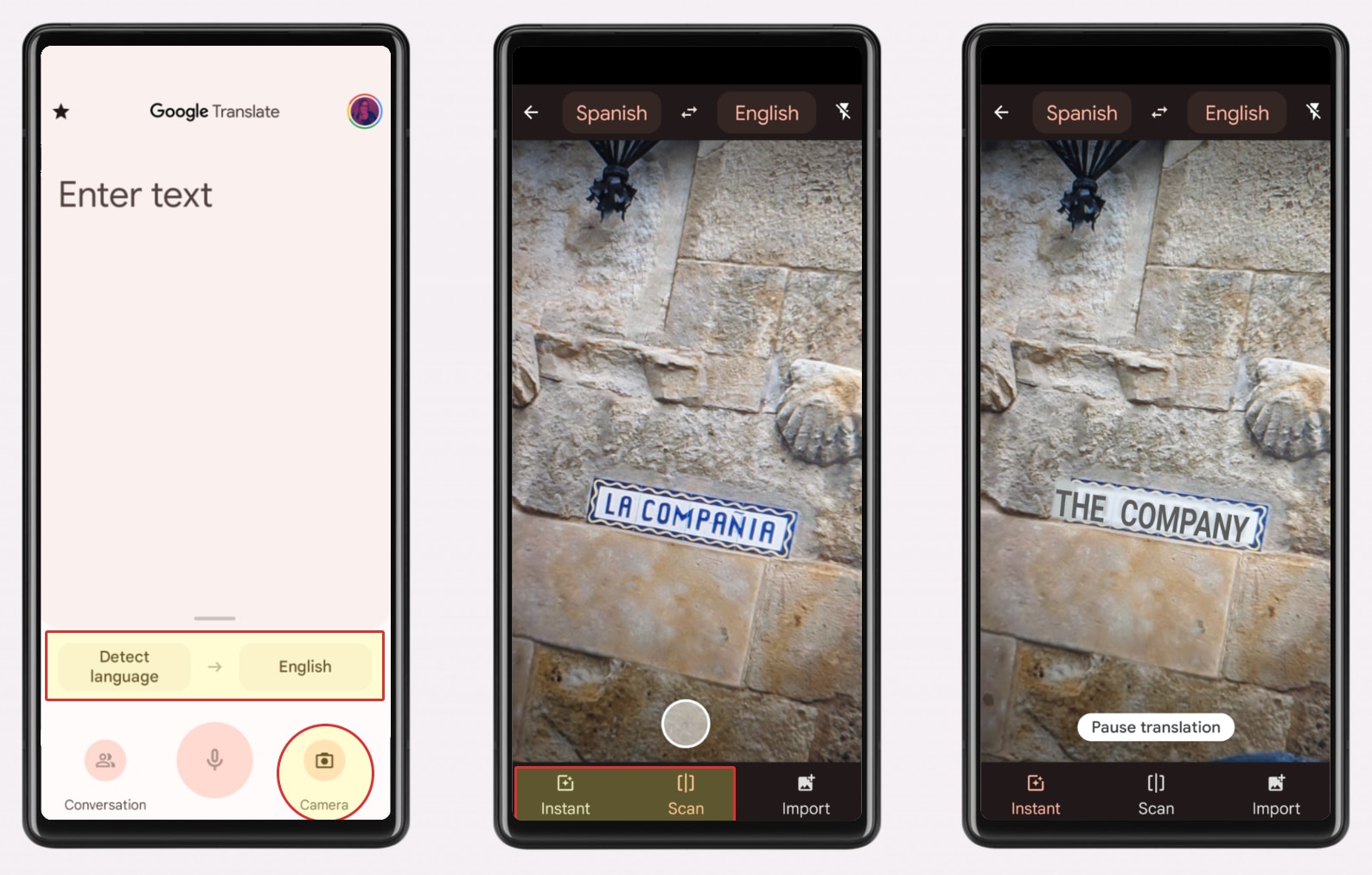
For some languages, you can even translate the text on things you find through your camera. This comes in extremely handy in situations where you are trying to decipher street signs or printed instructions and need to quickly see what the translation is. And it works really well as long as the text is clearly lit and legible.
How to translate text by using your camera
1. Open the Google Translate app
2. Choose the languages you want to translate to and from, or use “Detect language”
3. Tap on the camera icon
4. Point your camera at the text you want to translate
5. Tap on “Instant” to translate the whole text instantly, or “Scan” to translate a portion of it
Translate a bilingual conversation
One of the newer features that Google Translate has offered is the ability to have a bilingual conversation using your phone and the Translate app. I think of many instances where this could be very helpful if you are traveling and need to ask a local for directions or any questions.
How to translate a bilingual conversation
1. Open the Google Translate app
2. Choose the languages you want to translate to and from, or use “Detect language”
3. Tap on “Conversation” on the bottom left
4. Tap on the microphone icon on either language to speak, or tap “Auto” to have Google Translate detect the language spoken
Whatever your situation, if you are traveling to a foreign country, overcoming the language barrier is extremely important. Google Translate can help you do just that with its array of very helpful features, thus making foreign languages one less hurdle you have to overcome when traveling.
SUBSCRIBE TO UPSTREAM
Get Chrome Unboxed delivered straight to your inbox
Upstream is our flagship, curated newsletter with the top stories, most click-worthy deals, giveaways, and trending articles from Chrome Unboxed sent directly to your inbox a few times a week. Join 31,000+ subscribers.
