
• Skip to main content
  • Skip to primary sidebar
  • Deals
  • Features
  • Guides
  • Chromebooks
  • Videos
  • Podcast
  • More +
    • Reviews
    • Unboxing
    • Upcoming Devices
    • Chromebook Plus
    • Chrome
    • ChromeOS
    • Chrome OS Flex
  • Search
  • Sign Up
  • Log In
Chrome Unboxed – The Latest Chrome OS News

Chrome Unboxed - The Latest Chrome OS News

A Space for All Things Chrome, Google, and More!

  • Deals
  • Features
  • Guides
  • Chromebooks
  • Videos
  • Podcast
  • More +
    • Reviews
    • Unboxing
    • Upcoming Devices
    • Chromebook Plus
    • Chrome
    • ChromeOS
    • Chrome OS Flex
  • Search
  • Sign Up
  • Log In

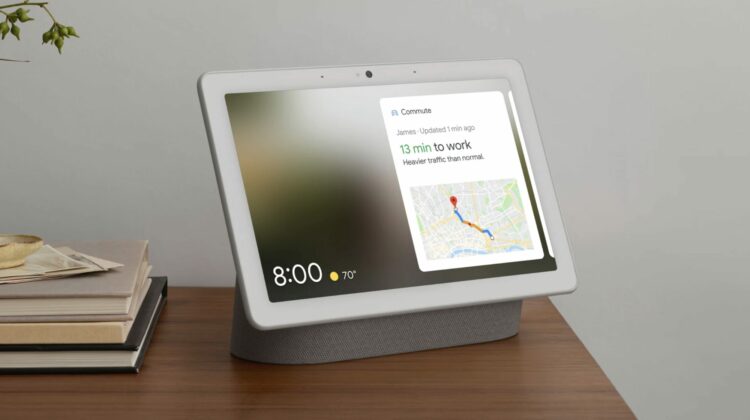
You’ll soon be able to activate Assistant on your Nest Hub Max just by looking at it

April 13, 2022 By Michael Perrigo View Comments

Support our independent tech coverage. Chrome Unboxed is written by real people, for real people—not search algorithms. Join Chrome Unboxed Plus for just $2 a month to get an ad-free experience, access to our private Discord, and more. Learn more about membership here.
START FREE TRIAL (MONTHLY)START FREE TRIAL (ANNUAL)

According to 9to5Google’s latest APK Insights deep dive, a new, upcoming feature was discovered for Nest Hub Max users. Instead of activating your display traditionally using the “Hey Google” hotword phrase, you’ll be able to trigger Assistant just by looking at it, and yes, I’m being serious.

In version 13.14 of the Google app beta, something called “Look and Talk” was uncovered. It was originally codenamed “Blue Steel” after Ben Stiller’s modeling stare in the movie Zoolander. He turns and looks directly into the camera, sucking in his cheeks and raising his eyebrows to look more charismatic (or so that’s the intention). It actually reminds me of a recent TikTok trend called “Model Face” – don’t ask me how I know that.

Xremove ads
Zoolander’s Blue Steel look

Moving right along, according to Google, Look and Talk lets you “look at the display from up to 5ft away to talk to Google” – no hotword (or model face) needed. Data processed to trigger Assistant is kept on-device, and is never sent to Google. To work, it utilizes your camera sensing and analyzes your video to determine if you want to activate Google.

Due to this, it may activate at times when you didn’t intend for it to, in which case you’ll just deactivate it and carry on. I’m hoping that a sensitivity setting can be integrated for the camera in the future. Perhaps Google can give the Nest Hub Max a depth perception setting, allowing the camera to only process data from a foot to four feet away in addition to the five.

Featured Videos

Xremove ads

Again, data is kept on device unless you process an Assistant request, but I think that if it activates on accident and people are speaking in the background, this voice data could get sent to Google on accident. I do personally have concerns about the many methods of activating Assistant that have come into existence over the past few years, and I hope that some additional controls get implemented to help users avoid the seemingly unavoidable privacy intrusions that so many eyes and ears in the sanctuary that is their home will likely inevitably lead it. Google is playing with fire when it comes to smart home tech, so let’s just hope it can hold it in its palm without getting burnt.

SUBSCRIBE TO UPSTREAM

Get Chrome Unboxed delivered straight to your inbox

Upstream is our flagship, curated newsletter with the top stories, most click-worthy deals, giveaways, and trending articles from Chrome Unboxed sent directly to your inbox a few times a week. Join 31,000+ subscribers.

SUBSCRIBE HERE!

Filed Under: New & Upcoming Features, News, Smart Home, Updates

About Michael Perrigo

Known as "Google Mike" to his customers, Michael worked at Best Buy as a Chromebook Expert who dedicated his time to understanding the user experience from a regular Chromebook owner's perspective. Having spent nearly 20 years meeting you face-to-face, he strives to help you understand your technology through carefully crafted guides and coverage, relentlessly seeking out the spark in what's new and exciting about ChromeOS.

Primary Sidebar

Xremove ads

Deals

The Acer Chromebook Plus Spin 714 hits a new all-time low at $270 off

By Robby Payne
March 25, 2026

The best Chromebook deals today

By Robby Payne
March 24, 2026

You can score $40 off Google’s battery-powered Nest Doorbell right now

By Joseph Humphrey
March 20, 2026

The touchscreen Lenovo Chromebook Slim 3 is a steal at under $200

By Robby Payne
March 16, 2026

Google TV Streamer and Remote held in front of a wall-mounted TV

The premium Google TV Streamer 4K is back down to $80

By Joseph Humphrey
March 16, 2026

More Deals

Xremove ads

Reviews

Acer Chromebook Plus Spin 514 Review: Kompanio Ultra power in a convertible

By Robby Payne
December 24, 2025

My review after 6 weeks with the Lenovo Chromebook Plus 14 [VIDEO]

By Robby Payne
August 11, 2025

One week with the best small Android tablet you can buy, and I’m sold

By Robby Payne
May 9, 2025

Best Chromebooks of 2024 [VIDEO]

By Robby Payne
November 28, 2024

Samsung Galaxy Chromebook Plus Review: Samsung is back! [VIDEO]

By Robby Payne
October 28, 2024

More Reviews

Xremove ads

Guides

This Chromebook trackpad shortcut is definitely not new, but is blowing my mind

By Robby Payne
March 11, 2024

How to reduce broadcast delay on YouTube TV to stop live spoilers

By Robby Payne
December 8, 2023

Windows PC keyboard and Chromebook

How to use a Windows keyboard with a Chromebook

By Joseph Humphrey
December 8, 2023

How reset and revert your Chromebook to the previous version of Chrome OS

By Robby Payne
November 29, 2023

My Chromebook Plus features disappeared: here’s how I fixed it

By Robby Payne
November 24, 2023

More Guides

TWITTER · FACEBOOK · INSTAGRAM · YOUTUBE · EMAIL · ABOUT

Copyright © 2026 · Chrome Unboxed · Chrome is a registered trademark of Google Inc.
We are participants in various affiliate advertising programs designed to provide a means for us to earn fees by linking to affiliated sites.

PRIVACY POLICY