


Support our independent tech coverage. Chrome Unboxed is written by real people, for real people—not search algorithms. Join Chrome Unboxed Plus for just $2 a month to get an ad-free experience, access to our private Discord, and more. Learn more about membership here.
START FREE TRIAL (MONTHLY)START FREE TRIAL (ANNUAL)
A new tool for Workspace admins (i.e. your boss or superior, depending on your work structure) will now allow them to view your bandwidth quality and usage during Meet calls within the organization. This means that all of those times when your call dropped and you swore up and down that your internet sucked can now be seen as true and they’ll have to apologize for docking you. Just kidding, you’re never getting that credibility back.
Okay, seriously though, this new ‘Meet quality tool’ shows both inbound and outbound bandwidth information (both used and available) for all users who participate in a call, and while it looks fairly complex to glance at, it’s actually quite simple – let me explain.
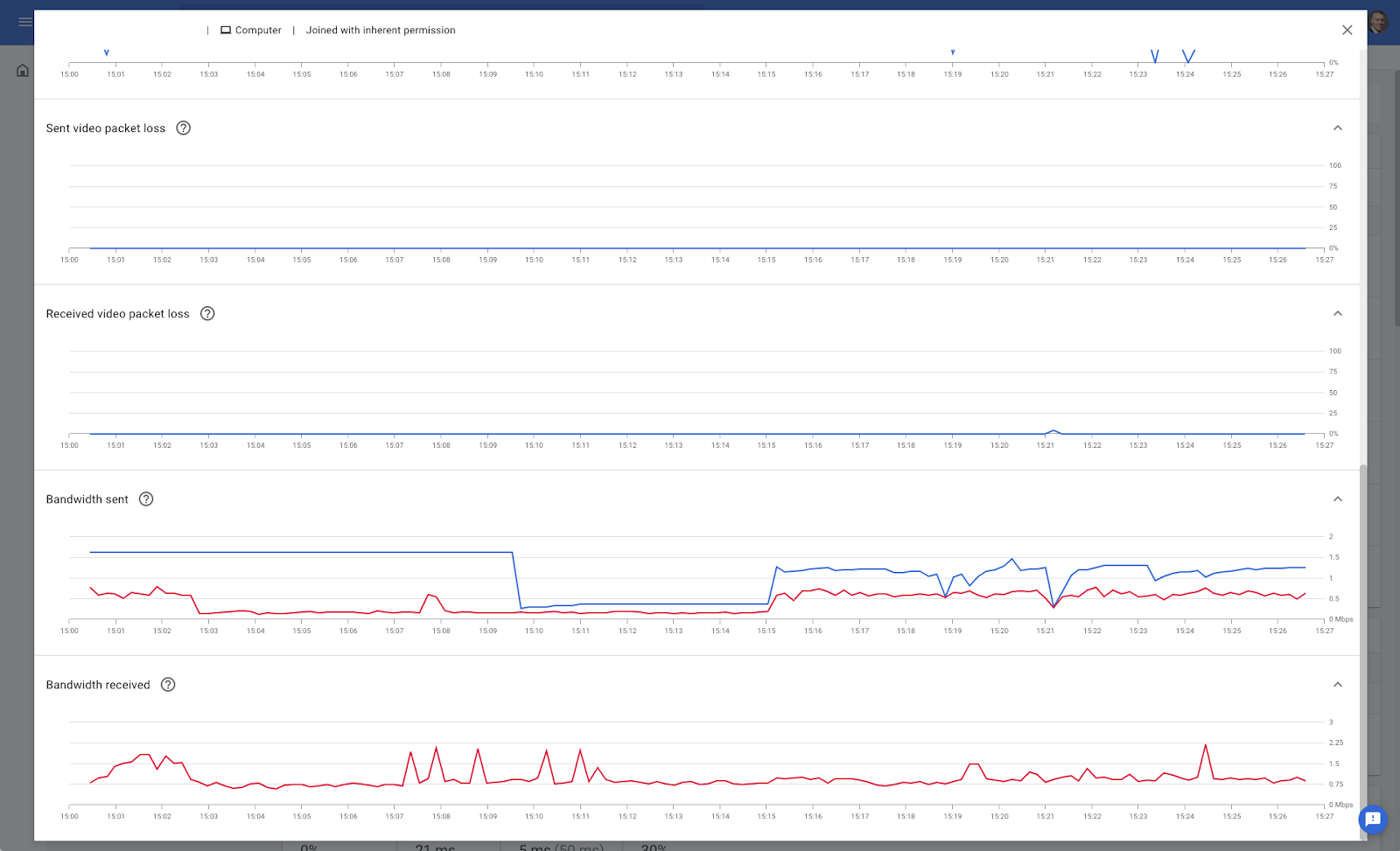
If you happen to be an admin who’s reading this and you don’t have anyone tell you what to do (doesn’t everyone though?) you can hover over the data points on the graph to see numerical readouts and exact timestamps so that micromanaging your employees so they hate you becomes easier than ever.

In all actuality, the tool is meant to help employees or students solve connection quality issues, which means that everyone can have a more productive and smooth meeting, especially now as video calls have become customary nearly the entire digital world thanks to the global pandemic. Being able to troubleshoot the exact moment a problem occurred can assist with identifying and pinpointing what may have caused it.
Luckily, this is already rolled out across all Workspace tiers, as well as all legacy G Suite Basic and G Suite Business accounts. If you’re an administrator, you can access it via the Admin console by clicking “Apps > Google Workspace > Google Meet > Meet quality tool” Unfortunately, regular users can’t access the tool, but Meet does a great job at giving you suggestions for improving call quality while you’re live in a meeting, so be sure to take advantage of those to fix things before asking the call host to use the new tool!
SUBSCRIBE TO UPSTREAM
Get Chrome Unboxed delivered straight to your inbox
Upstream is our flagship, curated newsletter with the top stories, most click-worthy deals, giveaways, and trending articles from Chrome Unboxed sent directly to your inbox a few times a week. Join 31,000+ subscribers.

