


Support our independent tech coverage. Chrome Unboxed is written by real people, for real people—not search algorithms. Join Chrome Unboxed Plus for just $2 a month to get an ad-free experience, access to our private Discord, and more. Learn more about membership here.
START FREE TRIAL (MONTHLY)START FREE TRIAL (ANNUAL)
I tend to use Google’s apps and services in unique ways. In fact, how I gravitate towards productivity tools oftentimes completely flies in the face of how they’re designed, and refactoring them to work better for me has both positive and negative effects. On the one hand, they’re much more useful in other areas of my life, but on the other, the features and updates they see really don’t accommodate my use case as much.
When it comes to Google Chat, I’ve shown how I use it for my family and as a future log for my Bullet Journal to store and segment the different areas of my life, for example. Google Keep is a special tool for me. It’s arguably my favorite service from the tech giant, and I’ve used it religiously for years. Instead of just jotting down random notes though, I tend to use it as a bucket to organize my long-term Bullet Journal Collection insights and such as well as a daily journal.
With that being said, Google Cursive is obviously much better for handwritten notetaking sessions than Keep is, and I have used it quite a bit. However, all of my information is already in Keep, and I prefer a mix of handwritten and typed notes, but as much as I prefer Google merge the two, I don’t see that happening anytime soon.
Because of this, I’ve been attempting to use Keep for handwritten notes, and today, I want to cover five improvements the app can make to better cater to my usage of it. These are just my own wishlist items, so if you find that your use case is much different, be sure to place your thoughts and desires for Keep in the comments below! Without further ado, let’s discuss handwriting-to-text conversion.
Better handwriting-to-text conversion
I’ve attempted some longer-form handwritten notes in Keep, primarily as a test since it’s not really a viable solution for most of my Chromebooks due to poor palm rejection (more on that later), and I’ve noticed that when you open an image and tap the three dots “more” options button at the top to choose the option to convert it to text, it’s just pretty atrocious at the task. What’s interesting about this is that Keep is fantastic at searching in text for scanned pages, and in recent times, I’ve returned to my method of handwriting stuff on paper and then scanning it in for later, so I’m not sure why it sucks at converting it all into text.
My hope for the future of Keep is that I can handwrite something with my stylus on the screen via a drawing and choose to convert it properly with my messy handwriting and have it do so reliably. I know most people probably don’t use this feature, so Google really has no incentive to improve it, but again, that’s my fault for using it in such a unique way, I suppose. Still, it would be fantastic to get a bump in the quality of text conversion for 2023, so if you’re reading this Google, make it happen!
Templates for better productivity and flexibility
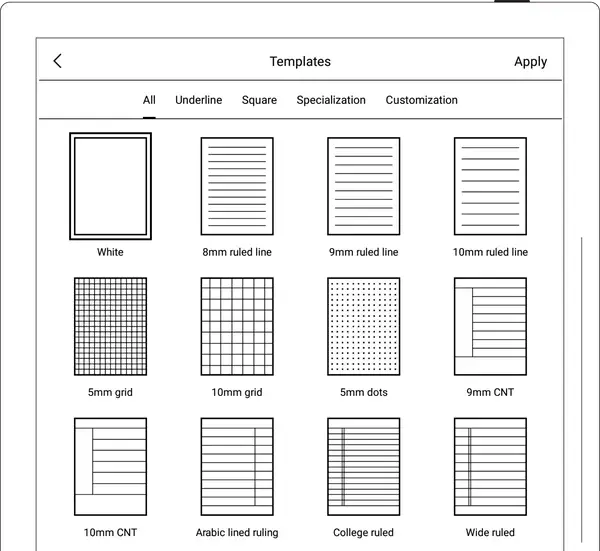
I would argue that both Keep and Cursive need page templates because while writing on a plain dot graph page is limitless and fantastic (there’s also ruled paper, graph paper, and so on), having a dedicated design for different needs sure would make notes both cleaner and faster to execute on in a pinch. You sure could hand draw some of the examples seen above, but they would be extremely messy and not look as professional.
Swipe Gestures for rapid notes management
This is a strange one, and certainly very niche, but having the ability to swipe notes to the left to delete them and to the right to archive them as well as having other functionality for quickly changing their label would be great. Additionally, being able to turn swipe off entirely would keep me from accidentally archiving my notes – something I’ve definitely done before. I really am not sure why swiping notes away is a thing if there’s only one function. This would be a lot better if we had the same choices that Gmail and most recently Google Messages have employed.
A “Scroll Lock” button for better palm rejection
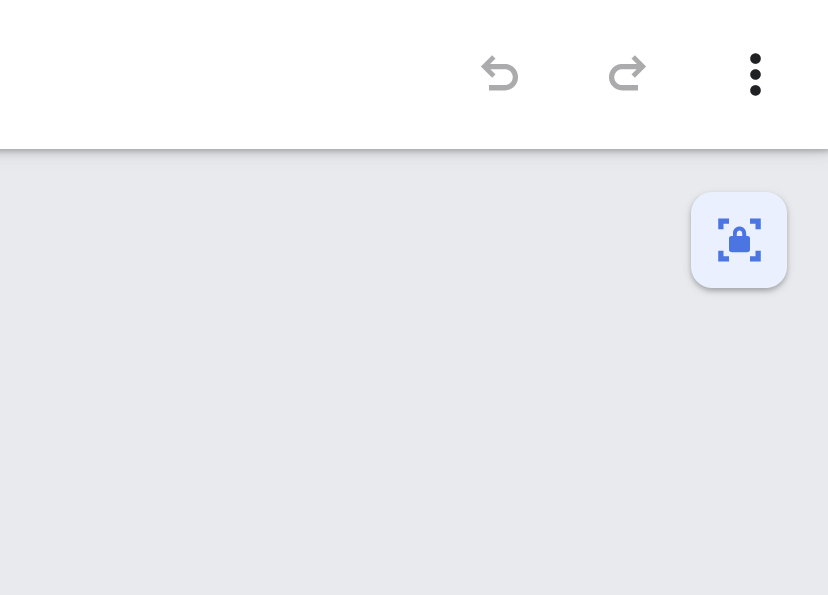
Recently, I made a post talking about improvements made to Google Cursive, like note renaming and an intersting “Scroll lock” button that appears at the top right of a note. This keeps you from accidentally moving the page with your palm or zooming in and out erratically while writing with a stylus. Why exactly doesn’t Keep already have this? Google’s first love for notetaking is notoriously lacking in features that make it, well, good for notetaking, and I can’t tell you how frustrating that is! Add a Scroll Lock button to Keep, already, would you, Google?
Calendar View for journal entry notes, Google Photos linking
Okay, hear me out, because this one may not make any sense to you or most people who use Keep. As I’ve stated before, I use the service as a journal since it’s much faster than calling up a Google Doc, it’s more lightweight and easier to glance at what I’ve written. If you’ve ever used a journal app called Journey, it segments your entries into days on a calendar, and for some reason, that psychology truly does make it feel more personal. “This happened to me on this day, or a week ago”, for example.
Perhaps this is the old school me trying to shove such things into modern technologies, but I feel like this would be an amazing way to view my entries instead of scrolling endlessly down a wall of sticky notes with no sense of time. You can the date each note was last edited at the bottom of its content, but there’s a problem with this. If you add or edit anything in the note, the date changes! This is fine for regular notetaking, but not for anyone who uses it as a journal (again, probably only me). This completely screws up the ability to chronicle my life in notes, and that just kinda deflates the entire thing, now doesn’t it?
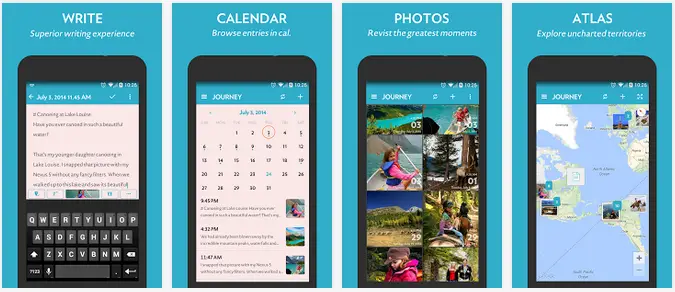
If Google added a calendar to Keep, it could give that journal feel. I would, of course, want this to be a completely optional view for those who wouldn’t care for it. Another great idea would be to automatically link images stored on notes to Google Photos and even show them on a memory hotspot map (Journey does this as seen above). Lastly, having some way to see Keep notes on Google Calendar without having to tie a reminder to them could achieve a similar effect for journaling. I don’t know, this is just an experimental thought, but I think it would drastically improve how I use the service! Do you use Keep as a journal, or just for loose notes – I’d love to hear your thoughts below!
SUBSCRIBE TO UPSTREAM
Get Chrome Unboxed delivered straight to your inbox
Upstream is our flagship, curated newsletter with the top stories, most click-worthy deals, giveaways, and trending articles from Chrome Unboxed sent directly to your inbox a few times a week. Join 31,000+ subscribers.

