
Support our independent tech coverage. Chrome Unboxed is written by real people, for real people—not search algorithms. Join Chrome Unboxed Plus for just $2 a month to get an ad-free experience, access to our private Discord, and more. Learn more about membership here.
START FREE TRIAL (MONTHLY)START FREE TRIAL (ANNUAL)
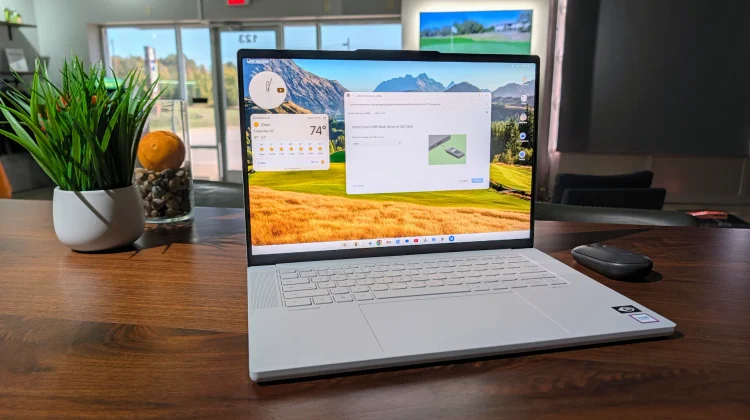
With the launch of Googlebook, there is a massive new operating system to explore and a lot of new software behaviors to learn. But amid all the new features, it is reassuring to see Google bringing over some of the most vital administrative tools we’ve relied on for years in the ChromeOS ecosystem.
Specifically, it looks like they are already prepping to allow users to create backup images for their new Googlebooks. The long-standing Chrome Recovery Utility has been updated and rebranded on the Chrome Web Store as the “Device Recovery Utility”. This updated extension, which rolled out on October 7, 2026, is explicitly designed to create recovery media for both Chromebook and Googlebook devices.
A new dual-platform interface
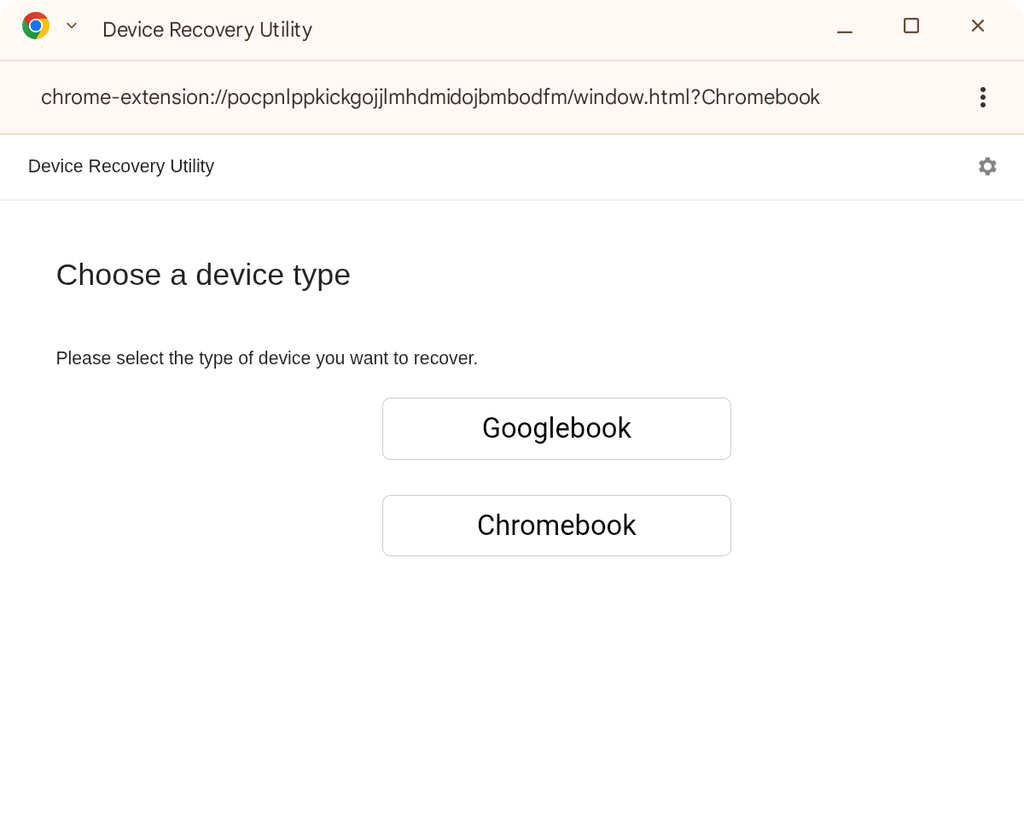
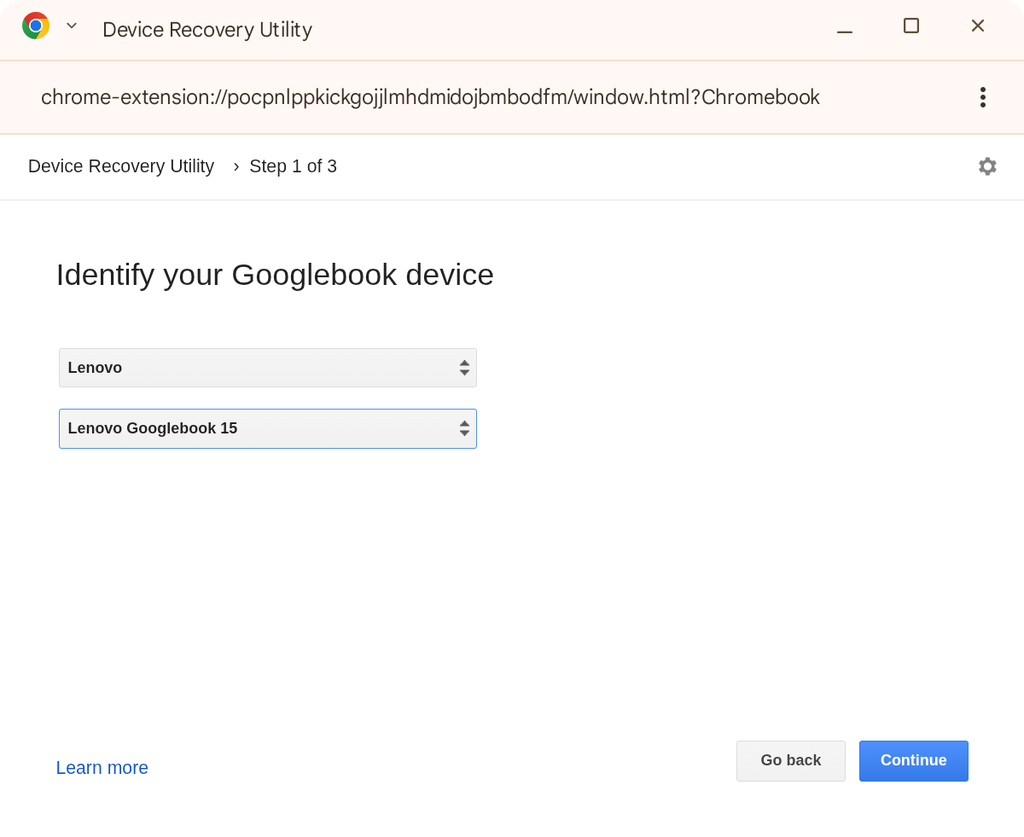
If you open the newly updated extension, you are immediately greeted by a similar setup screen as before, except the app now asks you to “Choose a device type,” offering a clear split between selecting a Googlebook or a Chromebook.
Clicking into the Googlebook option reveals that the backend is already being populated with the new launch hardware. You can see the dropdown menus allowing you to manually identify your specific machine, such as the Lenovo Googlebook 15 in the images above.
Seeing this infrastructure already falling into place is great news. Having a reliable, physical recovery drive is a lifesaver when an operating system decides to act up, and I am incredibly glad to see that the recovery process will remain a core option for Googlebook owners.
Still a work in progress
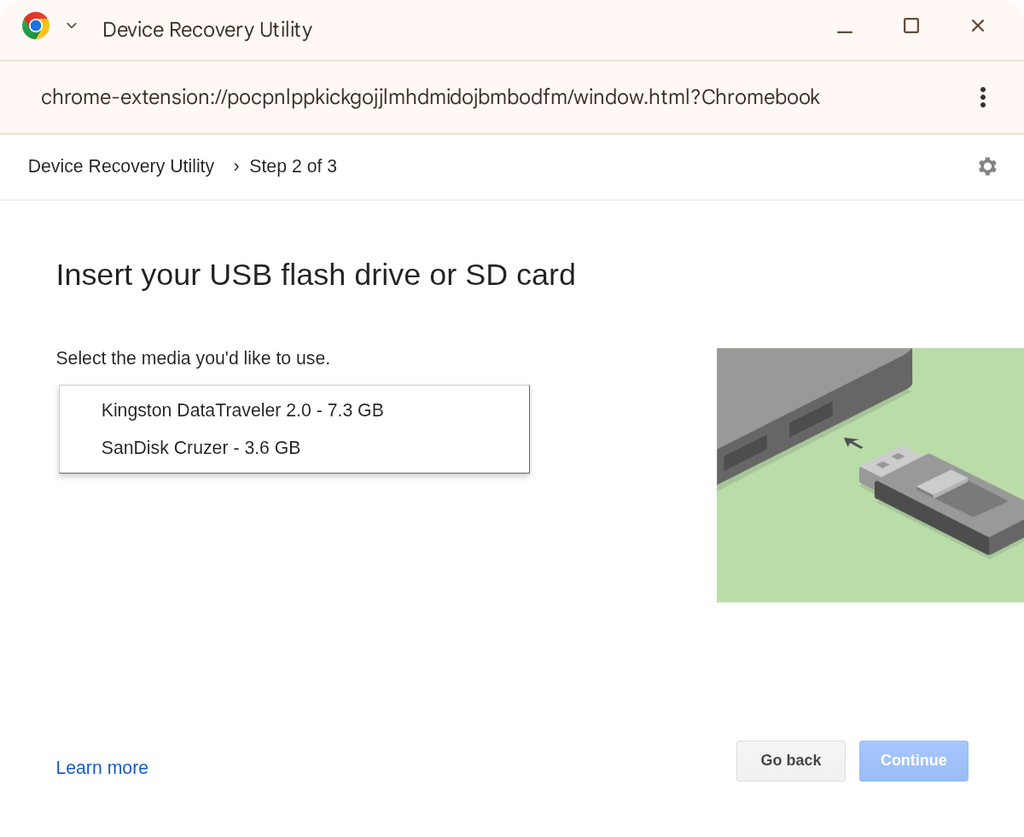
That being said, it is clear the tool isn’t quite ready for prime time just yet. I wanted to see how the full recovery process would work on these new machines, but I hit a hard wall when it came time to actually write the image to a USB drive.
When I reached the step to insert my flash drive, the utility completely failed to recognize the PNY drive I had plugged in. Instead, the dropdown menu inexplicably populated with two completely random options: a 7.3 GB Kingston DataTraveler and a 3.6 GB SanDisk Cruzer. Just to be clear, neither of those drives were actually attached to my device.
I thought maybe the PNY drive needed to be formatted first, so I backed out and tried to use the utility’s built-in tool to remove past recovery images that might have been lingering on it. Unfortunately, I ran into the exact same glitch – the app ignored my connected drive and only offered up the two ghost drives instead.
Because I couldn’t select a valid destination drive, I wasn’t able to actually try writing the image and testing the physical recovery flow. It is a slight bummer, but considering we are still in the opening days of the Googlebook era, a few software bugs are to be expected. We will keep an eye on the Device Recovery Utility and will definitely run a full test once an update squashes this USB bug.
SUBSCRIBE TO UPSTREAM
Get Chrome Unboxed delivered straight to your inbox
Upstream is our flagship, curated newsletter with the top stories, most click-worthy deals, giveaways, and trending articles from Chrome Unboxed sent directly to your inbox a few times a week. Join 31,000+ subscribers.

