


Support our independent tech coverage. Chrome Unboxed is written by real people, for real people—not search algorithms. Join Chrome Unboxed Plus for just $2 a month to get an ad-free experience, access to our private Discord, and more. Learn more about membership here.
START FREE TRIAL (MONTHLY)START FREE TRIAL (ANNUAL)
Contrary to popular belief, Google Calendar is more than just a place where you can keep track of doctor’s appointments and business meetings. While it is undoubtedly better suited for those who lead a busy life, it is no slouch when it comes to a particular task: keeping track of your friends and family’s birthdays and anniversaries.
To achieve this, Google Calendar works in conjunction with Google Contacts. It requires that you manually input the dates you want to keep track of into that person’s contact card, and it will display those dates for you on a separate calendar. Here’s how you do it.
Input birthdays or any important dates into Google Contacts
The birthday/anniversary information in Google Calendar can only be as good as what you feed it, and that all comes from Google Contacts. This means you will want to ensure that you have all your birthday and anniversary dates entered correctly. The downside here is that these dates have to be entered manually by you. It is not like on Facebook, where the other party input the dates, and a reminder gets sent out to everyone on their friends’ list. The goal is not to depend on third parties for this data, and instead take control of what’s in your calendar.
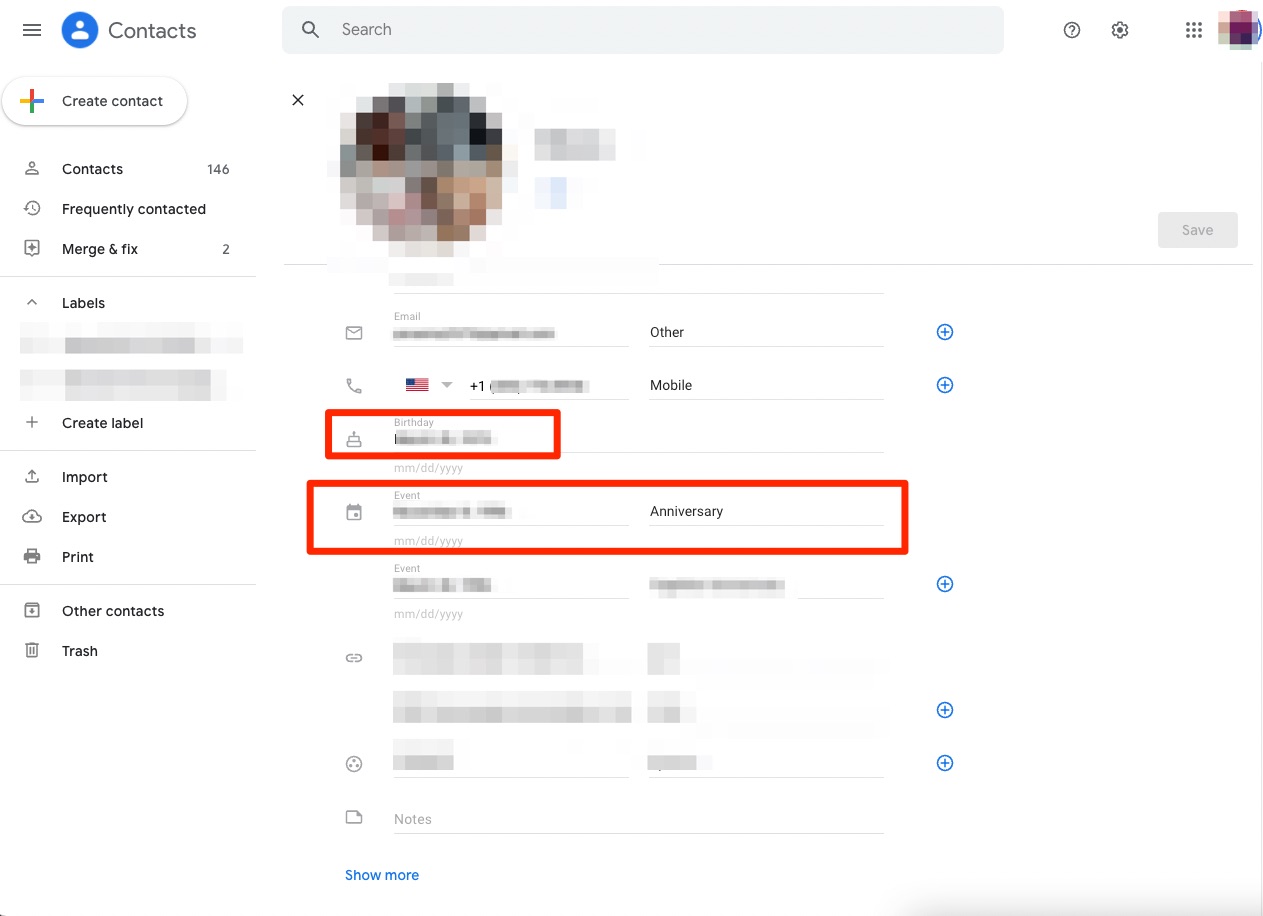
To proceed, open Google Contacts, which you can reach from contacts.google.com. Next, pull up the contact card for the person whose information you want to update. You will notice that there will be a default “Birthday” field for this contact; go ahead and enter this date in mm/dd/yyyy format. However, if you want to also keep track of another special date, like an anniversary, you can add a new field for an “Event” and label it “Anniversary.” That’s it. You can click save to make sure you don’t lose any of the information you just entered.
I just want the steps!
1. Access Google Contacts via contacts.google.com
2. Open the contact card for the person you want to add a birthday or anniversary for
3. Input the date and event type in the proper field
4. Save
Enable “Birthday Calendar” in Google Calendar
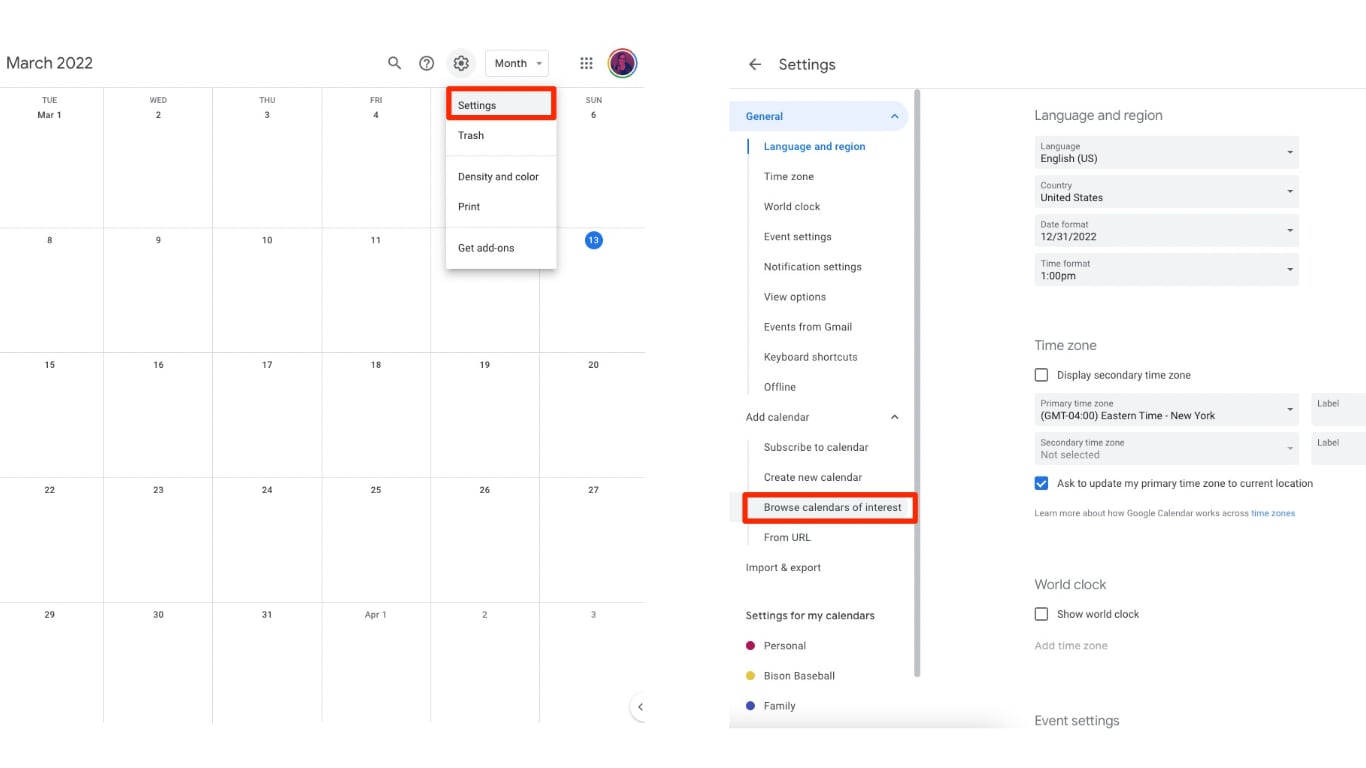
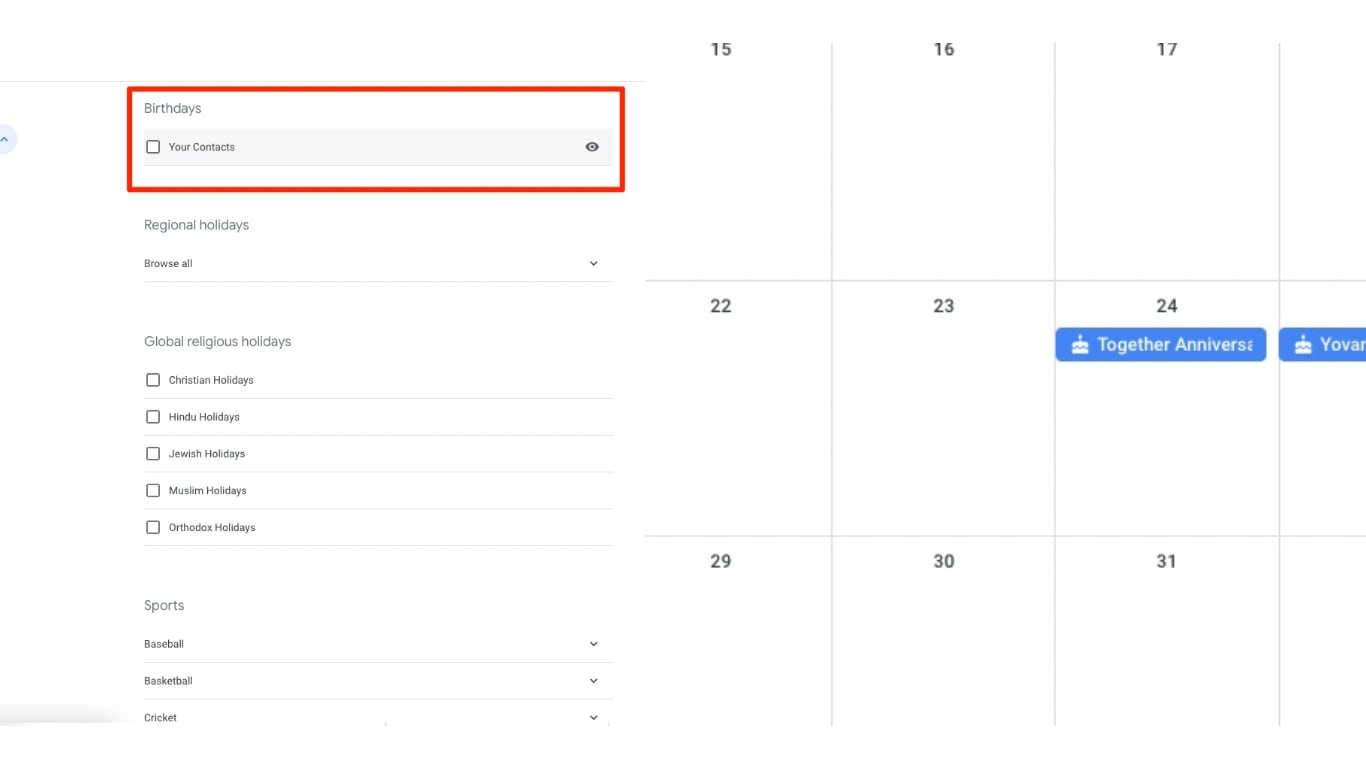
Once you have all your contacts updated, at least the ones for which you care to have this information handy, we can now move on to Google Calendar. In Google Calendar, open your Settings. On the left, you will see a section where you can add new calendars, in here, select “Browse calendars of interest.” Next, scroll up the page, and in the Birthdays section, toggle on the “Your Contacts” calendar. You should now be able to go back to the main calendar and see a new calendar added called “Birthdays.” New birthday and/or anniversary entries should appear on the calendar themselves.
I just want the steps!
1. Open Google Calendar and go to your Settings
2. On the left, click on “Browse calendars of interest” in the Add calendar section
3. On the right, scroll all the way up and toggle on the “Your Contacts” calendar in the Birthdays section.
Limitations of using this method
Although this system is very clean and puts you in charge of your contacts’ information, there is still a glaring limitation that I hope Google addresses soon. As crazy as it sounds, the birthday calendar does not provide notifications. In Google’s own documentation for this feature, the recommendation is to manually create a recurring event, which in my opinion defeats the purpose of having a dedicated birthday calendar. Regardless of the drawbacks, this is my preferred way of keeping birthdays and all my contacts’ information synced in one place, especially if said contacts are not on Facebook already sharing their birthday info.
SUBSCRIBE TO UPSTREAM
Get Chrome Unboxed delivered straight to your inbox
Upstream is our flagship, curated newsletter with the top stories, most click-worthy deals, giveaways, and trending articles from Chrome Unboxed sent directly to your inbox a few times a week. Join 31,000+ subscribers.
