


Support our independent tech coverage. Chrome Unboxed is written by real people, for real people—not search algorithms. Join Chrome Unboxed Plus for just $2 a month to get an ad-free experience, access to our private Discord, and more. Learn more about membership here.
START FREE TRIAL (MONTHLY)START FREE TRIAL (ANNUAL)
A new ‘Get Started’ section of the Chromebook Explore app will soon show you a step-by-step Googley checklist of tasks you’ll need to complete in order to set up your Chromebook out of the box if you want to get the most out of it. By opening the app and navigating to the ‘Overview’ section, you’ll be met with the familiar ‘Welcome to your Chromebook’ header. On Chrome OS Canary right now (perhaps on beta as well), the new, colorful graphics will be found just below that. Google has made it easy to understand and follow along with all of the common things one would normally do in order to get up and running with their device here, so let’s take a look.
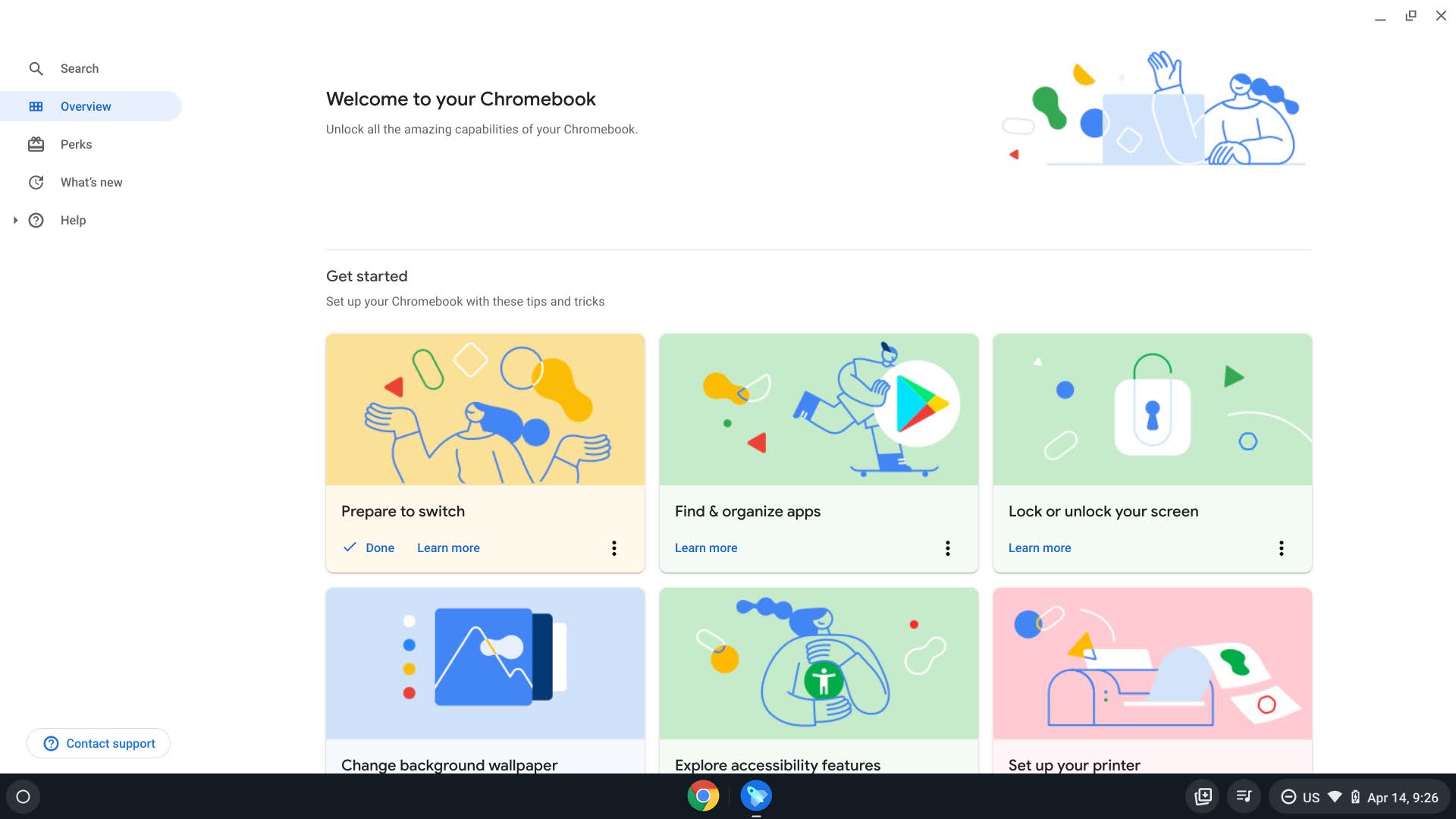
Residing here are cards for ‘Prepare to switch’, ‘Find and organize apps’, ‘Lock or unlock your screen’, ‘Change background wallpaper’, ‘Explore accessibility features’, ‘Set up your printer’, and lastly, ‘Connect your Android phone’. Each card has a ‘learn more’ button which takes you to the Explore app’s help section where the Google Support documentation for that task exists. After you’ve clicked back to the ‘Overview’ section, the card you previously interacted with will then show a ‘Done’ button. Clicking this will remove the card entirely and present you with a toast notification at the bottom of the screen.
The idea here is to draw a user’s attention to the Explore app out of the box and then to this group of cards. This way, there can be little to no confusion on the basics of operating and navigating a Chromebook. It looks to be a great way to reduce return rates among consumers and to simultaneously boost their confidence in the product. One of the most frustrating things in recent years for those new to Google’s operating system has always been setting up a printer – not anymore. Aside from them all being plug-and-play nowadays, this new tips and tricks section will help eliminate the how-to by making it known as soon as the device is powered on for the first time.
I went through all of the cards and marked them as done, and when I finished, nothing happened. While I don’t expect a cookie or a parade (you can get a cookie at the parade, by the way – am I the only one who grew up with that idiom?) it would have been nice if Google presented the user with some confetti or something fun to indicate that they’re 100% ready to begin using their new Chromebook. I think immediately of the Explore app’s 10th Chromebook anniversary balloons that flooded the screen recently to promote the secret minigame we found. I imagine confetti would be easy to implement, and it would definitely be in line with Google’s whimsical approach to the user experience.
In the future, I’d love to see tips and tricks cards in the Explore app for more advanced Chromebook tasks as well. I’m not even talking about super-advanced things – maybe even just deeper operating-system-level tricks like snapping windows by pressing and holding the maximize button on a window or customizing keyboard shortcuts via the Settings app, and so on. Are these new Get Started cards appearing for you on your Chromebook yet? It will be awesome to see if Google can implement some of these directly in the setup process. While not making the out-of-the-box experience (OOBE) too lengthy, I believe that tasks like changing the wallpaper or setting up a printer could prove more useful if users were presented with them as a required step to perform or skip before using the device for the first time.
SUBSCRIBE TO UPSTREAM
Get Chrome Unboxed delivered straight to your inbox
Upstream is our flagship, curated newsletter with the top stories, most click-worthy deals, giveaways, and trending articles from Chrome Unboxed sent directly to your inbox a few times a week. Join 31,000+ subscribers.

