• Skip to main content
  • Skip to primary sidebar
  • Deals
  • Features
  • Guides
  • Chromebooks
  • Videos
  • Podcast
  • More +
    • Reviews
    • Unboxing
    • Upcoming Devices
    • Chromebook Plus
    • Chrome
    • ChromeOS
    • Chrome OS Flex
  • Search
  • Sign Up
  • Log In
Chrome Unboxed – The Latest Chrome OS News

Chrome Unboxed - The Latest Chrome OS News

A Space for All Things Chrome, Google, and More!

  • Deals
  • Features
  • Guides
  • Chromebooks
  • Videos
  • Podcast
  • More +
    • Reviews
    • Unboxing
    • Upcoming Devices
    • Chromebook Plus
    • Chrome
    • ChromeOS
    • Chrome OS Flex
  • Search
  • Sign Up
  • Log In

Chromebook Quick Tip: Resolution Change Shortcut

February 16, 2017 By Robby Payne View Comments

Support our independent tech coverage. Chrome Unboxed is written by real people, for real people—not search algorithms. Join Chrome Unboxed Plus for just $2 a month to get an ad-free experience, access to our private Discord, and more. Learn more about membership here.
START FREE TRIAL (MONTHLY)START FREE TRIAL (ANNUAL)

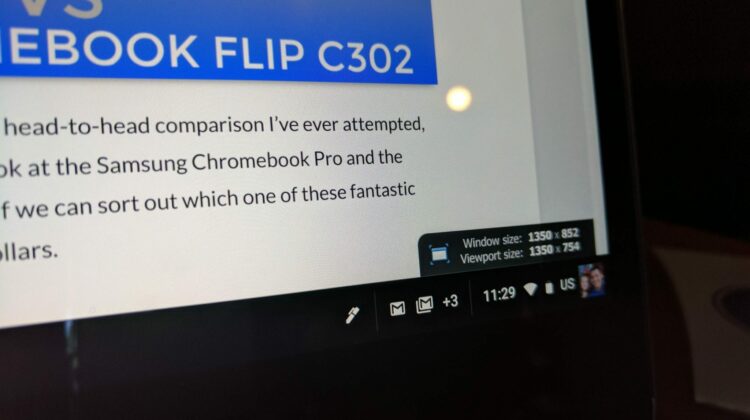
With the Samsung Chromebook Plus and Pro, HP 1 G1, and the Pixel all being available with very high resolution screens, the ability to whip through different resolutions is a handy tool.

Additionally, 13 and 14-inch Chromebooks (Acer 14, Dell 13, Toshiba, etc.) with 1080p screens have two resolutions that scale very nicely.

Xremove ads

What this basically accomplishes is making all UI elements (not just text or certain tab zooming) across the OS resize and stay crisp while they do so.

The high-res displays have more pixels to work with, thus they are more flexible across multiple sizes.

Featured Videos

Xremove ads

With the Samsung Chromebook Plus, for instance, I routinely work in 1300×900, not the 1200×800 that is standard. This gives slightly smaller icons and UI elements, but a bit more space for everything. At times I even knock it down to 1500×1000 and everything is still very workable.

Another helpful thing is this gives me the ability to see what site designs I’m working on look like on other screens like more standard 1080p and Macbook screens. Usually, though, I want to drop back to the stock 1200×800 resolution for tablet mode. Those big UI elements are great for fingers.

Same goes for the 1080p Chromebooks mentioned above. 1080p can feel a bit small with regard to UI elements across the board. Dropping to the 1536×864 resolution plumps things up and keeps it all sharp.

Xremove ads

BUY THE SAMSUNG CHROMEBOOK PLUS on Amazon

Save Yourself Some Clicks

Regardless of how or when you need it, swapping screen scaling (or resolution) can be helpful. And there’s a quick, easy way to bounce around all those resolutions.

Simply press CTRL + SHIFT and then hit the + or – keys just to the right of the 0. The + key ‘zooms’ you in, giving you larger elements at a smaller resolution. The minus key goes the opposite way.

Xremove ads

Don’t worry, you aren’t changing the resolution of your screen. Nothing can reorganize the actual pixels on your screen. This simply renders things AS IF your screen were that resolution.

Things like photos and videos bypass this, however, and your high-res images will look great, regardless of what ‘resolution’ you set your Chromebook to.

So, give this a try and see how quickly you can change your workspace for whatever is needed at the moment. It sure beats multiple clicks every time you feel like changing it up!

Xremove ads

Filed Under: All Stories, Chromebooks, Guides and How-To's

About Robby Payne

As the founder of Chrome Unboxed, Robby has been reviewing Chromebooks for over a decade. His passion for ChromeOS and the devices it runs on drives his relentless pursuit to find the best Chromebooks, best services, and best tips for those looking to adopt ChromeOS and those who've already made the switch.

Primary Sidebar

Xremove ads

Deals

Lenovo quietly updates the IdeaPad Slim 3 Chromebook in some pretty big ways

By Robby Payne
July 2, 2026

The impressive ASUS CM32 Detachable from CES 2026 just landed at Best Buy and is on sale

By Robby Payne
July 1, 2026

The best Chromebook deals today

By Robby Payne
July 1, 2026

Deal alert: the best Chromebook ever made is a whopping $400 off right now

By Robby Payne
June 22, 2026

Gemini Live might be the real reason to buy the new Google Home Speaker, and you can try it free for 6 months

By Joseph Humphrey
June 18, 2026

More Deals

Xremove ads

Reviews

Acer Chromebook Plus Spin 514 Review: the best convertible you can buy [VIDEO]

By Robby Payne
July 1, 2026

Lenovo Chromebook Plus 2-in-1 Review: pretty great in a vacuum

By Robby Payne
April 23, 2026

My review after 6 weeks with the Lenovo Chromebook Plus 14 [VIDEO]

By Robby Payne
August 11, 2025

One week with the best small Android tablet you can buy, and I’m sold

By Robby Payne
May 9, 2025

Best Chromebooks of 2024 [VIDEO]

By Robby Payne
November 28, 2024

More Reviews

Xremove ads

Guides

This Chromebook trackpad shortcut is definitely not new, but is blowing my mind

By Robby Payne
March 11, 2024

How to reduce broadcast delay on YouTube TV to stop live spoilers

By Robby Payne
December 8, 2023

Windows PC keyboard and Chromebook

How to use a Windows keyboard with a Chromebook

By Joseph Humphrey
December 8, 2023

How reset and revert your Chromebook to the previous version of Chrome OS

By Robby Payne
November 29, 2023

My Chromebook Plus features disappeared: here’s how I fixed it

By Robby Payne
November 24, 2023

More Guides

TWITTER · FACEBOOK · INSTAGRAM · YOUTUBE · EMAIL · ABOUT

Copyright © 2026 · Chrome Unboxed · Chrome is a registered trademark of Google Inc.
We are participants in various affiliate advertising programs designed to provide a means for us to earn fees by linking to affiliated sites.

PRIVACY POLICY