

Support our independent tech coverage. Chrome Unboxed is written by real people, for real people—not search algorithms. Join Chrome Unboxed Plus for just $2 a month to get an ad-free experience, access to our private Discord, and more. Learn more about membership here.
START FREE TRIAL (MONTHLY)START FREE TRIAL (ANNUAL)
 Window snapping has been around on Chromebooks for quite some time. As time has gone on, small tricks have been added along the way. We’ll talk quickly about all the snapping tricks that have been around and the new one we’ve just discovered.
What is Snapping?
Window snapping was originally a Windows 7 invention that allowed users to drag windows to either side of their screen and snap the window into a 50% width, 100% height position on that side of the screen.
Need two windows side by side, perfectly fit? This does the trick.
I’m unsure when this was added to Chrome OS, but it has been there for years. Over that time, we’ve received small updates here and there. So let’s get those covered.
Basic Snapping
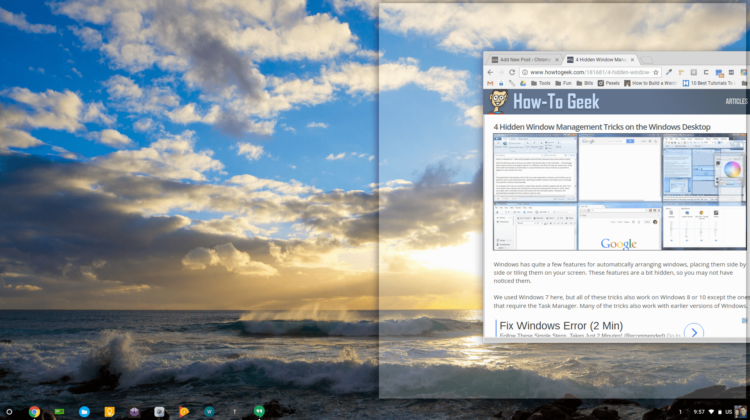
So, the most basic form of this occurs when you drag a window to the left or right edge of the screen. You get a half screen ghost image prompting you to let go of your click and put the window in this position. See the image below.
Windows that get snapped are still easily movable and resized from their new position.
Additionally, you may use a keyboard shortcut to get the same result. Keep in mind, this will affect the window you are currently in.
Simply hit ALT + [ to dock a window to the left and ALT + ] to go right. Go ahead, give it a shot.
Fun, right?
Advanced Option
The last real feature change was the addition of multi-window resizing.
Here’s how it works. Once you have two snapped windows, simply hover the line between them for about a second and you’ll see a small box appear with two arrows in it. See the pic below.

Simply slide your pointer over that box and drag left or right to resize both windows at once. This sounds simplistic and maybe a bit boring, but it is most definitely useful when operating side-by-side windows. It allows for quick resizes without losing the side-by-side layout and saves you from having to re-snap your windows.
It is quite clever.
The New Option
This latest addition isn’t a new function, per se. You still end up with one or two snapped windows with all the same usefulness.
The difference is in the execution.
Granted, the keyboard shortcut is faster, but this option is my absolute favorite and I actually remember it more often now that I’ve discovered it.
I’m unsure when it was added, but you can now long-click (click and hold) on the window resize button (between the minimize and close buttons up top) and you get two arrows to the left and right. Drag over either one and release. You’ve now snapped your window to that side.

Simple. Effective. Ingenious.
As useful as the multi-window resize is, I think this will be a feature that gets tons of usage over time once users know it exists. As I said, the keyboard shortcut is likely faster, but I tend to go for my trackpad first when organizing windows. Since I’m already in that mode, this saves me from clicking and dragging windows around the desktop, which can become a bit cumbersome on larger screens.
We hope this little tip helps make you just a bit more productive on your Chrome OS device in the future!

