

Support our independent tech coverage. Chrome Unboxed is written by real people, for real people—not search algorithms. Join Chrome Unboxed Plus for just $2 a month to get an ad-free experience, access to our private Discord, and more. Learn more about membership here.
START FREE TRIAL (MONTHLY)START FREE TRIAL (ANNUAL)
Chrome OS 76 is nearly old news at this point. In a world where updates happen every six weeks and sometimes get delayed just a bit, six weeks can fly by in the blink of an eye. With Chrome OS 76, we saw all sorts of new features both out of the box and behind flags (like Virtual Desks). One feature we lost track of in the midst of the update was the unified App Manager in the settings menu that we discussed all the way back in February.
At that time, this fledgling feature was only in the Canary channel and not even close to being ready for public consumption. Fast forward to today and we’ve discovered that not only is this new App Manager available in the Stable Channel of Chrome OS: it is just one flag away. No Dev mode or Dev Channel is required to try out this new service on your Chromebook right now. Additionally, the setting can be found right in the standard settings menu the moment you get this one flag enabled.
As a quick refresher, this new unified app manager is a one-stop-shop for Chromebook users to manage all their apps. With the ecosystem expanding out to Chrome apps, PWAs, Android apps, and Linux apps at this point, it can get pretty confusing pretty quickly. As a flexibility tool, having the option to install apps from a massive pool of differing services is fantastic. As a simple and straightforward app management solution, however, all these sources make for difficult app management once you have a mix of just about everything on your Chromebook.
The new App Manager in your settings provides a single place to see all your installed apps and manage some of their settings. From pinning the app, seeing the app permissions, and uninstallation, this unified settings menu can handle many of the normal tasks you’d need to accomplish for an app interaction. For now, you’ll be limited to managing your Chrome apps, PWAs, and Android apps as the Linux integration isn’t quite available yet. According to the official readme.md file for this effort, it is clear that Linux apps will eventually be included in this App Manager as well in the future.
How To Try It Out Now
OK, enough about what it is. Let’s look at how you can go about trying out the new unified App Manager for Chrome OS 76. First, you’ll need to head over to the Chrome Flags page and enable the feature. Just type chrome://flags/#app-management into your omnibar and hit return. Once you are there, you just need to click the button over to “Enabled.” After that, you’ll be prompted to restart Chrome and you’ll need to click that button at the bottom of the screen to do so.

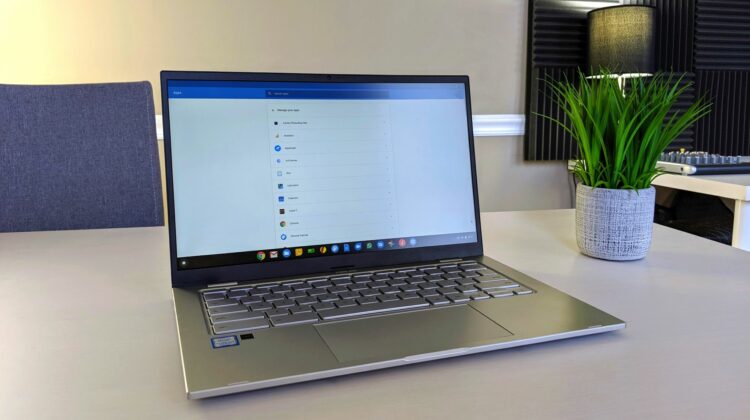
After the quick restart, you can head over to your settings menu and in the left-hand column, you will see a heading called “Apps” and after clicking that, you’ll see a section in the main settings area that now says “Manage apps.” Click that section and you’ll see the following interface:


Once in the new App Manager, you can click through your apps and remove a few, pin a couple others to your shelf, or see/set your specific permissions on a per-app basis. On devices like a Pixel phone or iPhone this all happens in a similar fashion in one place, but it is important to remember that an Android or iOS phone has one app type, so this is completely streamlined. For Chromebooks, we are all using a mix of apps from all sorts of sources and all sort of operating system frameworks. Let’s all stop for a second and realize how awesome that is! With this new tool, users can now manage some of the app basics in one place as if all the apps on the Chromebook all came from a single source. As this progresses and matures, it is a massive win for the Chrome OS ecosystem and I’m sure glad it is so close to being live for everyone.
SUBSCRIBE TO UPSTREAM
Get Chrome Unboxed delivered straight to your inbox
Upstream is our flagship, curated newsletter with the top stories, most click-worthy deals, giveaways, and trending articles from Chrome Unboxed sent directly to your inbox a few times a week. Join 31,000+ subscribers.

