

Support our independent tech coverage. Chrome Unboxed is written by real people, for real people—not search algorithms. Join Chrome Unboxed Plus for just $2 a month to get an ad-free experience, access to our private Discord, and more. Learn more about membership here.
START FREE TRIAL (MONTHLY)START FREE TRIAL (ANNUAL)
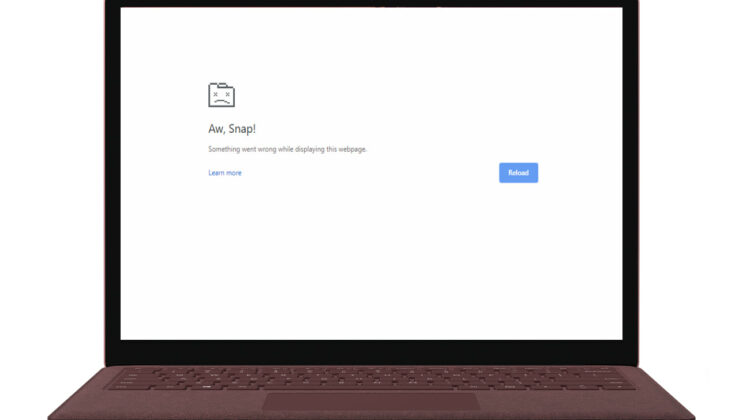
With last week’s release of Chrome 78 for Desktop, a growing number of users have been reporting an issue that is causing browser-wide “Aw, Snap!” errors in Chrome. Many, myself included, reporting the problem as a “bug” in the latest version of Chrome but thanks to someone smarter than me, we know have some more details about the crashes that indicate this is more of a compatibility issue.
Engineer, developer and all-around web-guru Eric Lawrence (@ericlaw) hit me up to share a very detailed article he had written about the “Aw, Snap!” crashes that were first spotted in Chrome 78 back in mid-September. Apparently, the browser crashes in Chrome and the now Chromium-based Microsoft Edge are a result of the updated sandboxing process in the app.
To dumb things down a bit, Chromium isolates each tab and extension in a process called sandboxing which, in layman’s terms, prevents software from accessing critical system resources. (see Chromium sandbox FAQ) The updated sandboxing process in Chrome 78 now rejects any DLLs (dynamic link library files) that are not signed by Microsoft or fall under Chrome’s exemption list. The ends in the resulting “Aw, Snap!” crash being reported by users.
Because anti-virus and anti-malware programs rely heavily on injecting DLLs to perform their primary function, security applications such as Symantec Endpoint Protection have been at the forefront of this compatibility issue. This is due to outdated DLLs from versions that have not been updated on the user end or lack of updates from the software provider that would ensure compatibility.
If you are experiencing the dreaded “Aw, Snap!,” Eric lays out a couple of methods you can use to fix or work around the problem.
Update any security software you have to the latest version.
Most major security software applications will likely have updated their platforms with new DLLs that carry the signatures required to prevent Chrome and Edge from crashing. If you are running anti-malware or anti-virus programs, simply check to make sure they are updated to the latest version. If you are still experiencing the problem, you can proceed to the next steps to temporarily disable protection and diagnose the root cause of the crashes.
- Close all browser instances (verify that there are no hidden chrome.exe or msedge.exe processes using Task Manager)
- Use Windows+R to launch the browser with the command line override:
msedge.exe --disable-features=RendererCodeIntegrity
-or
chrome.exe --disable-features=RendererCodeIntegrity

Source: text/plain
Note: IT admins can do this on managed devices by disabling the policy on Chrome or Windows.
Next, you can open your browser and see if the crashes have ceased. If you aren’t sure which application is responsible for the code injection that’s causing the problem, Eric gives a couple of methods in which you can better pinpoint the culprit. First, head to chrome://conflicts#R and look for any files that are no signed by Microsoft. There’s a good chance that they’re responsible for crashes.
From there, head to the Windows Event Viewer where you can open Applications and Services Logs > Microsoft > Windows > CodeIntegrity > Operational where you will look for the error code ID 3033. Clicking detailed information will provide you with the name and location of the guilty DLL. If you are still unable to identify the crashes and these steps do not fix the problem, it may be time to start looking for malware or system errors not related to sandboxing compatibility issues.
Hopefully, this will help a good portion of users and admins to alleviate this issue. As developers continue to tend to the problem, I would presume third-party software makers will get their applications updated and we will see the “not bug” squashed entirely. I would like to say a special thank you to Eric Lawrence for sharing this detailed explanation and how-to surrounding this issue. If you’d like to read more about this and more, you can find a lot of Eric’s work at his blog text/plain. You can also follow along with the Chromium bug report here.
SUBSCRIBE TO UPSTREAM
Get Chrome Unboxed delivered straight to your inbox
Upstream is our flagship, curated newsletter with the top stories, most click-worthy deals, giveaways, and trending articles from Chrome Unboxed sent directly to your inbox a few times a week. Join 31,000+ subscribers.

