

Support our independent tech coverage. Chrome Unboxed is written by real people, for real people—not search algorithms. Join Chrome Unboxed Plus for just $2 a month to get an ad-free experience, access to our private Discord, and more. Learn more about membership here.
START FREE TRIAL (MONTHLY)START FREE TRIAL (ANNUAL)
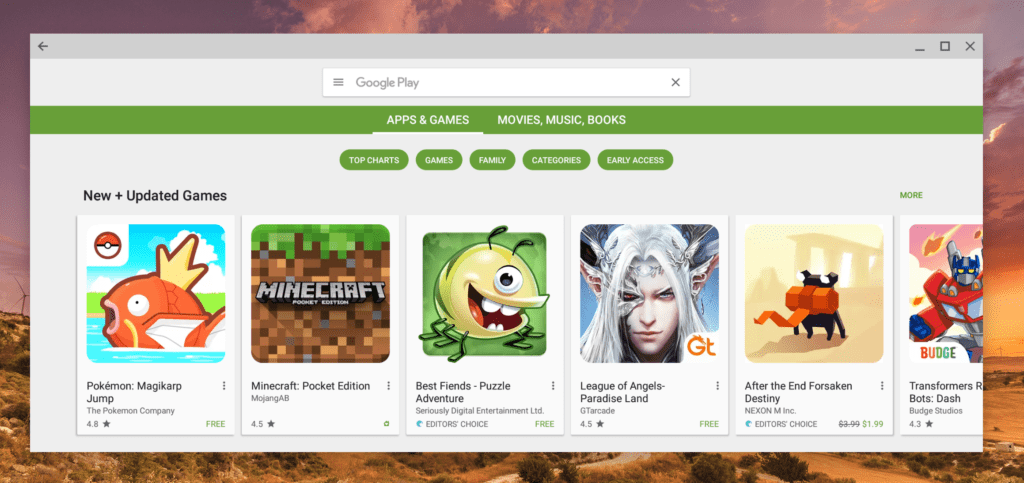 As you can likely tell, for the past week, we’ve been testing (and loving) the Samsung Chromebook Pro. One of my few nags with the device, up to this point, was the way Android apps opened out of the box. Though usable, having only a choice between small phone and full screen window was a bit limiting.
I know, I know, resizable apps are on the way and hopefully won’t be too long.
A couple commenters over the past week have pointed out that there may be a way to enable app resizing. So, being curious, I took a look.
Simple Fix
So first, you need to enable developer mode on Android. This is quite simple and works just like you expect if you’ve ever done this on a phone. Go to your Android settings > About Device > Build Number and click that section until you see ‘you are a developer!’
That’s it.
Now, you can back out and you will see Developer options. There are a few you need to enable.
Force activities to be resizable
This option enables all windows to be resizable, regardless of what is in the manifest file.
Allow free window resizing by dragging the border
This does exactly what you think. Enable this to be able to resize your apps by dragging the edges.
Default size and orientation for pre-Nougat applications
This allows you to choose the default opening size for your apps. I’ve found the ‘portrait maximized size and default to portrait orientation’ to be my favorite. Your mileage may vary.
After doing these quick steps, you now have resizing app containers.
Some Caveats
There are still some things to consider, here. First, this isn’t enabled out of the box, so there’s likely going to be some glitches here and there.
Second, not all apps are ready for Nougat resizing. You’ve likely seen this on your phone from time to time. An app you’d like to split-screens with simply wont’ comply. That is due to the app not being optimized for Nougat’s resizing windows.
With these apps, you still get the default opened window and the option to go full screen. Dragging the edges of the window won’t do anything for you.
As time goes on and developers start to see the worth in having a resizing element to their apps, we’ll see less and less of this.
Working Well
For obvious reasons, I haven’t tried this on every app. I have tried it on a bunch and it works very, very well already.
Being able to open up things like Play Music or Gmail and resize the window makes these apps really worthwhile on the desktop. And that’s what we are all after here, right? Apps on a Chromebook are fun to play with, but they eventually need to get productive.
This is a great step in that direction.

