
• Skip to main content
  • Skip to primary sidebar
  • Deals
  • Features
  • Guides
  • Chromebooks
  • Videos
  • Podcast
  • More +
    • Reviews
    • Unboxing
    • Upcoming Devices
    • Chromebook Plus
    • Chrome
    • ChromeOS
    • Chrome OS Flex
  • Search
  • Sign Up
  • Log In
Chrome Unboxed – The Latest Chrome OS News

Chrome Unboxed - The Latest Chrome OS News

A Space for All Things Chrome, Google, and More!

  • Deals
  • Features
  • Guides
  • Chromebooks
  • Videos
  • Podcast
  • More +
    • Reviews
    • Unboxing
    • Upcoming Devices
    • Chromebook Plus
    • Chrome
    • ChromeOS
    • Chrome OS Flex
  • Search
  • Sign Up
  • Log In

How to use Zoom Meetings without downloading anything

March 25, 2020 By Gabriel Brangers View Comments

Support our independent tech coverage. Chrome Unboxed is written by real people, for real people—not search algorithms. Join Chrome Unboxed Plus for just $2 a month to get an ad-free experience, access to our private Discord, and more. Learn more about membership here.
START FREE TRIAL (MONTHLY)START FREE TRIAL (ANNUAL)

Chances are good that, given the events of the past two months, you’ve heard of or even used the teleconferencing platform Zoom. Since the beginning of 2020, the cross-platform meetings application has gained more new users than it did for the entire year of 2019. The circumstances may not be the best but cheers to Zoom for such substantial growth and for providing a low barrier to entry for users to create video chat rooms for education, social gatherings and remote work meetings.

As simple and convenient as Zoom is, there is one particular feature that was a bit of a frustration for me. When you click a link to join a meeting, you are prompted to head over to the Chrome Web Store to install the Zoom App. Now, I’m not against using apps but there are plenty of video chat platforms out there that work solely with web technology and require no downloading of apps or extensions. (Duo and Hangouts are perfect examples) Besides, all the Zoom “app” does is open the video chat in a nice little windowed web app.

Xremove ads

If you’re like me, you’ve poked around to see if there is a way to use Zoom exclusively on the web. Thankfully, there is a way but Zoom doesn’t make it very easy to find. Not only that, but it is also up to the host of the meeting to allow users to join directly via the browser. That means you’ll have to get with the meeting host and have them enable this feature if you want to take advantage of it.

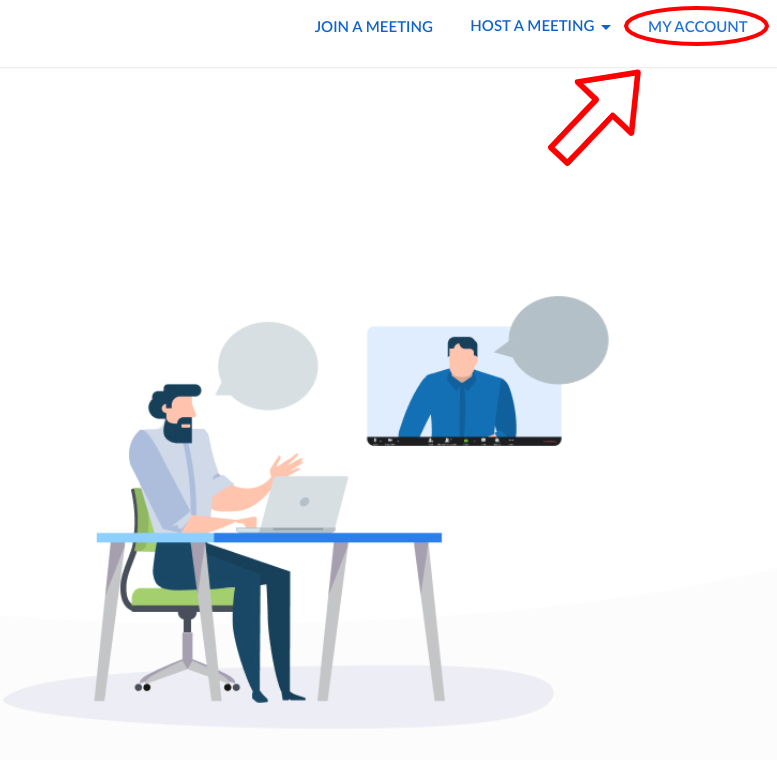
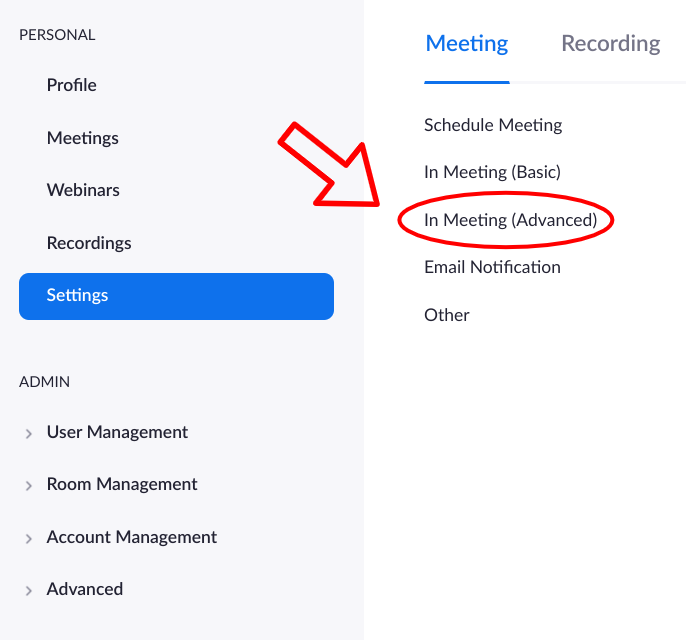
To join a meeting without installing the Zoom web app, you will need to log into your Zoom account and click “My Account” near the top right of the homepage. From there, you will click “Settings” on the left-hand menu and select “In Meeting (Advanced).”
Featured Videos

Xremove ads

Next, scroll all the way to the bottom of this section. (Alternately, you can click the “Email Notification” tab and scroll up one line. It’s a bit quicker.) Look for the section that says “Show a “Join from your browser” link” and flip that toggle on. Now, when you share a link to a meeting, the user can click it and will be presented with the option to join from the browser. The only difference I’ve seen between the app and the browser versions is that the latter lacks the “gallery” view and instead puts your video as a floating PiP screen that you can move around your display.

This is a simple tweak for the Zoom Meetings platform but one that I’m sure many users have been trying to figure out. A lot of people from all walks of life have had to find new and inventive ways to meet and collaborate and Zoom is helping people do just that. Learn more about Zoom at the link below.

Zoom Meetings

Xremove ads

Filed Under: Apps, Chrome, Guides and How-To's

About Gabriel Brangers

Lover of all things coffee. Foodie for life. Passionate drummer, hobby guitar player, Web designer and proud Army Veteran. I have come to drink coffee and tell the world of all things Chrome. "Whatever you do, Carpe the heck out of that Diem" - Roman poet, Horace. Slightly paraphrased.

Primary Sidebar

Xremove ads

Deals

Save $40 on the Google Pixel Watch 4 before the Spring Sale ends

By Joseph Humphrey
April 24, 2026

The best Chromebook deals today

By Robby Payne
April 20, 2026

Deal Alert: the excellent Lenovo Chromebook Plus 2-in-1 returns to $429

By Robby Payne
April 20, 2026

Lenovo Legion Tab Gen 3 drops to $399, ahead of the much pricier Gen 5 release

By Joseph Humphrey
April 18, 2026

How to get 50% off YouTube Premium for a full year with Google One

By Robby Payne
April 16, 2026

More Deals

Xremove ads

Reviews

Lenovo Chromebook Plus 2-in-1 Review: pretty great in a vacuum

By Robby Payne
April 23, 2026

Acer Chromebook Plus Spin 514 Review: Kompanio Ultra power in a convertible

By Robby Payne
December 24, 2025

My review after 6 weeks with the Lenovo Chromebook Plus 14 [VIDEO]

By Robby Payne
August 11, 2025

One week with the best small Android tablet you can buy, and I’m sold

By Robby Payne
May 9, 2025

Best Chromebooks of 2024 [VIDEO]

By Robby Payne
November 28, 2024

More Reviews

Xremove ads

Guides

This Chromebook trackpad shortcut is definitely not new, but is blowing my mind

By Robby Payne
March 11, 2024

How to reduce broadcast delay on YouTube TV to stop live spoilers

By Robby Payne
December 8, 2023

Windows PC keyboard and Chromebook

How to use a Windows keyboard with a Chromebook

By Joseph Humphrey
December 8, 2023

How reset and revert your Chromebook to the previous version of Chrome OS

By Robby Payne
November 29, 2023

My Chromebook Plus features disappeared: here’s how I fixed it

By Robby Payne
November 24, 2023

More Guides

TWITTER · FACEBOOK · INSTAGRAM · YOUTUBE · EMAIL · ABOUT

Copyright © 2026 · Chrome Unboxed · Chrome is a registered trademark of Google Inc.
We are participants in various affiliate advertising programs designed to provide a means for us to earn fees by linking to affiliated sites.

PRIVACY POLICY