Up next in 10

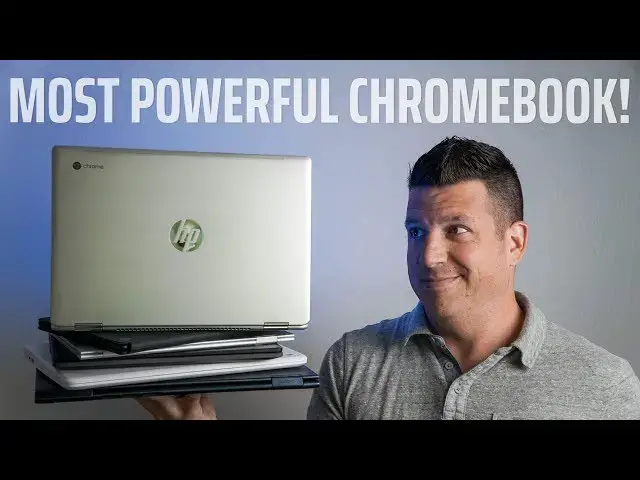
HP Chromebook x360 14 G1 Review: The Most Powerful Chromebook
Jul 19, 2019


Sponsored by Wordpress.com. Build your website on the world's most powerful platform. Get started here: http://chromeunboxed.com/wordpress
・・・・・・・
Buy the HP Chromebook x360 14 G1: http://tidd.ly/da91488b
The title for this review really says it all, doesn't it? On the market right now, there is no Chromebook you can purchase that is more powerful than the HP Chromebook x360 14 G1. Not the Pixelbook, not the Pixel Slate, and not even the very-powerful Acer Chromebook Spin 13. No other Chromebook has the raw horsepower this one delivers, but you'll pay a hefty price for all that power and though it is adept at nearly everything it does, there's one piece of the puzzle that may cause you to think twice about a purchase.
Learn more on where to buy the HP Chromebook x360 14 (older, standard version): https://chromeunboxed.com/deal-alert-get-200-off-the-hp-chromebook-x360-14/
Read more: https://chromeunboxed.com/
Join our newsletter: http://bit.ly/2WjCDm7
・・・・・・・
Subscribe to the channel: http://bit.ly/2xFuj6L
Shop Chromebooks: https://fave.co/2OuedYL
The Music We Use - http://bit.ly/31W6PYP
Show More Show Less View Video Transcript
0:00
Right off the top, I want to tell you this device, the HP Chromebook X360-14G1
0:07
is the most powerful Chromebook you can buy. It's also one of the most expensive Chromebooks you can buy
0:13
So the question, as it always is, should you? But before we get into all the details that will help you answer that question
0:27
This video is brought to you by WordPress.com. And whether you're trying to build just a basic blog site or a full-blown business website
0:35
WordPress.com has all the things you need to succeed in the web space
0:39
From thousands of templates to start from to tens of thousands of plugins to extend the functionality of your website
0:46
WordPress.com can do anything you need it to do and do it at an affordable rate that will work for you
0:52
If you'd like to learn more about their service, just go to chromeunbox.com forward slash WordPress to get started today
0:58
So a quick caveat before we get into all the pieces we normally talk about in a review
1:03
You probably have noticed this device bears a striking resemblance to another Chromebook made by HP just in the last six months, the other HP Chromebook X360
1:12
So that's kind of the consumer model, and this one's more for enterprise. And yeah, they share a lot in common, and we're going to talk about that towards the end of this video, so stick around for that
1:21
And if you haven't watched that review, you can check the link in the description. We'll link it down there
1:26
But we're going to talk just about the G1 in this review because it's easy to start making comparisons between devices
1:33
And this isn't a comparison video. This is a review video of this single Chromebook. So we're going to kind of keep it about this device until the very end of the video
1:40
So let's talk about the build quality here. This thing from head to toe is aluminum
1:44
So top, keyboard deck, bottom, all of it's aluminum, all of it's one color
1:48
and it's all that nice light gray we've kind of gotten used to with laptops in general
1:52
It resists fingerprints. It's nice and sturdy. The thing feels great. It looks great on a desk
1:57
and even though the price tag is high on this, it kind of looks the part. This thing would
2:02
be great in anybody's bag, especially those that work in the enterprise sector and have, you know
2:08
nine to five jobs and very corporate type affairs. Pulling this out in a boardroom or something like
2:12
that, it just would look the part versus some of the other Chromebooks that are on the market
2:15
But the one thing I do have against this, and it's the same thing with the X360 we reviewed
2:20
months ago, is the hinge feels a little bit loose to me. And that's a little bit subjective
2:25
Some people like a loose hinge that they can close up and open up with much ease. I like it to be a little bit firmer because when I go to pick the thing up off the desk
2:32
sometimes the lid just kind of falls back. And not that it's a huge deal, but it's just kind of an annoyance for a device that looks
2:39
this premium and demands this high of a price tag. Let's talk about the screen on this one
2:43
We're met with a 14-inch diagonal measure, full HD, 1080p IPS, great viewing angle, full of nice colors, all that stuff, 16x9
2:54
It's the same type of panel we've seen on a lot of Chromebooks, kind of from this era, the late 2018 season of Chromebooks that came out
3:01
So nothing's a surprise there. What did surprise me, and it's a negative surprise, unfortunately, is how dim this display is
3:07
I think HP rates it. They actually don't have it on their website. they rate it around 220 nits
3:13
We only seeing about 170 to 180 nits out of this thing when we get the best reading possible with the gauge And so 180 nits if you not really familiar with that just means that under decent lighting
3:26
conditions, you're going to run into issues with lots of glare and not being able to fully
3:31
see the screen comfortably. And I ran into that a lot, like being over at a Starbucks, for instance, sitting too
3:37
close to the window. It was just really difficult to use when the sun was coming in the window
3:42
Now, that's not the sun glaring right on the screen. Most screens fall down under that. But this is just with a brightly lit room, it struggled
3:48
And especially if it's up next to anything else underneath a monitor, an extended display
3:53
or something like that, it's very, very noticeable. And on a Chromebook that's this nice looking and does everything else really well, to have
4:00
a display that's that dim is just unfortunate. And I just don't really understand why HP shipped it with a display this dim when the
4:08
rest of the display looks so good. So sure, the screen's a little bit of a knock
4:12
And I will say this, if you're in just kind of normal lighting conditions, you might not even really notice it
4:18
It's just those brighter lighting conditions. But as we move through the rest of this device, everything's really on the up and up here
4:25
And HP's done a great job with the overall packaging. So let's talk about keyboard and trackpad
4:30
The keyboard is great with great travel, great click. The keys feel really nice
4:35
It's like a soft touch plastic or something. They're backlit. And I have nothing negative to say about this keyboard
4:41
HP's been making killer keyboards for the last few years, and this is as good as they come
4:47
I enjoyed every second of typing any article or any work I had to do on this thing
4:51
It just feels great under the hand. It looks great. It performs great. No complaints whatsoever
4:56
Same thing goes with the trackpad. This is as good as trackpads get, in my opinion
5:00
The only thing that Crowbooks could do better at this point, comparing this trackpad to other trackpads
5:05
would be something like Apple does, where they don't have a mechanism in them. It's the haptic feedback that makes it click
5:11
Until we get those types of trackpads, this is as good as it gets. And I'm comparing this with every trackpad out there, including the Pixelbook and the Chromebook pixels that came before it
5:20
It's all glass. It's super wide. The click is super quiet and reassuring
5:24
It feels great. The thing tracks great. It resists oils. I mean, everything great you can say about the input methods on this thing, it's all there
5:32
This thing really delivers in that realm. So if you're data input or you're doing a lot of stuff or you're typing and mousing a lot, you're going to love what it feels like to use this Chromebook on a daily basis
5:42
Around the outside of the device, we're met with what has become pretty regular, pretty standard fare
5:48
A couple USB Type-C's on each side, a USB Type-A on one side, the headphone microphone jack, Kensington lock, SD card slot
5:56
So though those things are very familiar, I can't say enough and I can't say enough and enough reviews, honestly, how much I love this port selection
6:04
Lots of flexibility with USB-C on either side. So charge it on either side
6:09
Extend your display on either side. The USB-A is there so that you can kind of ditch that dongle life
6:14
And you've got a headphone microphone jack for those types of inputs and SD card slot to expand the memory if you need it
6:20
It's kind of all there. and I love this port layout, and I hope that future Chromebooks continue adopting it instead
6:26
of ditching that USB-A and only having the USB-Cs. The biggest place this Chromebook sets itself apart
6:32
from others is the ability to kind of customize it. Now, you can't change out each individual piece
6:36
but if you go to HP Store there are multiple configurations and you can start all the way down with the U Pentium processor which saves you quite a bit of money And from what we seen of those processors we not tested this exact one
6:48
It gets along pretty well. It starts with 8 gigs of RAM and 64 gigs of internal storage
6:53
You can go all the way up to Core i7 with 16 gigs of RAM, again, the same 64 gigs of
6:58
internal storage. One thing I would like to see them allow is at least 128, if not 256, of internal storage
7:05
whenever you get up to that high-end model, because when we talk about price here in a second
7:08
you'll see why I would expect those kind of stats up there. The one that HP sent us
7:12
the one that we tried, was the top model. So an i7, 16 gigs of RAM and 64 gigs of internal storage
7:18
and it performed exactly like you'd expect it to. Never really broke a sweat doing anything
7:23
It didn't matter how many displays we had extended. It didn't matter how many tabs you
7:27
have open. It didn't matter how many apps you were running. Nothing. Nothing mattered
7:31
This thing never slowed down. It never showed any signs of any kind of stress. And you would
7:37
expect that Chrome OS does really well with a lot less hardware. So with this much hardware
7:42
it just kind of breeze through everything. I would expect it would get the same performance
7:47
as the X360 that we reviewed, you know, months ago with the i3 and eight gigs of RAM. So I don't
7:54
know where the benefit necessarily is for most users, but if you're one of those users that wants
7:58
the absolute fastest, the most RAM that you can get in a Chromebook, here's the route. Here's how
8:03
you get there. Battery life, as we've kind of grown to expect from Chromebooks, is at least 8 to 10
8:09
hours. What I end up showing most times is somewhere between 10 and 12 hours. I haven't run this thing
8:16
all the way to the ground just yet, and I don't know that I ever would with that kind of battery
8:20
life. I just don't end up getting to a place where I've run the whole thing out. But in general, the
8:25
x360 that we reviewed before was actually one of the best battery champions of all chromebooks and
8:31
it seems like hp's put the same size battery in this device and it gets the same type of battery
8:36
life 10 to 12 hours even with that core i7 but i would imagine if you really really push this thing
8:42
i mean you're really throwing a bunch of stuff at it i would imagine that would have to shave itself
8:47
down 8 to 10 hours or something like that but that's pretty impressive when you talk about
8:51
throwing a ton of stuff at your computer and still being able to easily breeze through any workday
8:56
The speakers on the X360 are just like most HP Chromebooks that have come out in the last year
9:02
B&O branded. And the nice part is here, it feels like that branding is actually starting to do
9:07
something with the speakers. They're not the best speakers I've heard on a Chromebook
9:11
but they're better than most. They're nice and clear. They have a decent bit of mid-range
9:15
and a little hint of bass. But in general, if you're listening to a podcast or watching a video
9:20
on them, they're going to be enjoyable to actually listen to. And they don't sound tinny and thin
9:25
like a lot of laptop speakers we've heard in the past. So when we have a device that varies this
9:30
much with hardware, all the choices that you kind of have, there's a huge variance in price as well
9:35
And it's worth noting if you're thinking about getting this one. So if we compare it with the
9:40
X360 that came, you know, six months ago, that's a Core i3 8GB 64 internal storage model, 599 MSRP
9:49
And though it's on sale a lot, we're talking MSRP here because this device probably won't find itself on sale very often as it's marketed towards enterprise
9:56
If you outfit this G1 with the Core i3 processor 8 gigs of RAM 64 gigs of internal storage you going to find a price around on HP website And I think that kind of fair if we talking MSRP because
10:10
with this model, you're getting a couple upgrades. One, you're getting rid of the two-tone color
10:15
which seemingly a lot of people don't like. And you're also getting rid of the plastic bottom and
10:19
replacing it with an aluminum one. So in general, you're just kind of getting a more professional
10:24
looking device for 25 extra bucks. And I think in general, pricing wise, that's fair. Now that was
10:30
all talking about the Core i3 model, which I think is kind of the sweet spot. We can knock down about
10:35
50 bucks off the price. If you go down to the Pentium, I again, don't know how that one would
10:40
perform. I would assume it would perform pretty well, but that gets you well under $600, somewhere
10:44
in the $575 range. But the sticker shock starts coming in at the Core i5 and the Core i7 variants
10:51
of this device and it starts jumping up by hundreds of dollars all the way up to like
10:56
$1,250 for the one that we reviewed with the i7, 16 gigs of RAM, 64 gigs of internal storage
11:03
And guys, that's just a lot of money for a lot of processing power that I don't know
11:08
that you need. So if you're a consumer, if you're just looking for a Chromebook, you just want to get a Chromebook
11:13
and you want to have something that's nice and fast and looks nice. I just don't know if there's any way I can recommend that you go buy that top tier one
11:20
And just like with the Pixel Book and the Pixel Slate that came before these as these kind of premium devices
11:26
I never really recommended, hey, go buy the most expensive one. In general, you're probably going to be happy with the Core i3 version, and I feel like it's priced relatively competitively
11:36
The other upper models, I just don't know that there's any real reason to go jump into them
11:41
You're going to sacrifice a little bit of battery life for sure with the i5 and the i7
11:45
and I just don't know that you're going to gain the performance that you would need
11:49
for literally spending twice as much as you would for the i3 version if you go up to the i7
11:54
If you're someone that says, hey, I want the fastest, most RAM I can get Chromebook
11:59
then sure, this is it. There is nothing that has more RAM. There is nothing that has a higher clocked processor than the top version of this
12:07
And if you're ready to drop that kind of money on a Chromebook, more power to you. Go grab one
12:11
It's a great device other than that dim screen. if you can get around that, then hey, this is a great Chromebook. I just don't know that that's
12:18
the right price for most people. For most people, the Core i3 is the right version to pick. And if
12:24
you even want to save a little bit more money and sometimes a lot more money, the better choice is
12:29
to get the just standard HP Chromebook X360 that you can pick up at Best Buy or Amazon right now
12:35
that's normally $400 to $600 and generally below $500. So save yourself a couple hundred bucks and
12:42
get the same overall computing experience unless a single color and an aluminum bottom are the most
12:49
important things to you. That's the route I would say you've got to go, but you've got some decisions
12:53
and you've got some options and that's kind of a cool thing. And it's a cool thing in the market
12:57
right now that we're seeing more and more options from more and more manufacturers, but guys
13:02
that's it for this one. If you liked it and we helped you make a purchasing decision
13:06
please click the thumbs up button down there, hit subscribe down below and make sure and hit
13:10
the notification bell to be alerted when we put out new videos just like this one. Until next time
13:15
we'll see you
#Computer Hardware
#Laptops & Notebooks
#Consumer Electronics