0:00
So with ChromeOS 125, we got a slew of new AI powered features
0:05
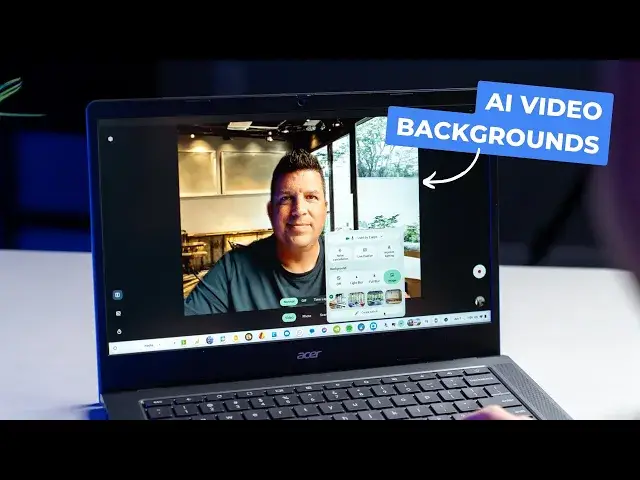
And one of the ones that I've personally found just interesting and honestly pretty useful in the last week or so is the ability to create AI generated unique backgrounds for video calls
0:18
And the cool part is it happens on device. So that means just like the filters and the lighting and stuff that they added back in October for Chromebook Plus, this is actually a feature that it doesn't matter which
0:29
service you use Zoom Google meet your built-in camera it doesn't really matter
0:34
these backgrounds will follow you through all of those applications because it's
0:38
working at an OS level so it's really cool I just want to show you a little bit
0:42
more about how it works all right so this feature is super simple to find and to
0:52
use I know there's probably some people that aren't quite sure where to go to get
0:56
it but the minute you open your camera so you can see on my screen I've got the camera
1:00
I apologize for the flickering of the exposure here. The studio lights tend to just freak Chromebook cameras out for some reason
1:09
But down on the tray, as soon as you open the camera, you get some camera tools here, right? So the noise cancellation, the live captions, the improved lighting
1:17
Oh. Those things were all there since October. Those are kind of the initial things that Google added for Chromebook Plus cameras So I can do light blur I can do full blur And you can tell like even the way it like really cutting around my head and they
1:34
you know, like, this is happening on device. This isn't, you know, part of Google Meet or whatever
1:39
But right in with that is this new image tab. And so I can just click an image if I want to
1:44
So I can just click this and boom, I got an image. This is one that I did earlier. But I'm going to click Create with AI
1:50
And now I've got a handful of themes and some other ones, recent backgrounds that I kind of messed with
1:55
So one of the cool things is that Google took the time to make sure that they trained this model
2:01
so that this is four video call backgrounds, meaning they're not overly excitable in the back
2:07
So they're not creating too much stuff to make people want to look at that instead of look at you
2:12
And they're also created in a way that prioritizes having a subject in the center of them
2:18
So they look good. They look like they're meant to be backgrounds. because sometimes I don't know about you
2:23
I've thrown stuff in the background. I'm like, oh, that looks terrible. Like, it looks so dumb
2:28
This has a, it does a good job of making sure to keep making stuff that works
2:32
So I'm going to go simple. I keep doing the stylish office thing. And then you get some prompts here, a minimal bookshelf in a neutral room
2:38
I'm going to go, I like modern in a, let's go dark
2:44
Let's go dark. Let's see what that does. Hit create and we're going to get some fresh options here
2:52
Dark Room apparently has to be a library according to AI Let do this one Looks like I in some crazy room Let look at that Yeah like I in the archives or something And again the cutouts pretty darn good
3:07
Apart from it, screwing up with the exposure on here, this lighting is really nice
3:12
And so there's plenty of data for the camera to deal with. Let's change it again
3:16
Let's do something else. So I'm going to go here, create with AI again. This time I'm going to do, let's do a cafe
3:23
I'm going to go go get. me some some coffee we're going to do do distressed a distressed modern no i didn't mean to click that
3:33
i clicked i clicked inspire me oh well i was going to do distress modern but this is what i got cozy modern
3:39
i want i want it was close there we go i clicked the wrong button you can hit click inspire me
3:44
it just does something random so funny the random was pretty close oh this definitely looks like some
3:50
places i would hang out um let's go with this one see if this
3:54
pulls it off, make it look like I'm at a table at a coffee shop, kind of sort of, you know
3:59
But again, it's not distracting around the edges. It's built with intent that I'm going to be the subject and kind of the center of it
4:08
And it's cool because it's something unique. A lot of times with Zoom and all these other video calls, we've seen the same backgrounds
4:13
People use the same backgrounds over and over again. And now with your Chromebook Plus, you can just, you know, go in and create something new
4:20
every time you get into a video chat. And the more video chats you're in, the more
4:24
Interesting obviously this feature is going to be because now you don have to have the same background behind you every single time you hop into a video call so this is the second feature video we done out of chromeOS 125 and there were just so many new things announced that we did
4:38
some high level announcements of those things but we're taking the time now to kind of go through these
4:42
one by one and really you know give you all a better look at what it would be like especially if you're
4:47
not a chrome book plus owner just yet and you're thinking about maybe upgrading or buying a
4:50
Chromebook Plus model, then some of these features might be really, really helpful for you all
4:55
And as part of that, I also want to point out the fact that we have a new community called Chrome Unboxed Plus
5:01
And I'm telling you, it's an awesome place to be. We are growing really quickly
5:07
There are tons of people in there. And it's a great place to hang out, to learn about Chromebooks, to get questions answered, to have access to Joe and myself
5:15
But we're also doing AMAs with the ChromeOS team, exclusive giveaways, ad free on the
5:20
website, ad-free podcast. It's just a cool, cool vibe. It's a great place to be, and it's only
5:26
two bucks a month. So if any of that sounds cool to you, there's a link in the description down below
5:31
or you can just go to chrome unbox.com forward slash join. But that's it for this one. If you
5:36
like this video, give us a thumbs up. Head down there, hit subscribe, and be sure to ring the
5:40
notification icon as well. If you'd like to be alerted when we make future videos just like this one
5:44
Until next time, we'll see you