

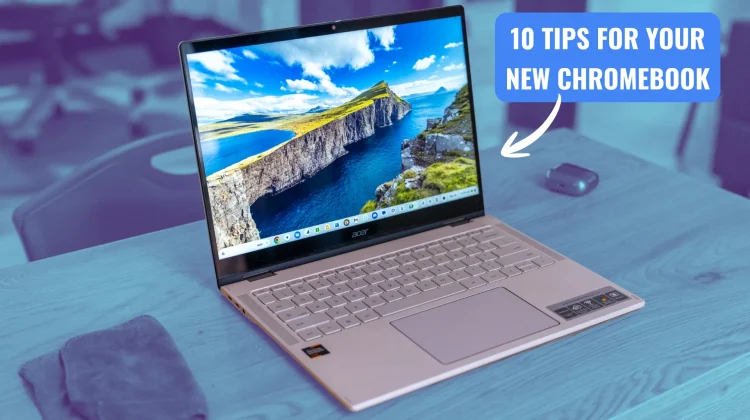
Regardless of the shifts coming on the horizon with Chromebooks and the Android Kernel, consumers are still buying Chromebooks in droves and plenty of you unwrapped one perhaps for the first time this past week. Whether you received a standard model or one of the powerful new Chromebook Plus devices, you are logging into an OS that has become much more than just a browser over the past decade; so, we wanted to refresh our essential guide to help you navigate your new device, from the first steps to getting truly productive. Let’s get into it!
1. Plug it in
Don’t be alarmed if your new Chromebook doesn’t power on right out of the box. To preserve battery health while sitting on a shelf, most devices arrive in a “shipping mode” that requires a brief connection to a power source to wake up. Simply grab your included charger, plug it in for a few seconds, and the screen should come to life. Many devices ship with a decent charge, but it is always a good idea to let it reach 100% while you walk through the initial setup.
2. Google account setup
While you can browse as a guest, a Google account is practically mandatory for the full ChromeOS experience. This account acts as the engine for the OS, syncing your web apps, bookmarks, and system settings across any device you sign into.
One of the real superpowers of ChromeOS is that your entire digital life is sandboxed and secure; if you ever lose your device, you can sign into a new one and be back to work in minutes. Furthermore, multiple users can use the same Chromebook independently with absolutely zero overlap, ensuring family members don’t see each other’s private data.
3. Use those ports
Chromebooks in 2025 come with a fantastic variety of ports. While USB-C is the standard for charging and data, many models still include full-size HDMI, SD card slots, and USB-A ports.
The beauty of ChromeOS is that it is incredibly plug-and-play. If you have an old mouse, a random USB hub, or a headset, try plugging it in. You’ll likely find that it just works without the need for manual driver installations.
4. Master your settings with search
ChromeOS settings have become more robust, but they remain easy to navigate if you use the search function. Rather than digging through menus, simply hit the clock area in the bottom-right corner, click the settings gear, and type what you need into the search bar. Alternatively, use the Everything Key (the Launcher key where Caps Lock usually is, or on newer devices, the “G” key on the bottom row) and start typing your desired setting directly into the system-wide search.
5. Expanding your screen real estate
Connecting to an external monitor is easier than ever via USB-C or a dedicated HDMI port. Once connected, head to your display settings to arrange your monitors so moving your cursor between them feels natural. You can also adjust the resolution and scaling here to find the perfect visual balance for your specific setup.
6. Unlock the power of keyboard shortcuts
The ChromeOS keyboard is unique, featuring dedicated keys for things like overview mode and full-screen. If you have a newer Chromebook Plus model, you may even have the “Quick Insert” key for instant access to emojis, GIFs, and AI tools. To see every available shortcut, simply hit Ctrl + Launcher (Everything Key/”G” Key) + S for a searchable on-screen guide.
7. Time-saving trackpad gestures
Google has perfected the trackpad experience, and learning the gestures will drastically speed up your workflow:
- Two fingers: Scroll through pages or right-click by tapping with both fingers.
- Three fingers: Swipe up to see all open windows (Overview Mode) or swipe left/right to cycle through open browser tabs.
- Four fingers: Swipe left or right to move between different Virtual Desks.
8. The versatility of tablet mode
If you have a convertible 2-in-1 device, flipping the keyboard back triggers “Tablet Mode”. The UI shifts slightly: apps open full-screen by default, you can drag apps to either side of the screen for a split-screen view, and the shelf becomes a floating bar that you can swipe away. It is a great way to consume media or use your device as a digital notebook with a USI pen.
9. AI, Android, and Linux apps
In 2025, Chromebooks are a “triple threat” of app support. Most users will find the Play Store enabled by default, allowing you to run your favorite Android apps directly on your laptop. Chromebook Plus users also get access to powerful Gemini AI features like “Help me read” for summaries and “Magic Editor” in Google Photos. For more advanced users, the Linux development environment can be toggled on in settings to run desktop-grade software, too.
10. The simplicity of the “Powerwash”
If you ever need to factory reset your device—perhaps to hand it off to a friend or simply to start fresh; ChromeOS makes it easy with the “Powerwash”. You can find this in your settings or use the shortcut Ctrl + Alt + Shift + R on the login screen. Because your files are largely synced to the cloud, you can wipe your device and be back to your exact setup in minutes just by signing back in.
Join Chrome Unboxed Plus
Introducing Chrome Unboxed Plus – our revamped membership community. Join today at just $2 / month to get access to our private Discord, exclusive giveaways, AMAs, an ad-free website, ad-free podcast experience and more.
Plus Monthly
$2/mo. after 7-day free trial
Pay monthly to support our independent coverage and get access to exclusive benefits.
Plus Annual
$20/yr. after 7-day free trial
Pay yearly to support our independent coverage and get access to exclusive benefits.
Our newsletters are also a great way to get connected. Subscribe here!
Click here to learn more and for membership FAQ

