
Support our independent tech coverage. Chrome Unboxed is written by real people, for real people—not search algorithms. Join Chrome Unboxed Plus for just $2 a month to get an ad-free experience, access to our private Discord, and more. Learn more about membership here.
START FREE TRIAL (MONTHLY)START FREE TRIAL (ANNUAL)
If you are coming to Googlebook OS from a Chromebook, one of the first things you will notice is that your muscle memory might need a slight adjustment. While there are plenty of familiar elements, the vast library of keyboard shortcuts on Googlebook is different in many ways from what we’ve grown used to on ChromeOS over the years.
Fortunately, Google anticipated this learning curve and built in an incredibly simple way to view, learn, and even customize your shortcuts right from the desktop.
The one shortcut you need to remember
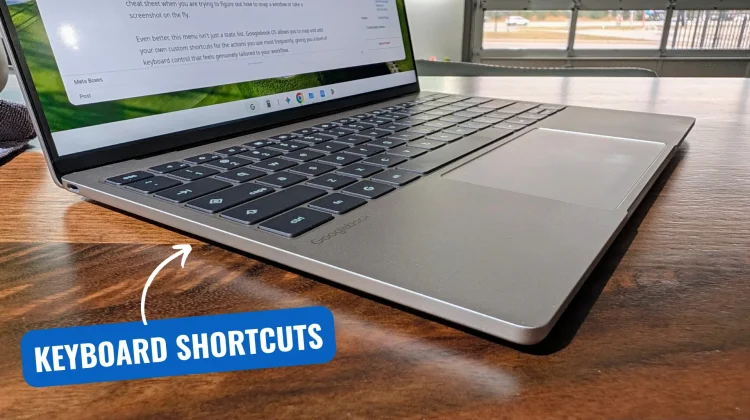
If you only memorize one keyboard combination on your new Googlebook, make it this one: the G key + ? (or /).
Pressing this combination instantly brings up a comprehensive, searchable menu overlay that lists every single keyboard shortcut available on the system. It is the perfect cheat sheet when you are trying to figure out how to snap a window or take a screenshot on the fly.
Even better, this menu isn’t just a static list. Googlebook OS allows you to map and add your own custom shortcuts for the actions you use most frequently, giving you a level of keyboard control that feels genuinely tailored to your workflow.
A few early favorites
I have been digging through the shortcut menu and testing different combinations over the last few days, and a couple have already become absolute staples in my daily navigation:
- Peek/Unpeek Desktop (G key + V): This instantly shoves all your open windows out of the way so you can see your desktop canvas (and any widgets you have pinned there). Pressing it again snaps all your windows right back into place.
- Navigate Virtual Desks (G key + CTRL + [ or ]): If you are a heavy virtual desk user, this combo lets you rapidly slide left or right between your active workspaces without ever touching the trackpad. We still need a trackpad gesture for this, but until it shows up, this handy shortcut does help a lot.
As we continue to test these devices, I’m sure I will find plenty of other powerful combinations. For now, if you just unboxed your Googlebook, hit the G key + ? and take a few minutes to browse the list as it is the fastest way to start feeling right at home on the new OS.
SUBSCRIBE TO UPSTREAM
Get Chrome Unboxed delivered straight to your inbox
Upstream is our flagship, curated newsletter with the top stories, most click-worthy deals, giveaways, and trending articles from Chrome Unboxed sent directly to your inbox a few times a week. Join 31,000+ subscribers.

