
Support our independent tech coverage. Chrome Unboxed is written by real people, for real people—not search algorithms. Join Chrome Unboxed Plus for just $2 a month to get an ad-free experience, access to our private Discord, and more. Learn more about membership here.
START FREE TRIAL (MONTHLY)START FREE TRIAL (ANNUAL)
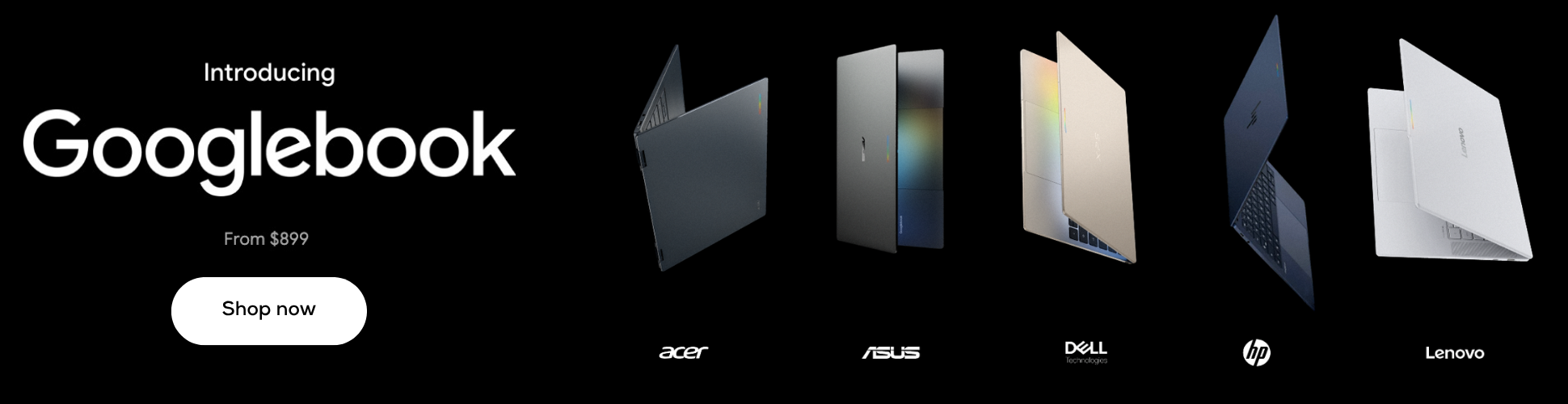
When Chrome 157 first started showing up on Googlebooks back on November 11th, it felt like a pretty quiet maintenance release. Unlike the Chrome 156 rollout, Google hadn’t posted any official release notes at the time, which left us assuming it was mostly under-the-hood security patches and a few minor web app fixes to tide us over until Chrome 158.
Turns out, Google was just running a little behind on the paperwork. Over on the r/Googlebook subreddit, Google’s Mishaal Rahman just dropped the full, official Chrome M157 changelog; and there is actually quite a bit of meaningful desktop polish packed into version 157.0.8103.38 that makes daily browsing on a Googlebook feel noticeably less rough around the edges.
Vertical tabs and desktop basics get a serious upgrade
If you’ve been using vertical tabs on your Googlebook to save screen space, Chrome 157 fixes two of the biggest annoyances right out of the gate. First, collapsed vertical tabs now auto-expand on hover. Instead of having to click the icon rail every time you want to read a full tab title or manage a tab group, you can simply rest your cursor over the rail to temporarily expand it as an overlay, then move your mouse away to let it tuck back in.
If you prefer keeping the rail locked in place, you can disable that behavior in Settings > Appearance > Tab position or by right-clicking the vertical tab rail. And once you turn auto-expand off, Chrome 157 also lets you manually resize the vertical tab bar to whatever width fits your display and it will actually remember that custom width across restarts and new windows.
Beyond tab management, Google quietly shipped a handful of other desktop staples that should have been there from day one:
- Direct URLs & navigation for Settings: Following M155’s move to put Chrome Settings inside a browser tab, subpages now have proper URLs (like chrome://settings/appearance) that you can bookmark, type directly, and navigate using your standard Back and Forward buttons.
- Tab sharing controls bar: When presenting a tab in a video call like Google Meet, a persistent bar now sits at the top of your window so you can stop sharing or switch to sharing a different tab with a single click.
- Native “Save As” dialog by default: You no longer need to dig into chrome://flags to get the system file picker when right-clicking to save a link, image, or webpage – it’s now turned on by default so you can rename files and send them straight to Google Drive or external storage.
24 bug fixes that clean up daily friction
As I’ve talked about plenty since launch, Googlebook OS is very much an active work-in-progress, and a lot of the day-to-day friction comes down to tiny desktop papercuts. The M157 changelog lists two dozen targeted bug fixes aimed squarely at those annoyances.
A few of the standout fixes include restoring unresponsive right-click menus on the bookmarks bar, keeping the bookmarks bar from disappearing when switching tabs in fullscreen with vertical tabs enabled, and fixing an issue where Google Slides wouldn’t let you pick an external monitor for presenter view.
Google also squashed a pair of crashes tied to extension messaging and unregistered keyboard shortcuts, fixed Ctrl + L so it highlights the full URL, and made downloaded PDFs open directly in a new Chrome tab instead of kicking you out to an external viewer.
A sneak peek at what’s coming next
What I appreciate most about these community updates is that Google isn’t shy about showing what’s still missing and what’s right around the corner. Alongside the M157 notes, the team confirmed three heavily requested features currently in the pipeline to close more of those ChromeOS parity gaps:
- On startup settings: Instead of forcing Chrome to restore your previous session every single time you launch it, you’ll soon be able to choose between opening the Homepage, continuing where you left off, or launching a specific set of pages.
- “Ask where to save files” for all downloads: While M157 enabled the system file picker for right-click “Save As” actions, Google is actively wiring up the toggle in Settings > Downloads so standard left-click web downloads can prompt you for a folder and filename too.
- EyeDropper color picker API: Web apps like Figma and Canva will soon be able to sample colors directly from anywhere on your Googlebook’s screen.
If you don’t want to wait for those to hit the Stable channel, you can install Chrome Beta from the Google Play Store right alongside your main browser. EyeDropper support is already live there by default, and you can test the other two early by flipping chrome://flags#on-startup-settings-ui and chrome://flags#enable-download-save-as-system-file-dialog to Enabled. For everyone else, head to the Play Store on your Googlebook and make sure Chrome is updated to 157.0.8103.38 or higher as there’s way more waiting in this update than we originally gave it credit for.
SUBSCRIBE TO UPSTREAM
Get Chrome Unboxed delivered straight to your inbox
Upstream is our flagship, curated newsletter with the top stories, most click-worthy deals, giveaways, and trending articles from Chrome Unboxed sent directly to your inbox a few times a week. Join 31,000+ subscribers.

