
• Skip to main content
  • Skip to primary sidebar
  • Deals
  • Features
  • Guides
  • Chromebooks
  • Videos
  • Podcast
  • More +
    • Reviews
    • Unboxing
    • Upcoming Devices
    • Chromebook Plus
    • Chrome
    • ChromeOS
    • Chrome OS Flex
  • Search
  • Sign Up
  • Log In
Chrome Unboxed – The Latest Chrome OS News

Chrome Unboxed - The Latest Chrome OS News

A Space for All Things Chrome, Google, and More!

  • Deals
  • Features
  • Guides
  • Chromebooks
  • Videos
  • Podcast
  • More +
    • Reviews
    • Unboxing
    • Upcoming Devices
    • Chromebook Plus
    • Chrome
    • ChromeOS
    • Chrome OS Flex
  • Search
  • Sign Up
  • Log In

Invert Your Chromebook’s Colors: High Contrast Mode And Other Accessibility Features

March 6, 2017 By Gabriel Brangers View Comments

Support our independent tech coverage. Chrome Unboxed is written by real people, for real people—not search algorithms. Join Chrome Unboxed Plus for just $2 a month to get an ad-free experience, access to our private Discord, and more. Learn more about membership here.
START FREE TRIAL (MONTHLY)START FREE TRIAL (ANNUAL)
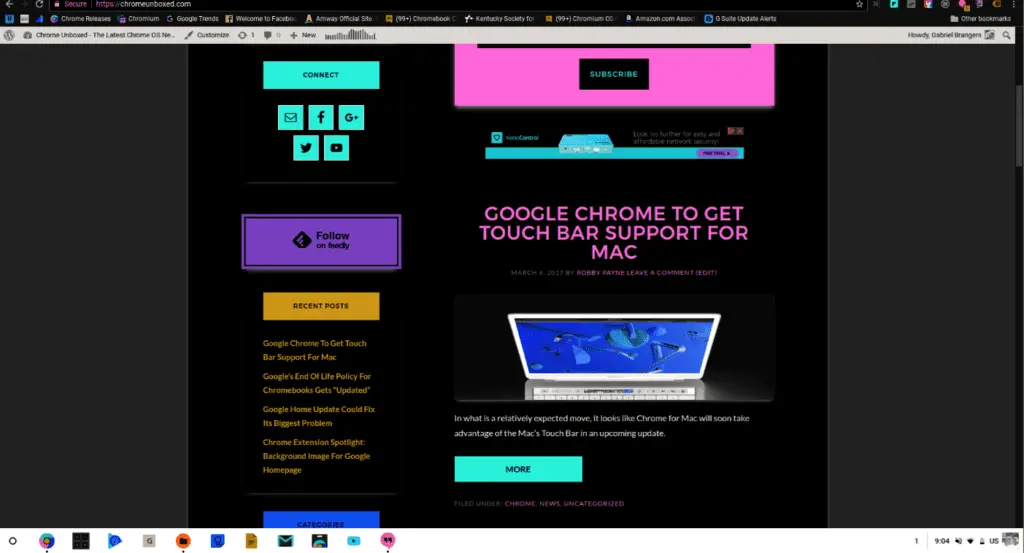

For users who are visually impaired or suffer from eye fatigue, Chrome OS offers a number of features to make your daily computing a little easier. Like most operating systems, these options can usually be found in your system menu under “Accessibility.”

The first feature is one that many users stumble upon accidentally. Looking at numerous forum posts, it also appears a lot of users have no idea how to enable or disable it which can turn into a major frustration.

Xremove ads

High Contrast Mode

Whether you’re surfing the web, creating documents or reading a book, white backgrounds and traditional user interfaces can make it difficult to distinguish between object if you have a visual impairment. High contrast mode turns your desktop into a “photo negative” of the standard display. In many cases, the increase of contrast between text, objects and backgrounds can make it easier to read and cause less strain on the eyes.

To give this feature a try head to Settings>Show advanced settings>Accessibility>Use high contrast mode. Alternately, you can enable high contrast mode by using the keyboard shortcut Shift+Search+H. If you ever enable this feature accidentally and aren’t sure why your display looks like a strange piece of artwork you can see the high contrast mode notification in the system tray as seen here.

Featured Videos

Xremove ads

If high contrast mode isn’t for you there is also the option of changing the resolution of your display to increase the visible size of objects on your desktop. You can read more about that here.

Large Mouse Cursor

In the accessibility menu, you will also find the option to “Show large mouse cursor.” This is exactly what is sounds like. Enabling this feature will increase the size of your cursor roughly 4 to 5 times its original size. It looks a little wonky at first but if you have difficulty with your vision it is a definite plus.

Xremove ads

Screen Magnifier

An alternative to changing your resolution, the screen magnifier options literally looks like you’ve placed a magnifying glass over your display. You will be zoomed in on the center of the display and moving your cursor to the left/right or top/bottom will give you access to screen areas out of your viewing area.

Highlight Mouse Cursor

This one is my favorite. It makes me feel like I’m in a first-person shooter every time I use my Chromebook. Essentially, your cursor will be surrounded by a red ring that will illuminate when you move it then fades to nothing after you stop. Fun as it may be, many people have problems tracking objects or regaining visual focus and this feature can assist them with that.

Xremove ads

These are just a few ways you can customize your Chrome OS experience. For a full list of features check out the accessibility menu for yourself.

ORDER YOUR CHROME UNBOXED T-SHIRT HERE

Filed Under: All Stories, Chrome, Chromebooks, ChromeOS, Guides and How-To's

About Gabriel Brangers

Lover of all things coffee. Foodie for life. Passionate drummer, hobby guitar player, Web designer and proud Army Veteran. I have come to drink coffee and tell the world of all things Chrome. "Whatever you do, Carpe the heck out of that Diem" - Roman poet, Horace. Slightly paraphrased.

Primary Sidebar

Xremove ads

Deals

The best Chromebook deals today

By Robby Payne
March 30, 2026

The Acer Chromebook Plus Spin 714 hits a new all-time low at $270 off

By Robby Payne
March 25, 2026

You can score $40 off Google’s battery-powered Nest Doorbell right now

By Joseph Humphrey
March 20, 2026

The touchscreen Lenovo Chromebook Slim 3 is a steal at under $200

By Robby Payne
March 16, 2026

Google TV Streamer and Remote held in front of a wall-mounted TV

The premium Google TV Streamer 4K is back down to $80

By Joseph Humphrey
March 16, 2026

More Deals

Xremove ads

Reviews

Acer Chromebook Plus Spin 514 Review: Kompanio Ultra power in a convertible

By Robby Payne
December 24, 2025

My review after 6 weeks with the Lenovo Chromebook Plus 14 [VIDEO]

By Robby Payne
August 11, 2025

One week with the best small Android tablet you can buy, and I’m sold

By Robby Payne
May 9, 2025

Best Chromebooks of 2024 [VIDEO]

By Robby Payne
November 28, 2024

Samsung Galaxy Chromebook Plus Review: Samsung is back! [VIDEO]

By Robby Payne
October 28, 2024

More Reviews

Xremove ads

Guides

This Chromebook trackpad shortcut is definitely not new, but is blowing my mind

By Robby Payne
March 11, 2024

How to reduce broadcast delay on YouTube TV to stop live spoilers

By Robby Payne
December 8, 2023

Windows PC keyboard and Chromebook

How to use a Windows keyboard with a Chromebook

By Joseph Humphrey
December 8, 2023

How reset and revert your Chromebook to the previous version of Chrome OS

By Robby Payne
November 29, 2023

My Chromebook Plus features disappeared: here’s how I fixed it

By Robby Payne
November 24, 2023

More Guides

TWITTER · FACEBOOK · INSTAGRAM · YOUTUBE · EMAIL · ABOUT

Copyright © 2026 · Chrome Unboxed · Chrome is a registered trademark of Google Inc.
We are participants in various affiliate advertising programs designed to provide a means for us to earn fees by linking to affiliated sites.

PRIVACY POLICY