

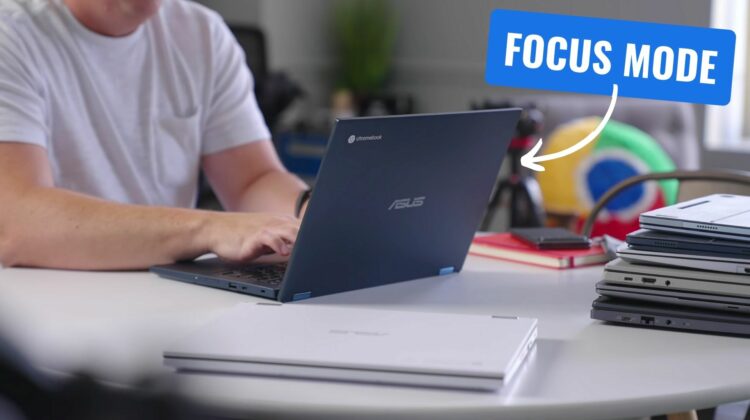
A new feature on the way to ChromeOS – Focus Mode – arrived in the Canary Channel a full 4 months ago at this point. As you couldn’t access it in any other channel at the time, I took a look at it, fiddled around with it for a bit, and headed back to the safety of the Stable Channel and left Focus Mode for a later time. It was still a bit buggy and not everything worked back then, but fast forward to today, and it’s all there and all functioning as intended right in the Stable Channel of ChromeOS 123.
Using Focus Mode has helped me
I’ll be honest, I wasn’t completely sold on the utility of Focus Mode when I first saw it. And even when I found the flag for it a couple days ago in the Stable Channel, I wasn’t convinced I’d actually use it. And I love that part of ChromeOS; features show up and generally it is up to the user to decide whether or not it is of benefit or not to them.
But after I fired it up and actually used Focus Mode a bit, I’ve become a believer. The auto-silent mode and the subtle icon at the bottom of the screen help remind me I have a task at hand, and the little green ticker that fills in over the course of your focused time helps visually show just how much of your focused time is left. For anyone trying to zone in on a single task and try their best to stay on that one thing for a set amount of time, this feature is really helpful.
How to try Focus Mode on your Chromebook
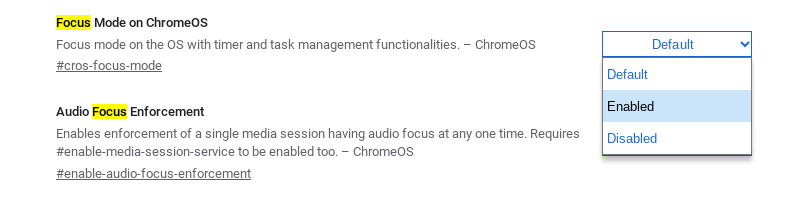
So, if you want to give it a try, it’s quite simple. Make sure you are up to date with ChromeOS 123 and then in your URL bar, type in chrome://flags/#cros-focus-mode and enable that flag. Once you restart Chrome, you’ll now notice a new section in your Quick Settings to start using Focus Mode. And after you start a focus session, you’ll have a shelf icon to check your time and also a view in your Quick Settings as well.
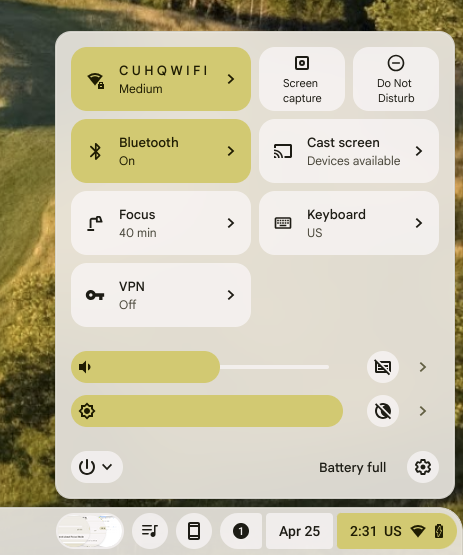


While I have a sneaking suspicion that Focus Mode will get some additions in the near future, the version of this we have right now is pretty useful. It gives you a timer for a specified task, mutes notifications automatically, and visually gives you a cue of how much time you’ve used up at a glance.
I’ve found it to be very helpful thus far, and if a few more useful features are added to it down the road, the more the merrier. I love seeing ChromeOS get well thought out additions like this that aren’t just there for show, but are actually helpful to the user without too much fuss. Happy focusing, everyone!
Join Chrome Unboxed Plus
Introducing Chrome Unboxed Plus – our revamped membership community. Join today at just $2 / month to get access to our private Discord, exclusive giveaways, AMAs, an ad-free website, ad-free podcast experience and more.
Plus Monthly
$2/mo. after 7-day free trial
Pay monthly to support our independent coverage and get access to exclusive benefits.
Plus Annual
$20/yr. after 7-day free trial
Pay yearly to support our independent coverage and get access to exclusive benefits.
Our newsletters are also a great way to get connected. Subscribe here!
Click here to learn more and for membership FAQ

