


Support our independent tech coverage. Chrome Unboxed is written by real people, for real people—not search algorithms. Join Chrome Unboxed Plus for just $2 a month to get an ad-free experience, access to our private Discord, and more. Learn more about membership here.
START FREE TRIAL (MONTHLY)START FREE TRIAL (ANNUAL)
Another day, another opportunity for me to do something absolutely irrational with my Chromebook. Why? Why not? Since Google was kind enough to add a Linux container to ChromeOS, I feel it is my duty to tinker as much as I can to see just how far I can push our favorite operating system. Over the past couple of years, I’ve installed a wide variety of Linux applications, desktop environments, various Linux distros, and even a full-blown Windows installation. While it didn’t require Linux, we even figured out how to use iMessage on a Chromebook simply because we could.
I know I’m an outlier and I know that most users have zero desire to install non-native software on a Chromebook and that’s totally okay. For me, it’s mostly a matter of trying for the sake of trying. That said, I was sitting at my desk the other day when a crazy thought popped into my head. Can you install macOS in some shape, form, or fashion using Linux? Turns out, the answer is yes and one sharp developer has a Github repo dedicated to this very task.
The process is actually quite simple and takes only a few lines of code in the in-built Linux terminal that comes with most modern Chromebooks. Before we go any further, I will warn you that I do not recommend doing this unless you just like to tinker. The experience is pretty choppy even on my Core i7 ASUS that’s equipped with 16GB of RAM. If you’re looking for a legitimate macOS experience, this isn’t the tutorial you’re looking for. If you want to install macOS on your Chromebook just to say you did or maybe impress your friends, I’m going to show you exactly how to do it. Don’t worry. All this happens in the Linux container. If anything breaks, you can easily remove Linux and start from scratch. That said, you will want to make a backup of your existing Linux container if there’s anything you don’t wish to lose.
Installing macOS
Okay. Ready? To get started, we’re going to install the very useful text editor, nano. Nano will allow us to quickly make modifications to the build script used to run the macOS installation. Once you’ve set up Linux on your Chromebook and everything is up to date, you can install nano with the command below. If prompted, hit “Y” or enter to verify the installation process.
sudo apt install nanoNext, we need to install a few prerequisite packages including qemu which is an open-source system emulator. This, along with some Python tools can all be installed by pasting the following commands into your Linux terminal and hitting enter.
sudo apt-get install qemu-system qemu-utils python3 python3-pipNow we’re ready to begin the installation process. Thanks to foxlet and the macOS-Simple-KVM Github, we have all the tools we need to set up a virtual machine and install macOS using Linux on ChromeOS. To start, we need to clone the macOS-Simple-KVM git to our Linux container. Once that’s complete, you will need to move to the newly created directory using the cd command. Run the following commands, one at a time.
git clone https://github.com/foxlet/macOS-Simple-KVM.git
cd macOS-Simple-KVM/
Next, we need to download the macOS image that we wish to install. This can be done using the jumpstart command below. By default, this will install macOS Catalina but you can opt for Mojave or High Sierra by appending --high-sierra or --mojave to the end of the command. Simply paste the command below into the Linux terminal and hit enter.
./jumpstart.shNow, we need to create a “hard disk” to install macOS. Remember, you can only use as much space as you have free in the Linux container. The command below will allot 64GB to your new hard disk but I recommend bumping it up a little if you have space in the Linux container to spare. You can name the disk whatever you like or you can leave it as the default MyDisk.qcow2 in the command below. If you do rename it, take note of the file name because we will need it in the next step. Create your disk with the command below.
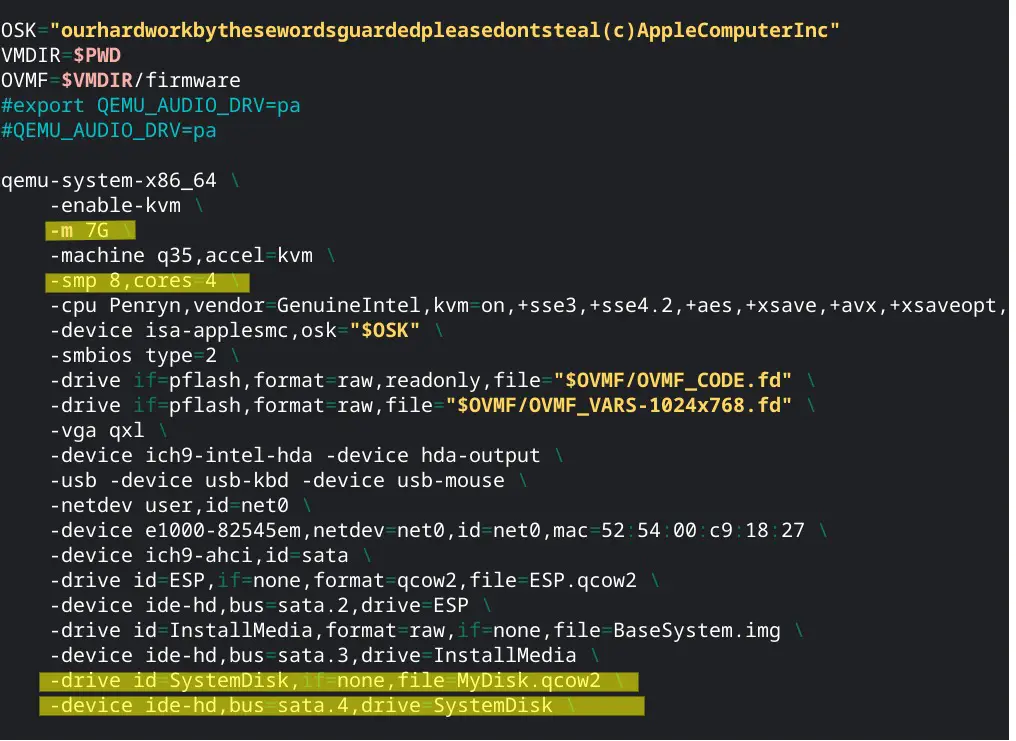
qemu-img create -f qcow2 MyDisk.qcow2 64GLast but not least, we need to use nano to edit the basic.sh script. There are two lines you need to add to the end of this file. They are both in the box below. If you changed the name of the hard disk you created, you will need to update it in the first line of code below.
-drive id=SystemDisk,if=none,file=MyDisk.qcow2 \
-device ide-hd,bus=sata.4,drive=SystemDisk \
By default, this machine uses 2GB of RAM, 2 CPU cores, and 4 CPU threads. While you have the basic.sh file open, you can tweak these settings if you like. I upped mine to 12GB of RAM and 4 CPU cores and I can say it made a noticeable difference in performance. Note, that you can only use whatever hardware is actually on your machine. If you have 8GB, changing this to 10GB will not benefit you. To change the RAM and CPU settings, adjust the code in the first two highlighted lines in the basic.sh file image you see below. Once you’ve made all of your changes, hit Ctrl+X and then Enter to save the file.
That’s it. Now you’re ready to fire up the macOS installer. Do this by running the basic.sh script that we just edited. Once the installer starts, you will see the familiar macOS installation screen. Run the command below to start the script.
/basic.shOnce the macOS installer launches, select “Boot macOS Install from macOS Base System” and hit enter. This will take you to the macOS utilities screen. Before you install macOS, you will need to erase and format the virtual hard disk you created. Do this by selecting Disk Utility and selecting your hard disk created in step four. Name your drive whatever you like and set it to Mac OS Extended(Journaled) and GUID Partition Map. Once the formatting is complete, you can return to the disk utilities screen and select “Reinstall macOS.” From there, select your newly formatted hard disk and wait for the installation process to complete. You will need to punch in your Apple ID and password when prompted.
Again, this isn’t a great macOS experience but it does work. You will notice that you have a double cursor when you are inside the macOS VM but once you adjust to that, the operating system actually scoots around fairly well. That’s about it for this science experiment. If you like tinkering and you want to turn your Chromebook into a Mac, go ahead and give it a try.
SUBSCRIBE TO UPSTREAM
Get Chrome Unboxed delivered straight to your inbox
Upstream is our flagship, curated newsletter with the top stories, most click-worthy deals, giveaways, and trending articles from Chrome Unboxed sent directly to your inbox a few times a week. Join 31,000+ subscribers.
Kudos to foxlet for creating this cool method for installing macOS on Linux.

