

Support our independent tech coverage. Chrome Unboxed is written by real people, for real people—not search algorithms. Join Chrome Unboxed Plus for just $2 a month to get an ad-free experience, access to our private Discord, and more. Learn more about membership here.
START FREE TRIAL (MONTHLY)START FREE TRIAL (ANNUAL)
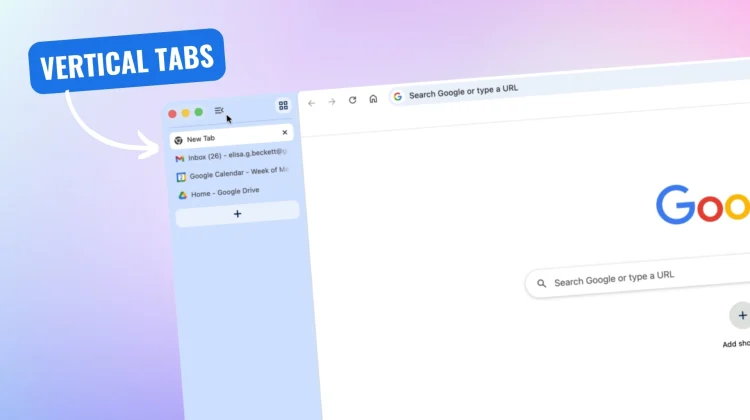
If you are a tab hoarder, you know the struggle: once you get past a dozen open tabs in Chrome, the top bar becomes an unreadable, squished mess of tiny icons. For years, users of other browsers have enjoyed the organizational bliss of vertical tabs, and we’ve been patiently waiting for Google to bring a native version of this layout to both Chrome and ChromeOS.
The wait is finally over. Well, at least for the most part. After the announcement earlier this week, many Chrome users have been eagerly waiting on this new feature to arrive on their devices. But with a few steps, regardless of your place in line for the rollout, the new Vertical Tabs feature is now functional in Chrome.
This change completely transforms how you navigate your workspace. By moving your tabs to the side, you immediately free up valuable vertical screen space – that is especially fantastic on 16:9 or 16:10 Chromebooks – without losing a single ounce of functionality. Here is how to turn it on right now if you’ve been waiting on it.
Enable the Flag
Because this feature may still be tucked away behind the scenes for many of you, you’ll need to flip a switch in Chrome’s experimental flags to get it running.
- Open a new tab and type
chrome://flags/#vertical-tabsinto the URL bar. - Find the highlighted flag and change the drop-down menu from “Default” to “Enabled”.
- Click the prompt at the bottom of your screen to restart Chrome.
Move tabs to the side
Once your browser reboots, the setup is incredibly simple.
- Right-click anywhere in the empty space of your top Chrome bar.
- Select the new “Move tabs to the side” option from the context menu.
Instantly, your tabs will shift to a sleek new panel on the left side of your screen. And the best part about this implementation is that it doesn’t feel like an incomplete experiment. Google has baked in all the core tab management features you already rely on, but in a much more digestible layout. Once enabled, the side panel gives you some serious flexibility:
- Fully resizable sidebar: You can drag the edge of the sidebar to make it as wide or as narrow as you need.
- Tab Search & Tab Groups: You can easily search through massive lists of tabs, and creating/managing colored Tab Groups works flawlessly in the vertical list.
- Minimize for focus: If you need absolute maximum screen space, you can minimize the sidebar entirely, reducing your open tabs to a neat, unobtrusive strip of website favicons.
It’s a pretty sweet upgrade that instantly makes Chrome feel cleaner and more modern. If you’ve been looking for a better way to manage your messy browsing sessions, you need to give this a try.
SUBSCRIBE TO UPSTREAM
Get Chrome Unboxed delivered straight to your inbox
Upstream is our flagship, curated newsletter with the top stories, most click-worthy deals, giveaways, and trending articles from Chrome Unboxed sent directly to your inbox a few times a week. Join 31,000+ subscribers.

