
• Skip to main content
  • Skip to primary sidebar
  • Deals
  • Features
  • Guides
  • Chromebooks
  • Videos
  • Podcast
  • More +
    • Reviews
    • Unboxing
    • Upcoming Devices
    • Chromebook Plus
    • Chrome
    • ChromeOS
    • Chrome OS Flex
  • Search
  • Sign Up
  • Log In
Chrome Unboxed – The Latest Chrome OS News

Chrome Unboxed - The Latest Chrome OS News

A Space for All Things Chrome, Google, and More!

  • Deals
  • Features
  • Guides
  • Chromebooks
  • Videos
  • Podcast
  • More +
    • Reviews
    • Unboxing
    • Upcoming Devices
    • Chromebook Plus
    • Chrome
    • ChromeOS
    • Chrome OS Flex
  • Search
  • Sign Up
  • Log In

How to use hanging indents in Google Docs to cite your sources

April 22, 2022 By Johanna Romero View Comments

Support our independent tech coverage. Chrome Unboxed is written by real people, for real people—not search algorithms. Join Chrome Unboxed Plus for just $2 a month to get an ad-free experience, access to our private Discord, and more. Learn more about membership here.
START FREE TRIAL (MONTHLY)START FREE TRIAL (ANNUAL)

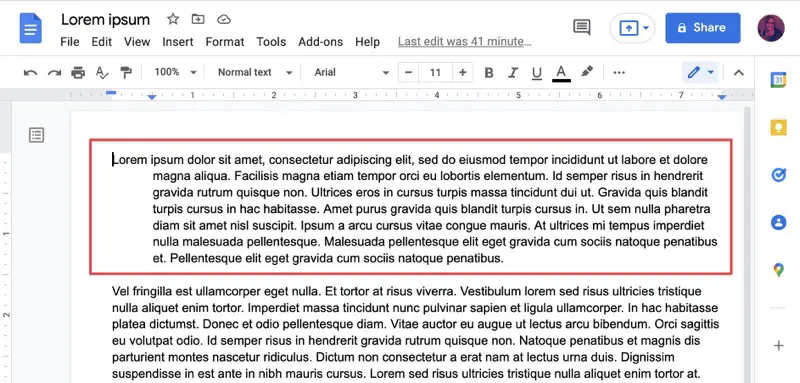
A Hanging indent, also known as a second line indent or reverse indent, is a style of paragraph indentation that has the first line flush with the left margin but indents all of the lines under it in a paragraph. It is commonly used in MLA, APA, and other citation styles and helps the reader easily scan a “works cited” or “bibliography” page for breaks and/or author names.

How do you create a hanging indent in Google Docs?

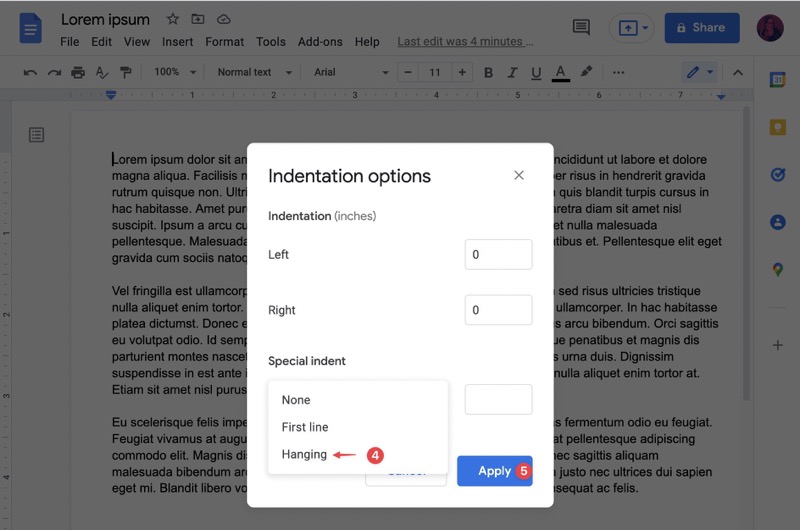
To apply a hanging indent in Google Docs, put your cursor in front of the line/paragraph you want to indent, then click on “Format” on the Docs menu. Next, click on “Align & Indent,” followed by the “Indentation options” sub-menu.

Xremove ads

A popup will come up with indentation options. Under “Special indent,” click on the drop-down and select “Hanging.” Finally, click on the blue “Apply” button to apply your changes.
I just want the steps!
    ​
  1. Put your cursor in the line/paragraph you want to indent.
  2. Go to Format > Align & Indent > Indentation options.
  3. Under “Special,” select “Hanging.”
  4. Click on the blue “Apply” button.

That’s it! Your selected paragraph now has a hanging indent, as shown in the image above. If you want to add a hanging indent on more than one paragraph, simply select all the paragraphs for which you want to add this style and repeat the same steps. Happy citing!

Featured Videos

Xremove ads

SUBSCRIBE TO UPSTREAM

Get Chrome Unboxed delivered straight to your inbox

Upstream is our flagship, curated newsletter with the top stories, most click-worthy deals, giveaways, and trending articles from Chrome Unboxed sent directly to your inbox a few times a week. Join 31,000+ subscribers.

SUBSCRIBE HERE!

Filed Under: Apps, Guides and How-To's, Workspace Tagged With: citation styles, google docs, hanging indent, paragraph indent

Primary Sidebar

Googlebook

Googlebook is designed for AI, but that’s not why I’m excited for it

By Robby Payne
September 3, 2026

Leaked Googlebook ‘Look up’ app appears on the Play Store ahead of launch

By Robby Payne
September 2, 2026

Acer teases its first Googlebook at IFA ahead of Google’s press event

By Robby Payne
September 2, 2026

Adobe just released a Premiere beta for Android, but Googlebook will need much more

By Joseph Humphrey
September 1, 2026

Lenovo’s ‘Pen Pro for Googlebook’ hits Bluetooth SIG with wireless charging and gestures

By Robby Payne
September 1, 2026

More Googlebook

Xremove ads

Deals

The best Chromebook deals today

By Robby Payne
September 2, 2026

The best Chromebook ever made is $350 off at Best Buy right now

By Robby Payne
August 21, 2026

The excellent, powerful Acer Chromebook Plus Spin 514 is $150 off right now

By Robby Payne
August 12, 2026

Acer’s new Chromebook 315 is wildly affordable and points to the real future of Chromebooks

By Robby Payne
August 11, 2026

You can score the massively upgraded ASUS CX54 Chromebook Plus for just $599 right now

By Joseph Humphrey
July 28, 2026

More Deals

Xremove ads

Reviews

Acer Chromebook Plus Spin 514 Review: the best convertible you can buy [VIDEO]

By Robby Payne
July 1, 2026

Lenovo Chromebook Plus 2-in-1 Review: pretty great in a vacuum

By Robby Payne
April 23, 2026

My review after 6 weeks with the Lenovo Chromebook Plus 14 [VIDEO]

By Robby Payne
August 11, 2025

One week with the best small Android tablet you can buy, and I’m sold

By Robby Payne
May 9, 2025

Best Chromebooks of 2024 [VIDEO]

By Robby Payne
November 28, 2024

More Reviews

Xremove ads

TWITTER · FACEBOOK · INSTAGRAM · YOUTUBE · EMAIL · ABOUT

Copyright © 2026 · Chrome Unboxed · Chrome is a registered trademark of Google Inc.
We are participants in various affiliate advertising programs designed to provide a means for us to earn fees by linking to affiliated sites.

PRIVACY POLICY